

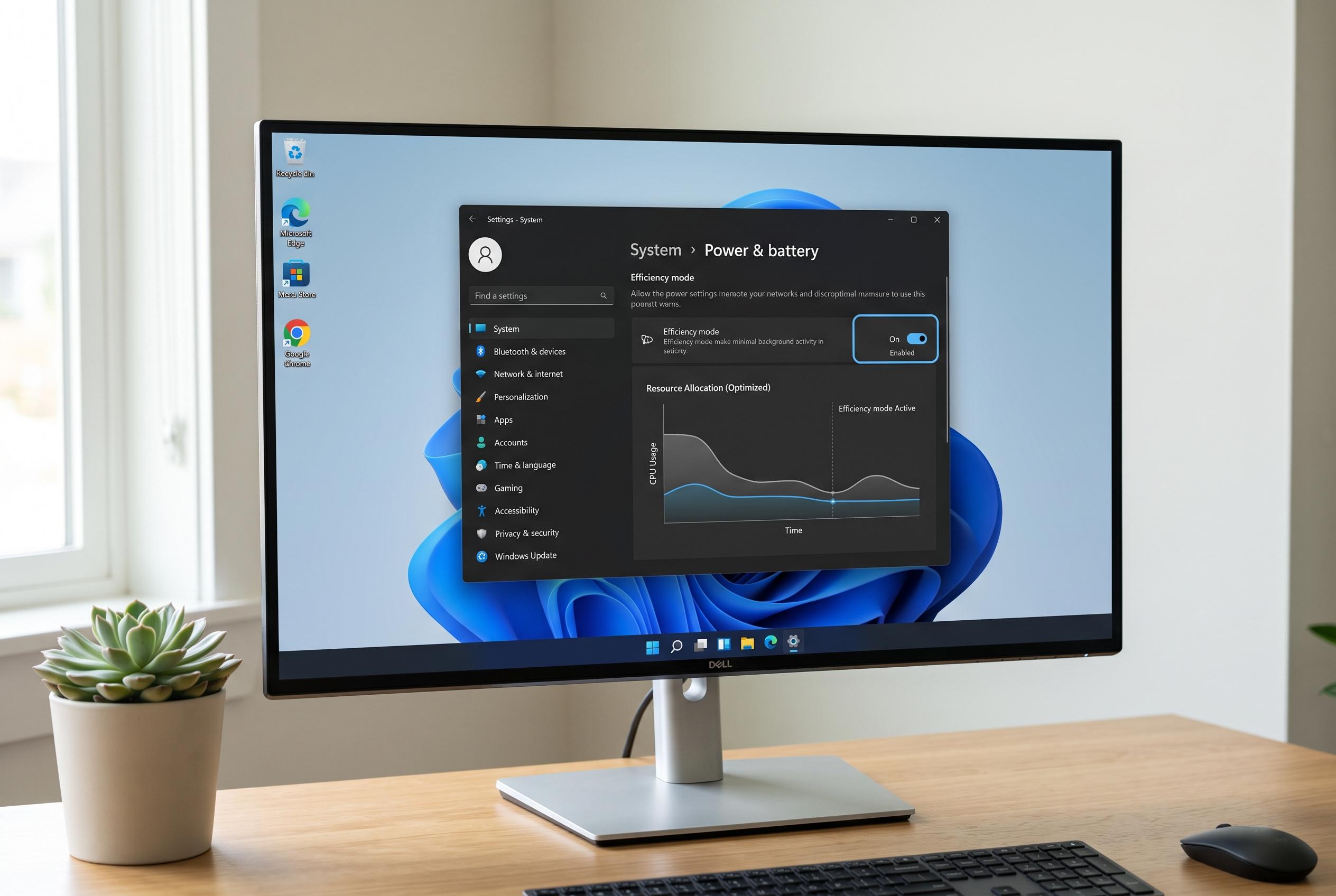

Microsoft’s latest feature, Efficiency mode, aims to improve PC responsiveness by managing resource allocation for background processes, offering a targeted tool to reduce strain and enhance performance on sluggish devices.
Windows 11 has a built-in setting called Efficiency mode that can make a sluggish PC feel more responsive when one background process is consuming too much CPU. The feature does not make the processor faster or add memory. Instead, it tells Windows to be less generous with that process, so foreground tasks can get a larger share of the system’s available resources.
According to the background guides from All Things How, Beebom, PCWorld and TechRepublic, Efficiency mode works by lowering a selected process’s priority and applying more conservative resource management. That can reduce strain on the CPU, trim heat and fan noise, and in some cases improve battery life. It is a targeted fix, not a system-wide performance upgrade, so the result depends on whether the chosen process is actually causing the slowdown.
Microsoft’s Task Manager makes the feature easy to use. Open Task Manager with Ctrl+Shift+Esc, go to the Processes tab, find a nonessential process that is using a lot of CPU or memory, then right-click it and choose Efficiency mode. When it is active, Task Manager shows a green double-leaf icon beside that process. The setting can be reversed the same way if the app becomes unstable or starts working poorly.
The best candidates are background jobs such as updaters, indexers and sync tools. Microsoft and the related explainers caution against applying it to browsers, games, video calls, media players or any app you are actively using. Those workloads may become less responsive, stutter or behave unpredictably if Windows deliberately gives them fewer resources.
The feature should be seen as one diagnostic tool, not a cure-all. If a PC remains slow after enabling Efficiency mode, the problem may lie elsewhere, such as low memory, a failing drive, malware, graphics limits or simply hardware that is too modest for the task. Windows also treats Efficiency mode separately from broader power settings such as Best power efficiency, Balanced and Best performance, so changing the system power plan will not replace identifying the specific process that is holding the machine back.
Disclaimer: This content is intended for informational purposes only. Readers are advised to exercise their own judgement, conduct due diligence, or consult a qualified expert before acting on any information provided.



