

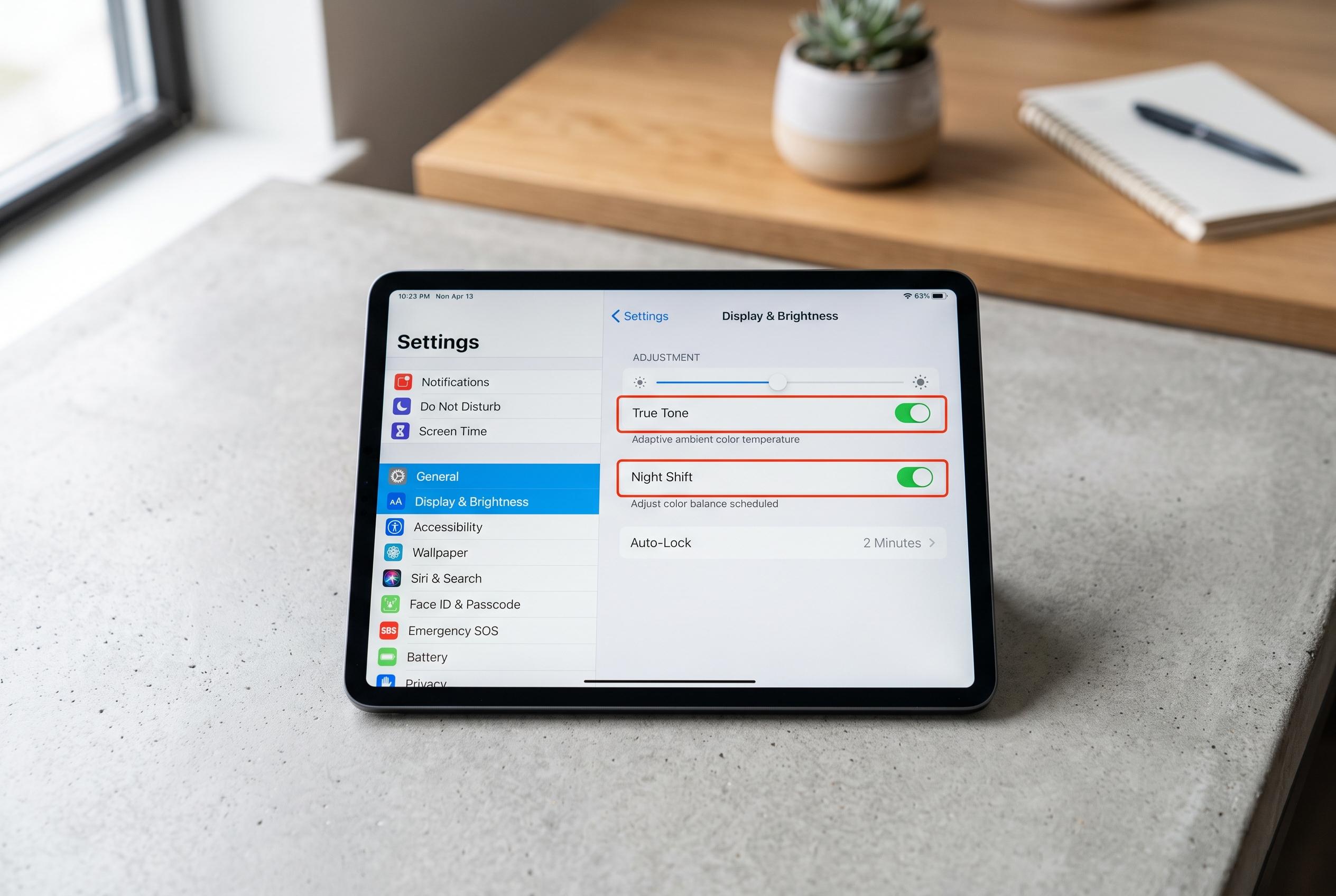

Adjusting three key settings on a 2018 iPad Pro significantly improves its responsiveness without the need for a reset or professional help, demonstrating how software optimisations can extend device lifespan.
Turning an ageing iPad into a more responsive machine does not require a factory reset or a trip to the Apple Store. In testing on a 2018 iPad Pro 12.9-inch, a combination of three settings changes made the device feel markedly quicker after updating to iPadOS 26.6, particularly when opening windows and moving apps into Split View. The improvement was not subtle: actions that had taken several seconds began to happen almost immediately.
The first change was to switch off Background App Refresh, a feature that lets apps check for new content when they are not open. Apple’s own support material explains that motion effects can be reduced through Accessibility settings, and similar guidance from third-party tutorials notes that background updating can add battery drain and unnecessary activity on older devices. On the iPad Pro in question, disabling this feature appeared to ease pressure on limited memory and reduce general sluggishness.
The second adjustment was to turn on Reduce Motion. Apple says the setting lowers the movement of onscreen elements, including transitions and effects. On older hardware, that matters more than it might on a newer model, because the graphics processor has less headroom to handle layered animations. In this case, it made the biggest difference: window maximisation fell from roughly 9 seconds to about 1 second, and moving an app into Split View dropped from 8 seconds to around 2 seconds.
The third change, Reduce Transparency, did not materially improve speed in the benchmarked tasks, but it made interface elements such as Control Centre and the keyboard easier to read by replacing blurred layers with more solid backgrounds. That lines up with Apple’s accessibility guidance, which presents the feature as a visual aid rather than a performance tool. The broader lesson is simple: software can outgrow older chips, but trimming visual effects and background activity can still restore a useful amount of responsiveness. If storage is also tight, freeing space may help further.
Disclaimer: This content is intended for informational purposes only. Readers are advised to exercise their own judgement, conduct due diligence, or consult a qualified expert before acting on any information provided.



