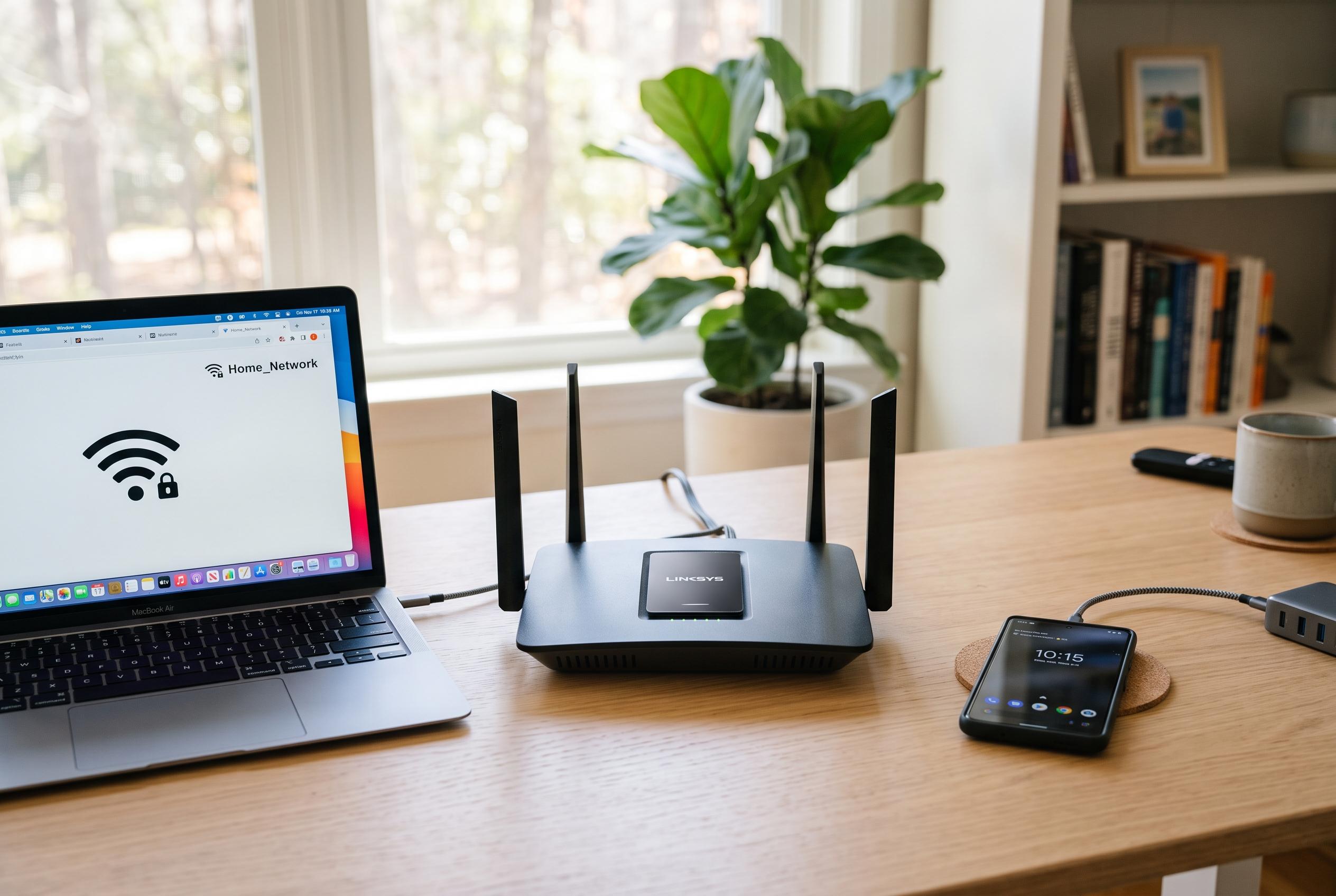

Learn how to access your home router’s settings panel, troubleshoot common issues, and make essential security updates to ensure a safer and more reliable internet connection.
Accessing a router’s settings panel is usually less technical than it sounds, and for many homes the route in is the private address 192.168.1.1. From there, users can change the WiFi password, check which devices are connected, set up a guest network and fix minor connectivity issues without calling their provider. The key requirements are simple: be connected to the router, know its gateway address and have the administrator credentials to hand.
In practice, the process is the same on a computer, phone or tablet. The safest first step is to find the sticker on the router, which often lists the WiFi details and the login information for the admin panel. If the device is connected by Ethernet, that can be preferable when changing wireless settings, because the connection will not drop when the WiFi name or password is updated.
If 192.168.1.1 does not open the login page, the router may use a different gateway, with 192.168.0.1 also common on many models. Troubleshooting guides recommend checking the default gateway on Windows 11 through the command prompt or terminal with “ipconfig”, or on Android through the network details screen. A browser warning about an insecure connection can also appear, usually because the local router interface does not use a public HTTPS certificate.
Once inside, the most useful changes are usually the most basic. That means updating the WiFi name and password, confirming that the network is using WPA2 or WPA3 where available, checking which devices are connected and enabling a guest network for visitors. The router’s app can also handle some of these tasks without opening the browser interface, depending on the operator.
The caution is to leave advanced settings alone unless there is a clear reason to change them. Network items such as WAN, VLAN, NAT, DHCP, MTU and DMZ can affect how the internet connection works, and a wrong adjustment may cause outages. If a user needs to experiment, saving the original values first is the simplest way to avoid a longer repair later.
According to the material from La Razón, provider-specific routers do not share one universal password format. Movistar, O2, Vodafone, Orange, Yoigo and DIGI may use different logins, different gateway addresses or both, and the details can vary by model. The safest rule is to trust the sticker on the router rather than guessing default combinations.
Disclaimer: This content is intended for informational purposes only. Readers are advised to exercise their own judgement, conduct due diligence, or consult a qualified expert before acting on any information provided.