

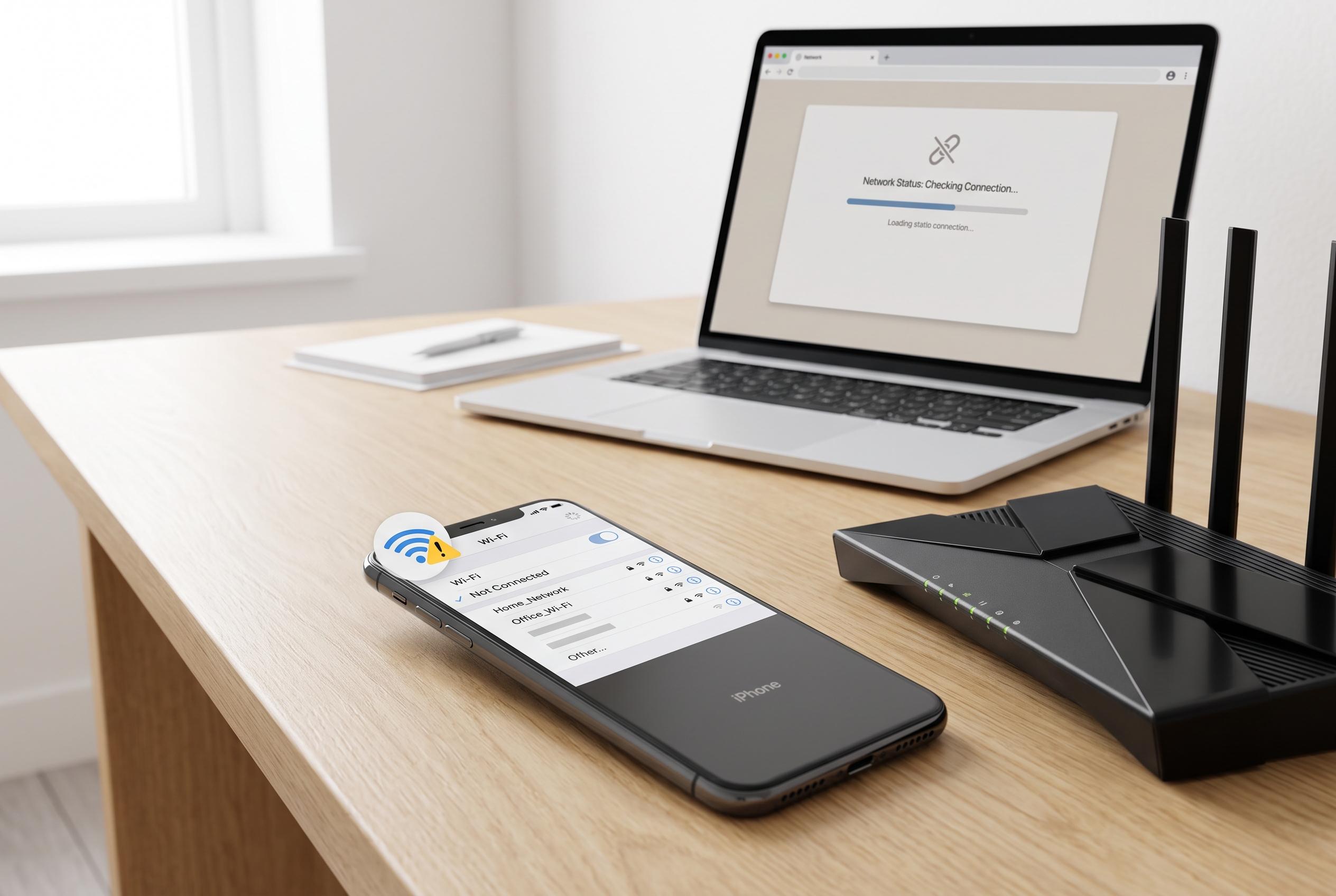

Discover practical steps to diagnose and resolve iPhone Wi-Fi problems, from network tests to device resets, ensuring reliable internet access.
An iPhone can still show a Wi-Fi signal even when the network is not carrying usable internet traffic, so the first task is to separate a phone fault from a router, modem or wider service problem. Apple’s support guidance is to test the same connection on another device first, because that quickly shows whether the outage is confined to the iPhone or affects the whole network. If a laptop or another phone also fails, the issue is far more likely to sit with the router, the modem or the internet service provider.
If other devices are online, the problem is probably local to the handset. Apple and several troubleshooting guides recommend checking whether Safari can load pages while a single app fails, because one broken app points to the app itself or its service rather than to Wi-Fi. A simple Wi-Fi toggle, a restart of the iPhone, or updating iOS may clear temporary network faults before any deeper changes are made.
The next useful step is to forget the network and join it again. That refreshes the saved connection profile and can resolve a stale password, lease or configuration problem. If the phone connects successfully on a second Wi-Fi network, such as a trusted hotspot or another home connection, that strongly suggests the issue lies with the home router’s settings, DNS handling, DHCP lease or network access rules rather than with the iPhone’s hardware.
Virtual private networks and filtering software can also interrupt traffic after the Wi-Fi link itself has been established. Apple advises checking VPN and security software, and some guides note that private relay or similar privacy features may also affect access on certain networks. Those settings should be tested one at a time, with the original configuration recorded so it can be restored afterwards, especially on work or school networks where managed profiles may be in place.
If the connection details on the iPhone show no valid IP address, the device may not have received a proper lease from the router. An address beginning with 169.254 usually indicates that the router did not hand out a usable one. In that case, it is worth checking the router’s client list, blocked-device list and internet light before changing settings on the phone. Network reset should remain a last resort, as it removes saved Wi-Fi passwords and VPN settings and forces the user to rebuild the connection from scratch.
Disclaimer: This content is intended for informational purposes only. Readers are advised to exercise their own judgement, conduct due diligence, or consult a qualified expert before acting on any information provided.



