

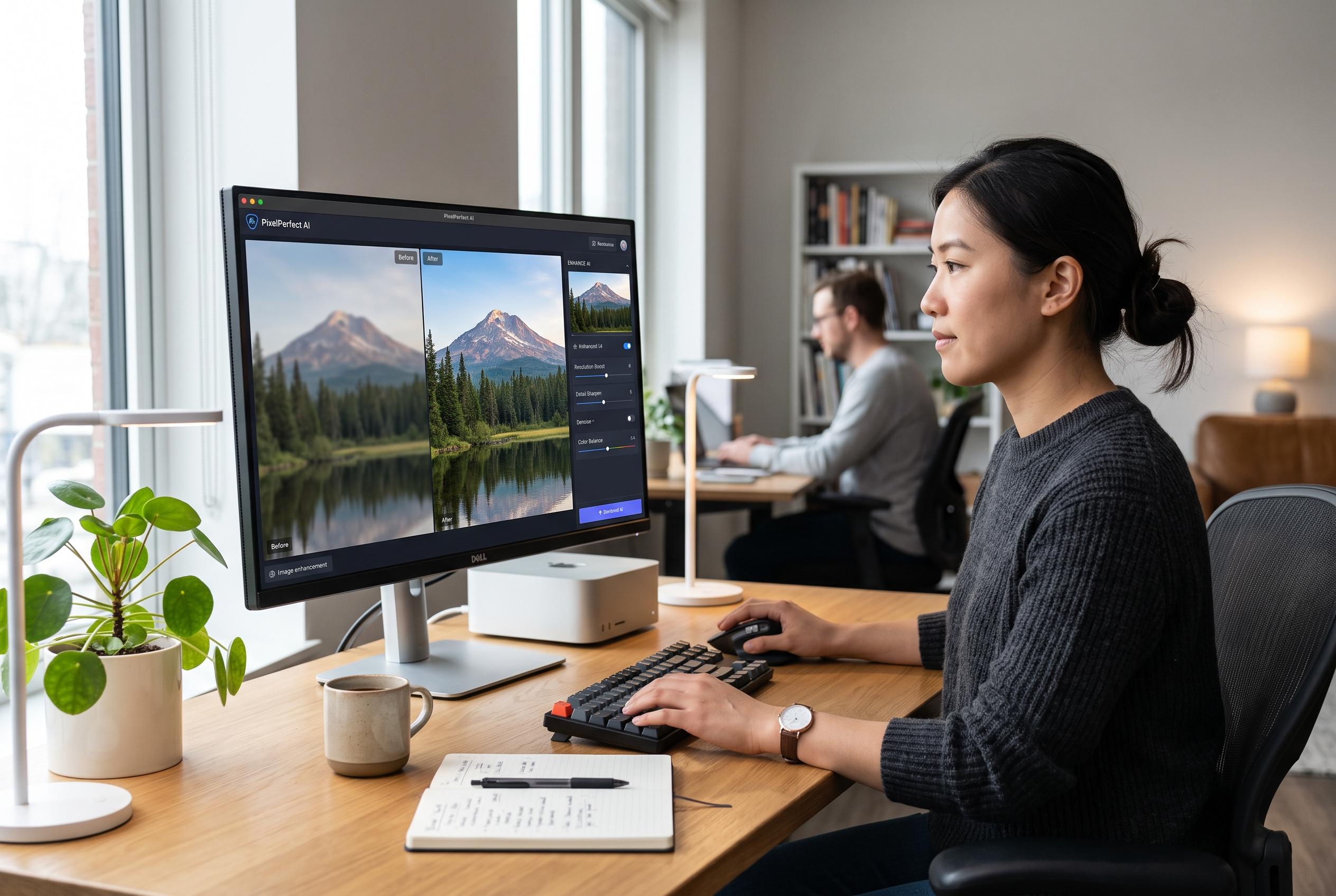

A comprehensive new guide reveals how designers can select the most effective AI enhancement tools tailored to specific image issues, from free browser options to high-end desktop solutions, transforming professional workflows in the age of AI.
Designers rarely need a single perfect enhancer; they need the right one for the job. A new guide from DesignFreeLogoOnline argues that the market has matured enough that several AI image enhancers are now genuinely useful in professional workflows, especially when the problem is a soft client image, a compressed product shot, or an AI-generated asset that loses integrity when enlarged. The guide separates the tools by use case rather than by raw feature count, which is the more practical way to assess them. It places PhotoSharpener at the top for free browser-based sharpening and upscaling, Topaz Gigapixel AI for maximum desktop quality, Adobe’s AI tools for users already inside Creative Cloud, Magnific AI for generative artwork, Let’s Enhance for automated batch work, and Remini for mobile portrait repair.
The guide’s core point is that not all enhancement problems are the same. Blur, low resolution, compression artefacts, face degradation and synthetic texture each need slightly different treatment. That distinction matters because some tools only sharpen edges, which can make files look harsher rather than better, while stronger AI models attempt to reconstruct plausible detail. For design work, the guide says the best tools combine upscaling, denoising and detail recovery without producing obvious halos or plastic-looking surfaces.
PhotoSharpener is presented as the best free all-round option because it runs in the browser, needs no installation and uses a Real-ESRGAN-based model rather than simple sharpening. The guide says it can upscale by up to four times, remove JPEG noise and compression artefacts, and optionally restore faces with GFPGAN. Its appeal is speed and convenience: users upload a file, wait briefly for cloud processing and download the result with a before-and-after comparison. The trade-off is that the free tier is limited to one image at a time and the tool does not try to do broader editing tasks such as background removal or colour work.
Topaz Gigapixel AI remains the benchmark for users who want the highest possible enlargement quality on a desktop machine. Multiple recent reviews, including those from Aiarty, AVCLabs, VideoProc and Digital Camera World, describe it as a strong choice for low-resolution photos, old-image restoration and print upscaling, with enlargement capabilities reaching up to six times in standard use. The same reviews also note the costs: it is hardware-dependent, can be slow on older systems and is no longer the cheap one-off purchase many users remember. One review cited a move towards subscription pricing, which reinforces the guide’s point that Topaz is best reserved for users who need that level of fidelity regularly.
Adobe’s own enhancement tools are the natural choice for designers already working in Lightroom, Photoshop or Adobe Express. The guide notes that Lightroom’s Enhance feature is useful for raw files, while Photoshop’s neural tools and Generative Fill can cover sharpening, noise reduction and content-aware repair. The advantage is workflow continuity: users stay inside the software they already use, rather than exporting files into a separate tool. The drawback is that performance on heavily degraded images is less consistent than with dedicated enhancers, and generative functions depend on Adobe’s credit system.
For AI-generated art, the guide argues that Magnific AI is more suitable because it does not simply try to preserve the original pixels. Instead, it adds believable texture and surface variation, which can be helpful when the source is an illustration, a stylised scene or a diffusion-model output that looks too smooth at larger sizes. That same generative behaviour is also a limitation, because it can invent detail that matters in product or documentary photography. For teams that need automation, the guide says Let’s Enhance is stronger, largely because of its API and batch-processing options. Remini, by contrast, is framed as a mobile-first portrait tool for quick face recovery and old-photo cleanup rather than general production work.
The guide finishes with a practical warning about logos and other brand assets. AI upscaling can salvage a weak raster file, but it is no substitute for a proper vector original when the output must scale cleanly across signage, print and large-format use. Its overall recommendation is straightforward: use PhotoSharpener for most day-to-day fixes, keep Topaz Gigapixel AI for maximum-quality photography work, choose Magnific AI for AI art, use Let’s Enhance when automation matters, and rely on Adobe’s built-in tools if you are already paying for Creative Cloud.
Disclaimer: This content is intended for informational purposes only. Readers are advised to exercise their own judgement, conduct due diligence, or consult a qualified expert before acting on any information provided.



