

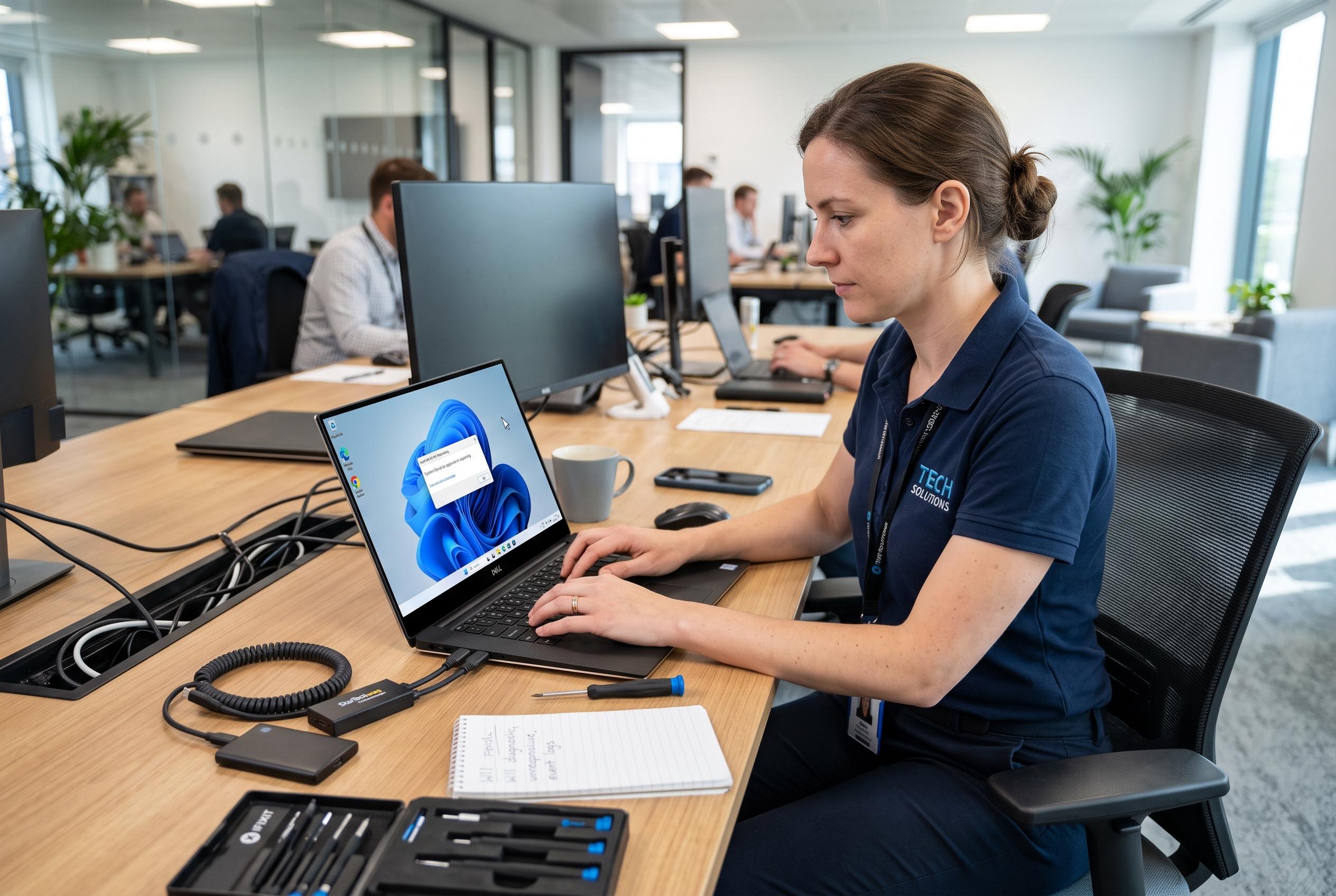

Learn practical steps to diagnose and resolve Windows 11 freezing issues, from app blocks to hardware faults, ensuring system stability and data security.
Windows 11 can appear to stall for many reasons, and a full hardware fault is not the default explanation. A single app may be blocked by a large file or background task, or the whole system may be slowed by high memory use, storage pressure, old drivers, corrupted system files or a conflict introduced by recently installed software. Microsoft Support notes that on Surface devices, a force shutdown can sometimes clear a temporary freeze, but that should sit alongside a broader set of checks rather than replace them.
The first task is to work out whether the problem is confined to one programme or affecting the operating system more widely. Pureinfotech says an unresponsive app can often be closed with Alt + F4, Task Manager, or the End task command, while Microsoft and other troubleshooting guides also point out that restarting Windows Explorer can recover a frozen desktop or File Explorer window without closing the entire session. If the machine still reacts, a normal restart is preferable to holding down the power button.
If freezing returns, the next step is to look for the process or device driver creating pressure. Task Manager can reveal whether CPU, memory or disk activity is being monopolised by one app, while Microsoft and third-party guides recommend checking for Windows updates, driver updates and, on Surface machines, firmware through the Surface app. Graphics, storage and chipset drivers are particularly important because faults there can destabilise the whole system. If the problem started after an update, rolling back the recent change may be more useful than repeating it.
System repair tools are the next layer. Windows includes System File Checker, which scans protected files and replaces damaged copies, and Microsoft Answers also recommends DISM when system corruption is more serious. At the same time, clearing temporary files, reviewing storage headroom and removing unnecessary startup programmes can make a measurable difference. A nearly full system drive or a machine that loads too many utilities at boot can make Windows feel frozen even when it is technically still running.
If the cause remains unclear, a clean boot or Safe Mode test can help separate Windows itself from third-party software. In Safe Mode, only a limited set of drivers and services load, so a system that behaves normally there but locks up during a standard session is pointing towards a driver, utility or startup service rather than core Windows components. Microsoft and other support guides also suggest restarting Windows Explorer, rebuilding the search index where relevant, and checking for cache or history issues in File Explorer when the freeze is localised to that part of the interface.
If none of those steps resolves the issue, the possibility of faulty RAM, a failing SSD, overheating or a damaged Windows installation becomes more realistic. That is the point at which back-ups matter. Frequent freezes are not just an inconvenience; they are a warning sign that data may be at risk and that a deeper diagnostic, repair or reset may be needed. The practical approach is to isolate the pattern first, then escalate carefully rather than relying on repeated forced shutdowns.
Disclaimer: This content is intended for informational purposes only. Readers are advised to exercise their own judgement, conduct due diligence, or consult a qualified expert before acting on any information provided.



