

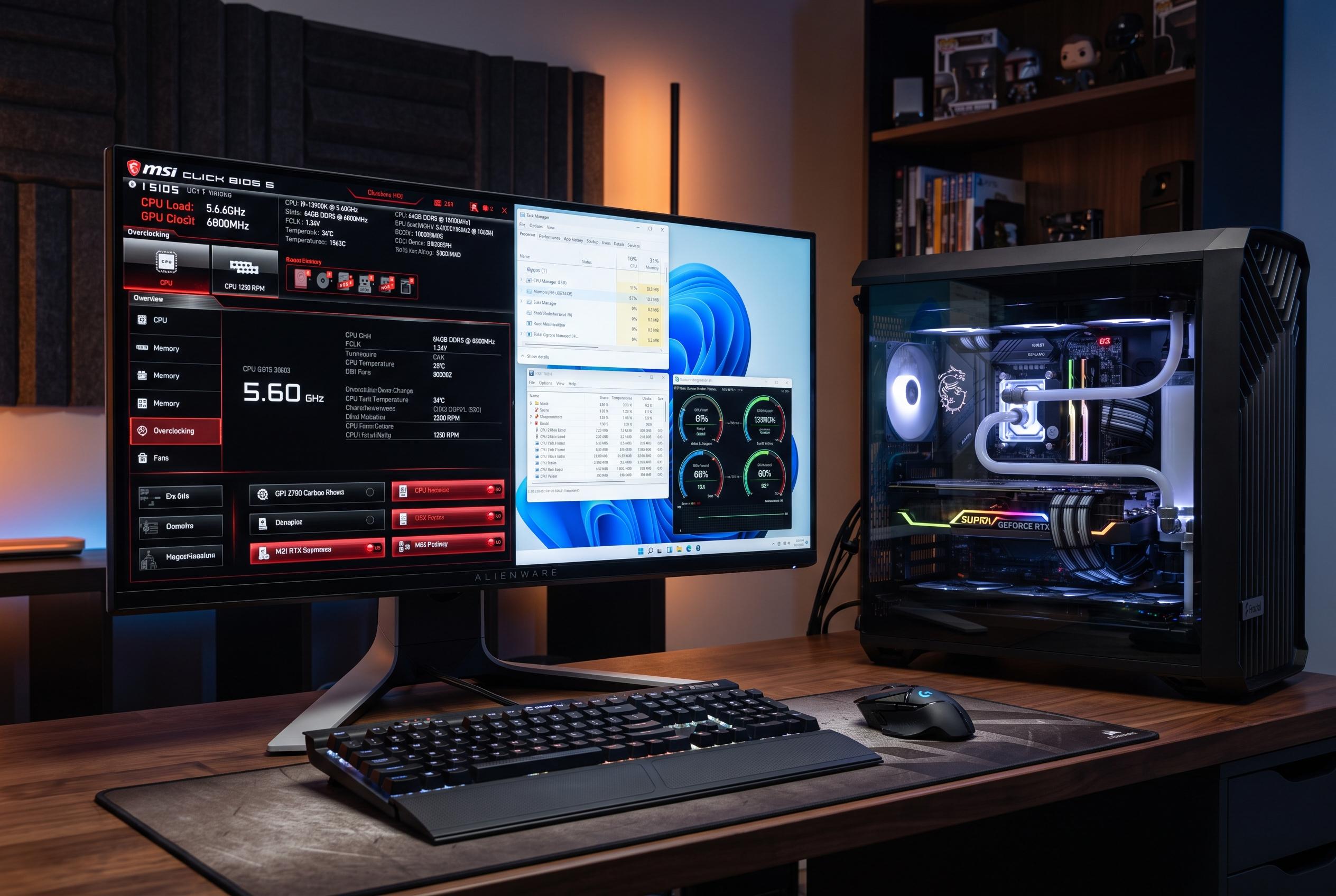

A few essential adjustments in BIOS and Windows can significantly enhance gaming responsiveness, frame pacing, and overall system feel, transforming a basic build into a high-performing gaming machine.
Before launching a game on a new PC, it is worth checking a handful of low-level settings that can affect frame pacing, input delay and general responsiveness. Many systems ship with conservative defaults, and in a gaming context those defaults can leave performance on the table. The most useful adjustments sit in two places: Windows itself and the BIOS. MakeUseOf argues that a few minutes spent there can help a machine perform more in line with its hardware.
One of the first options to examine is Hardware-Accelerated GPU Scheduling, a Windows feature that shifts more of the graphics scheduling burden from the processor to the graphics card. In practice, that can reduce overhead and improve latency, although the size of the gain depends on the GPU, drivers and the game. Independent explainers from PCWorld and other technical guides say the average frame-rate change is often small, but smoother frame delivery can still matter in competitive play. It is also required for some modern graphics features, including Nvidia frame generation on recent RTX cards.
Another setting that can be worth enabling is Resizable BAR, which changes how the CPU accesses VRAM. TechRadar explains that older systems typically allow the processor to work with graphics memory in 256MB chunks, which can create an unnecessary bottleneck. With Resizable BAR enabled, the CPU can address a much larger portion of VRAM at once, improving data flow between the processor and GPU. That does not guarantee a dramatic uplift in every title, but games that move large textures and assets can benefit, particularly when the system is already using fast memory and storage.
Memory speed is another common blind spot. Many PCs do not automatically run RAM at the rate printed on the box, because the default JEDEC profile is usually slower than the advertised kit speed. Enabling EXPO on AMD platforms or XMP on Intel systems loads the manufacturer-tested profile in the BIOS and allows the memory to run at its intended performance level. That is one of the simplest gains available on a new build, and it can improve game loading behaviour and general system responsiveness without the need for manual tuning.
Windows power settings can also undermine performance if left untouched. MakeUseOf recommends disabling PCI Express Link State Power Management, which can introduce wake-up delays when the graphics card or SSD returns from a low-power state. For gamers using a desktop rig, the power saved is usually negligible compared with the potential for stutter or frame-time inconsistency. Likewise, disabling Energy Efficient Ethernet on a wired connection can help avoid latency spikes in online games, where a few milliseconds can make a noticeable difference.
Taken together, these changes are not exotic overclocks or risky hacks. They are basic setup steps that help a gaming PC use the hardware it already has. The BIOS changes, especially EXPO or XMP and Resizable BAR, are usually the best place to start, followed by the Windows features that influence graphics scheduling, power management and network stability. For a fresh build, that sequence can be the difference between a system that merely works and one that feels properly tuned.
Disclaimer: This content is intended for informational purposes only. Readers are advised to exercise their own judgement, conduct due diligence, or consult a qualified expert before acting on any information provided.



