

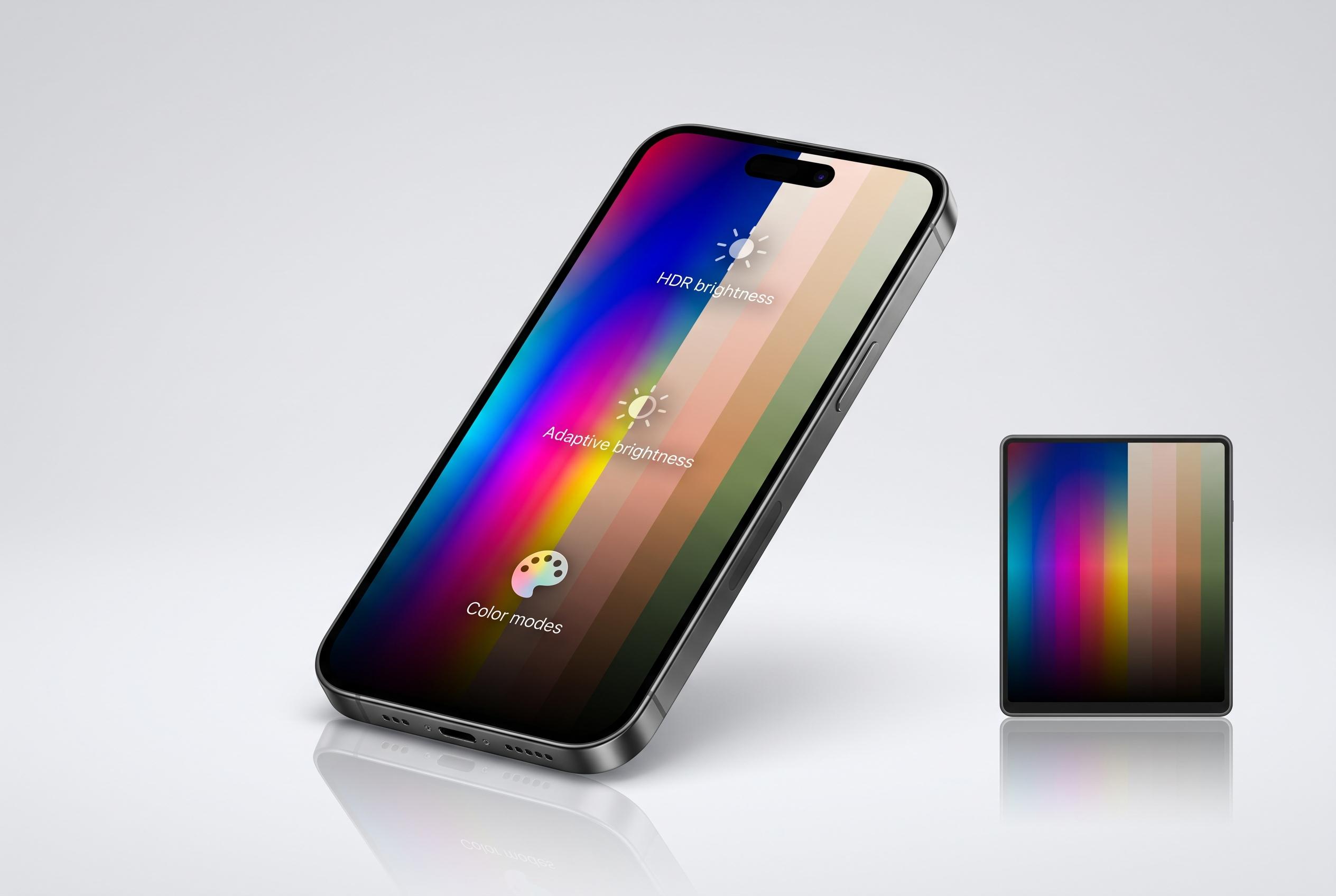

Google Pixel phones offer a range of adjustable display settings, allowing users to optimise HDR brightness, adaptive brightness, and colour modes for better visual performance, readability, and battery life.
Google Pixel phones are built around high-quality OLED displays, but the factory settings are aimed at broad, everyday use rather than maximum visual performance. In practice, that means the screen can often be tuned to deliver richer HDR playback, more accurate colour, improved readability and, in some cases, better battery behaviour. Google’s own support guidance confirms that key display options are available in the Display settings menu, where brightness, adaptive brightness and colour profiles can be adjusted to suit the user and the environment.
One useful adjustment is HDR brightness. When enabled, the phone raises the luminance of bright areas in compatible Ultra HDR photos and HDR video, helping highlights appear as intended without flattening the rest of the interface. Google’s support material explains that this can be managed from the brightness section of Display settings. The trade-off is that peak brightness will draw more power while HDR content is playing, particularly in outdoor conditions.
Adaptive Brightness is another setting worth revisiting if the screen feels too dim or too aggressive at night. Google says the function learns from manual changes and uses them to refine future adjustments, so users can teach the system their preferred level in specific lighting conditions. If the behaviour becomes unreliable, the stored learning data can be cleared through the Device Health Services app, which resets the adaptive model. Reports from the Pixel community suggest that HDR brightness changes can sometimes feel abrupt in certain apps, so it is sensible to review related display features together rather than in isolation.
Colour mode also makes a major difference. Google Pixel devices typically offer an adaptive profile for a more vivid presentation and a natural profile for stricter colour accuracy, with the latter better suited to photo editing and content work that depends on faithful reproduction. Reviews of earlier Pixel models have shown that adaptive modes can increase saturation, particularly in greens and reds, while natural profiles track standard colour spaces more closely. For users who want clearer text without changing font size, the contrast controls can further separate interface elements from the background, which is especially useful in bright daylight.
Taken together, these settings turn the Pixel display from a competent default panel into something more tailored to the user’s habits. Google’s newer comfort-oriented display options, including warmer colour filters on supported software builds, underline the same point: modern phone screens are no longer fixed hardware choices, but software-driven systems that can be shaped for accuracy, comfort or impact depending on the task. On a Pixel, the best result usually comes from balancing those goals rather than pushing every control to its maximum.
Disclaimer: This content is intended for informational purposes only. Readers are advised to exercise their own judgement, conduct due diligence, or consult a qualified expert before acting on any information provided.



