

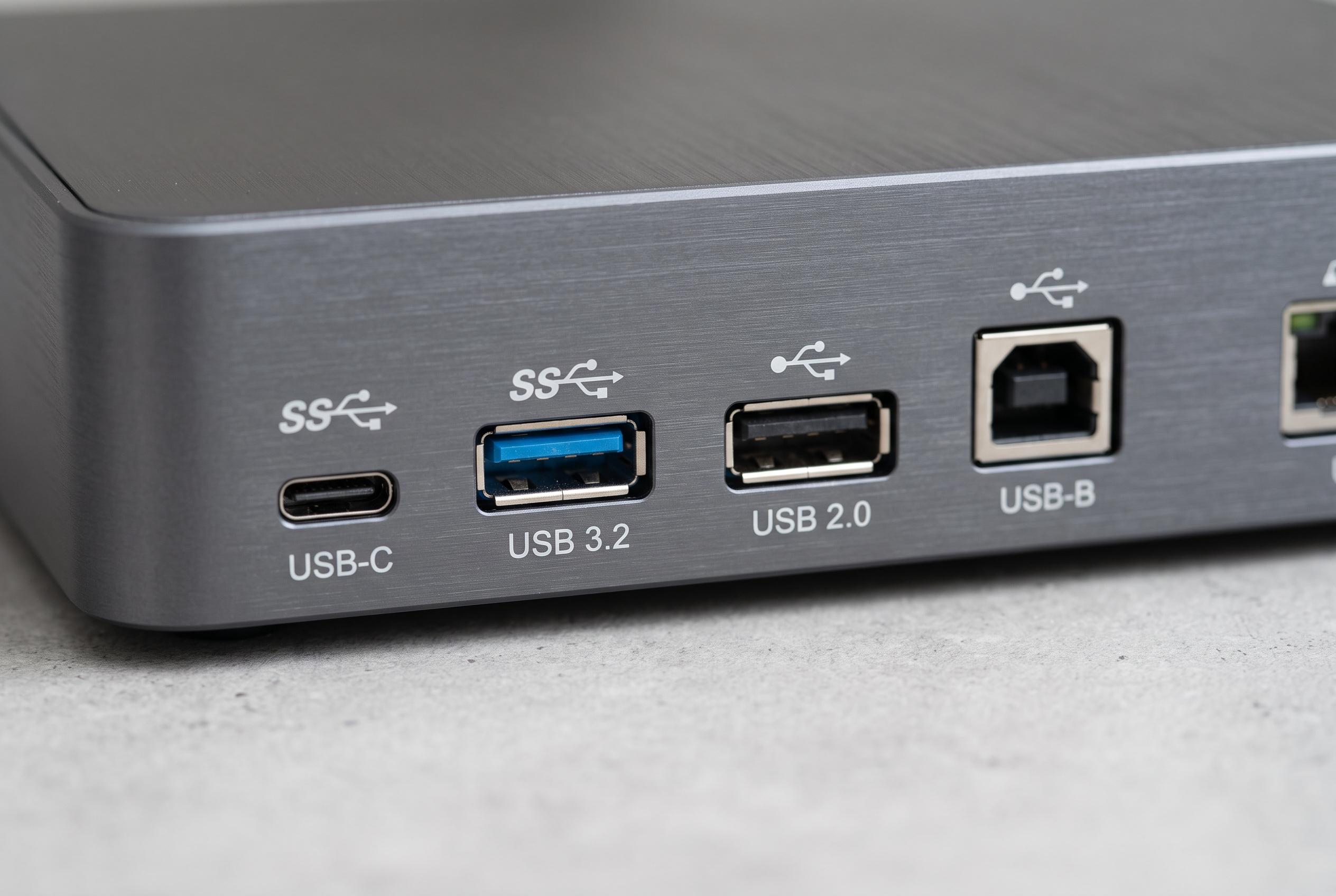

An expert guide to understanding the small symbols beside USB ports, revealing their true capabilities and helping buyers choose the right connection for their needs.
The small trident-like mark beside a USB port is easy to overlook, but it still gives a useful clue about what the connection can do. In practice, the symbol usually points to a standard USB port for basic data and power, while nearby labels and markings reveal whether the port supports faster transfers, higher charging output or video output. As USB has evolved through multiple generations, those identifiers have become more important for telling one port from another.
According to guides from BGR and other hardware explainers, the plain trident symbol generally indicates a conventional USB connection, often associated with USB 2.0 class functionality. That matters because not every USB port is built for the same job. Older ports may be perfectly adequate for a keyboard, mouse or printer, but they are less suitable for high-speed storage devices, docks or peripherals that need more bandwidth.
Additional markings can narrow things down further. The letters “SS” usually mean SuperSpeed, which signals a USB 3.x-class port and faster data rates than basic USB 2.0. Some manufacturers also print speed figures such as 5Gbps or 10Gbps, while battery icons can indicate charging features or power-delivery support. In some cases, a DisplayPort symbol may appear alongside USB-C ports to show that they can also carry video to an external screen.
Dell’s support material notes that the connector shape matters too. USB Type-A is the familiar rectangular plug found on many PCs and accessories, while USB Type-B is typically used on printers and similar hardware. USB Type-C is the newer reversible oval connector, but its capabilities still vary by device. A USB-C socket may support charging, fast data or display output, but only if the underlying hardware and firmware are designed for it.
For buyers, the practical lesson is straightforward: do not rely on the shape alone. The icon, the colour, the speed label and the device specification all help explain what a port can actually do. Checking those details before buying a laptop, cable or dock can prevent disappointment and avoid paying for performance a port cannot deliver.
Disclaimer: This content is intended for informational purposes only. Readers are advised to exercise their own judgement, conduct due diligence, or consult a qualified expert before acting on any information provided.



