

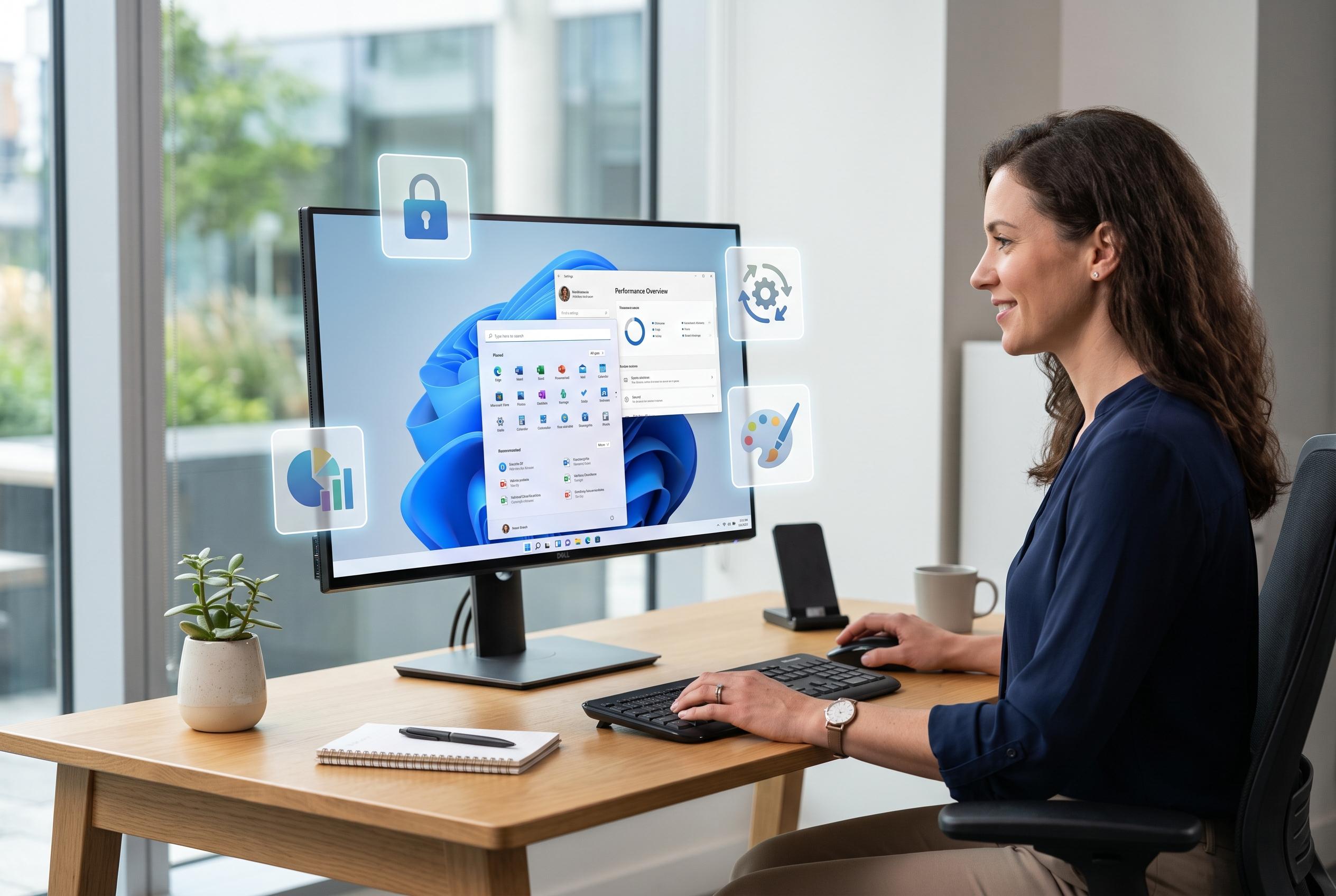

As Windows 11 overlooks several essential tools, a wave of free utilities emerges, offering users more polish and flexibility for tasks like password management, file conversion, storage analysis, and desktop customisation.
Windows 11 remains short of several basic tools that many users would expect to find built in, from password management to fast file conversion and desktop widgets. That gap has created room for a small class of free utilities that do jobs Microsoft has not fully addressed, often with more polish and flexibility than the operating system itself offers.
One of the clearest omissions is a proper password manager. Windows does include Credential Manager, but KeePassXC is a far more capable alternative, storing credentials in an encrypted local database and offering browser-based autofill through an extension. According to the KeePassXC project, it is open-source, cross-platform and has also received a Security Visa from France’s national cybersecurity agency, ANSSI. For people who prefer cloud sync across devices, Bitwarden remains another strong option.
Storage analysis is another area where Windows still leans too heavily on generic maintenance tools. Storage Sense and Disk Cleanup can help clear space, but they do not do much to explain where capacity has gone. WizTree fills that gap by scanning a drive quickly and presenting the results as a treemap, making it easier to identify the largest files and folders. The software says it reads the NTFS Master File Table directly, which is how it can complete scans so quickly on large drives.
Desktop widgets are similarly underwhelming in Windows 11. The built-in widget panel exists, but it is separated from the main workspace and often crowded with news content many people do not want. Rainmeter offers a more practical alternative by placing customisable widgets directly on the desktop. Its community has produced thousands of skins, allowing users to add system monitoring, clocks, weather and media controls without being locked into Microsoft’s design.
Twinkle Tray addresses another long-standing irritation for anyone using external monitors: brightness control. Windows does not provide a straightforward native way to adjust the brightness of many external displays, forcing users to rely on physical buttons. Twinkle Tray puts brightness, contrast and even volume controls in the system tray, with support for keyboard shortcuts and timed changes, which makes it especially useful in multi-monitor setups.
File conversion is another everyday task that still feels more awkward on Windows than it should. File Converter integrates into the context menu, so users can right-click a file and convert it to another format without opening a separate application. According to its project site, it supports a wide range of audio, video, image and document formats, which makes it useful for common jobs such as turning a Word document into a PDF or changing an image file type.
QuickLook, meanwhile, brings one of macOS’s most practical ideas to Windows: instant file previews with the spacebar. Instead of opening a document, video or image in its default app, users can inspect it immediately. Microsoft has moved in a similar direction through PowerToys’ Peek feature, but that still has to be installed separately. For users who want that behaviour all the time, QuickLook remains the more direct fix.
Disclaimer: This content is intended for informational purposes only. Readers are advised to exercise their own judgement, conduct due diligence, or consult a qualified expert before acting on any information provided.



