

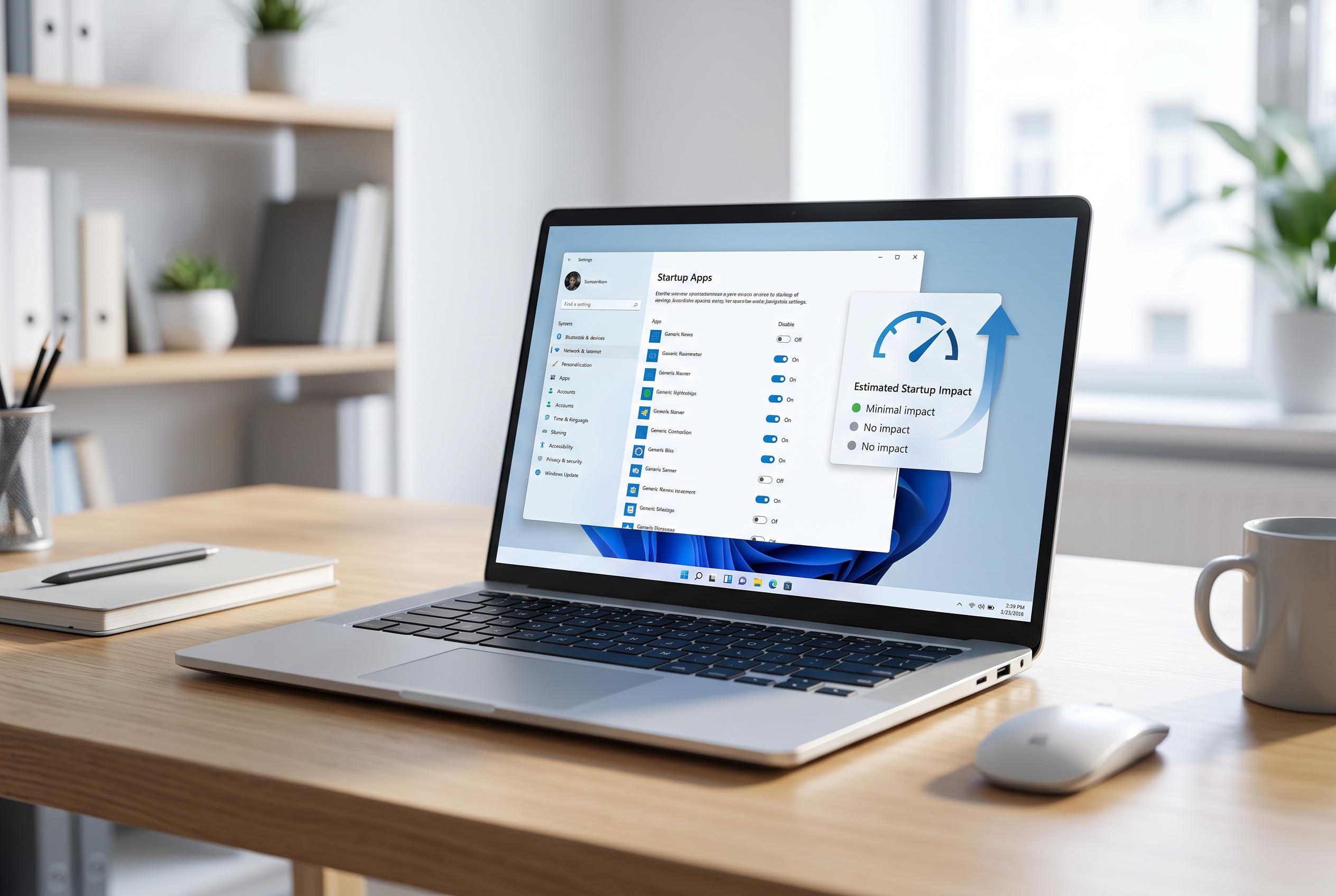

Managing startup applications in Windows 11 can significantly enhance boot speed, battery life, and overall responsiveness. Experts recommend targeted control of auto-launching apps through Task Manager and the Startup folder to streamline the login process.
Managing Windows 11 startup apps can make a noticeable difference to boot speed, battery life and day-to-day responsiveness. Microsoft’s support guidance says the operating system lets users control what launches automatically through Settings, Task Manager and the Startup folder, giving more than one way to reduce unnecessary load at sign-in.
The most useful place to start is Task Manager, which opens directly with Ctrl+Shift+Esc. Microsoft says the Startup apps tab shows each programme’s estimated impact on launch performance, with labels such as Low, Medium and High based on processor and disk activity. That makes it easier to spot software that is slowing the machine before the desktop fully settles.
For users who want finer control, Windows also allows shortcuts to be placed in the Startup folder so selected apps open automatically for the current account or for all users on the device. Windows Central notes that this is a practical way to automate trusted tools, but it also warns that overloading startup with too many applications can prolong login times and make the system feel heavier.
The wider advice is to disable only the programmes that are genuinely unnecessary. Security and monitoring tools may deserve a case-by-case review, since removing them from startup does not uninstall them and the change can usually be reversed. Other guides on Windows 11 also point to related measures, such as Fast Startup and broader boot-time troubleshooting, for systems that remain slow even after startup apps have been trimmed.
Disclaimer: This content is intended for informational purposes only. Readers are advised to exercise their own judgement, conduct due diligence, or consult a qualified expert before acting on any information provided.



