

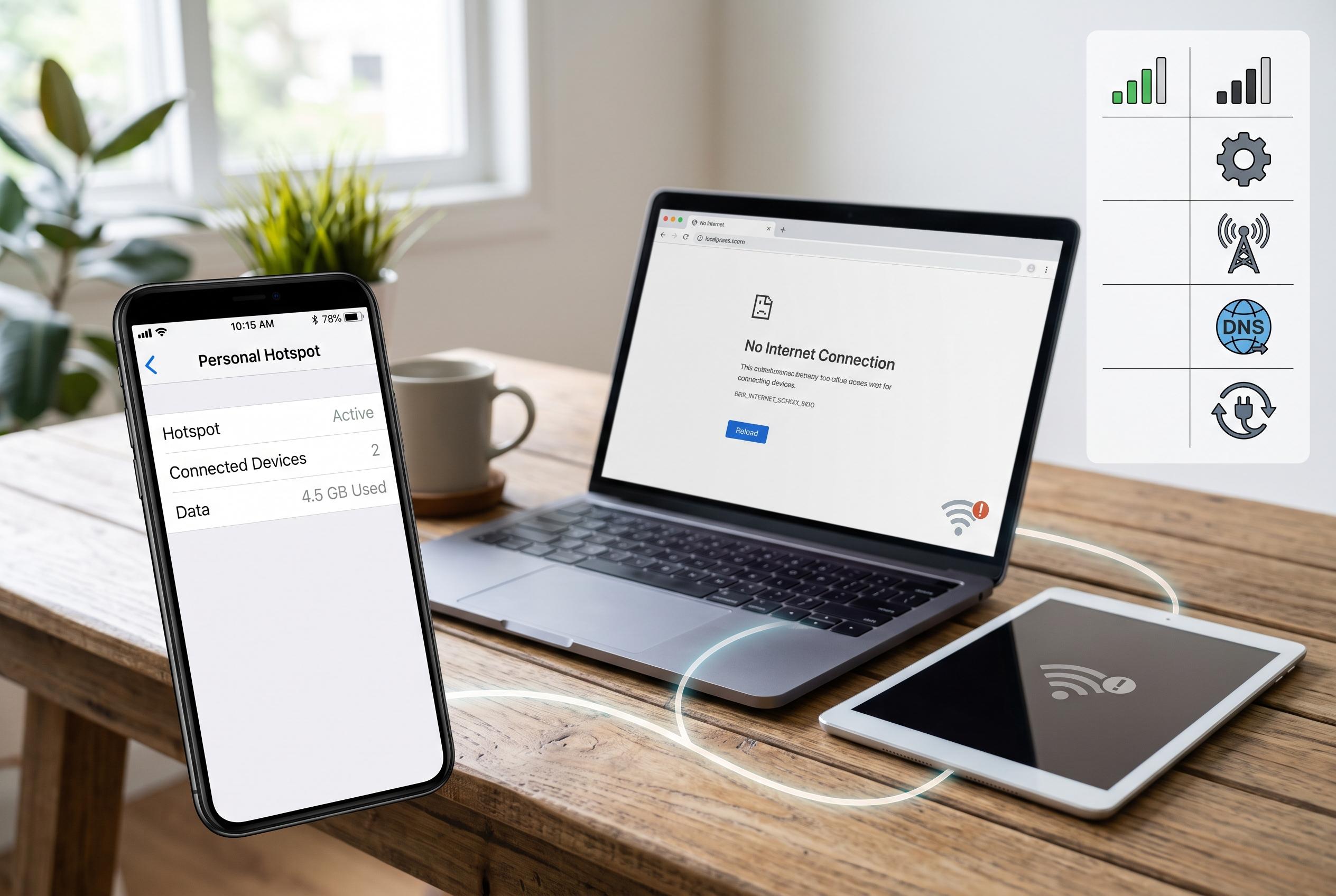

Understanding the common causes of ‘No internet’ messages on devices connected via phone hotspots reveals practical checks, from carrier issues to device settings, to restore reliable connectivity.
When a laptop or tablet joins a phone hotspot but reports “No internet”, the fault is usually not the WiFi link itself. The local connection has formed, but the phone’s mobile data path is failing somewhere between the handset, the carrier and the tethered device. The most efficient approach is to check the phone first, then the device that is trying to use the hotspot.
The first test is simple: switch off WiFi on the phone and try to load a familiar website over mobile data alone. If the phone cannot browse, the hotspot will not be able to provide internet to anything else. At that point, the most likely causes are weak signal, a congested cell site, Airplane Mode, a plan limit or a carrier outage. The phone may still show a hotspot name even when the underlying data session is not usable.
It is also worth checking whether hotspot use is included in the plan and whether any high-speed tethering allowance has been exhausted. As several support guides note, unlimited phone data does not necessarily mean unlimited hotspot data. If the handset itself can browse, restart mobile data and the hotspot, then test again with only one connected device. Apple’s Personal Hotspot guidance and Android support flows both treat that sequence as the cleanest way to separate a cellular fault from a sharing fault.
If the hotspot is still connected but unusable, the next step is to remove the saved network on the laptop or tablet and reconnect from scratch. An old password, stale IP information or an outdated security setting can keep a device attached to the hotspot while blocking traffic. Windows in particular can show a valid WiFi link even when no usable internet route has been negotiated. Testing with one device at a time makes it easier to see whether the problem sits with the phone or the client device.
Another common cause is traffic filtering. A VPN on either device can interrupt tethered traffic, and Android’s Private DNS setting can also interfere. On a laptop, a manual proxy or security tool may treat the hotspot as an untrusted network and suppress access. The safest method is to change one setting at a time, test, and restore the original configuration if it makes no difference. It is better to rely on the handset’s built-in settings and the carrier’s own support pages than on unofficial “fixer” apps.
Hardware and radio compatibility can matter as well. Some phones offer hotspot band or compatibility options, and older laptops or tablets may connect more reliably on the more widely supported setting. Keeping the phone close to the test device and away from obstructions can also help. Where available, USB tethering is a useful comparison test: if USB works but WiFi hotspot does not, the issue is more likely to be wireless compatibility or a hotspot profile than mobile data itself.
Power and data-management settings can create the same symptom. Data Saver, Low Data Mode, battery optimisation and hotspot timeout rules may restrict sharing or shut the hotspot down too quickly for the client device to complete its connection. If the phone is running on battery, connect it to power and keep the screen awake long enough to confirm that the hotspot stays live. If the issue affects several devices, or the handset shows activation, APN or tethering warnings, the carrier is the next point of contact. In that case, support will usually need the phone model, the location, the time of the failure and confirmation of whether the phone itself can browse over cellular data.
Disclaimer: This content is intended for informational purposes only. Readers are advised to exercise their own judgement, conduct due diligence, or consult a qualified expert before acting on any information provided.



