

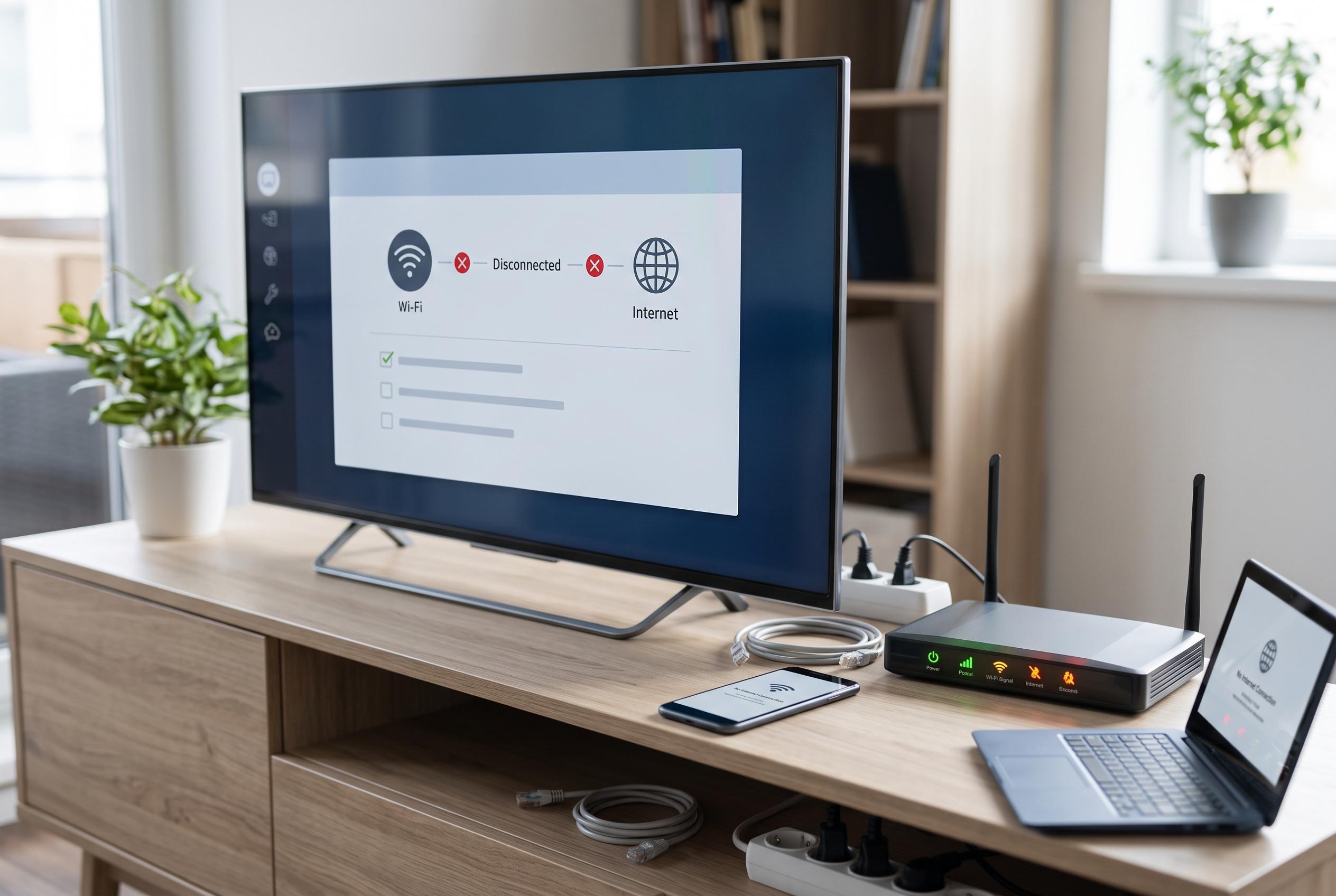

A comprehensive guide on diagnosing Wi-Fi connectivity issues with smart TVs, highlighting recent recommended checks to distinguish between device-specific problems and broader network outages.
When a smart TV shows that it is on Wi-Fi but still refuses to load apps, the first task is to isolate where the fault sits. According to Speedefy, the most useful early checks are to open a webpage on a phone or laptop using the same network and then run the television’s own network diagnostic. That split test quickly distinguishes a household internet outage from a TV-specific issue involving DNS, software or app access.
If other devices on the same network also fail, the problem is wider than the television. In that case, guides from RouterCtrl and Techlarify say the modem, router and internet service should be checked before focusing on the TV itself. If the phone works but the TV does not, the fault is more likely to be local to the set, its Wi-Fi settings or its software.
The TV’s built-in network test is often more revealing than a simple connection icon. Speedefy recommends looking at where the test stops: at the link between the TV and router, between the router and the internet, or at the app service layer. A failure at the first step points to signal, password or band issues, while a later failure can indicate DNS, time-setting or gateway problems.
A full restart remains one of the most reliable first fixes. Smart Home Perfected, Asurion and Techlarify all advise power-cycling both the television and the router, rather than jumping straight to a factory reset. Speedefy adds that the router should be unplugged only long enough for its normal status lights to return, and that the reset button should not be used during initial troubleshooting because it erases saved network settings.
If that does not work, the next step is to remove the saved network from the TV and reconnect from scratch. Several troubleshooting guides also stress checking the Wi-Fi password, confirming whether the router uses separate 2.4GHz and 5GHz names, and bringing the TV close to the router for a short test. If the television connects nearby but not in its usual position, distance, walls or interference are more likely than a service fault.
Incorrect date and time settings can also break app logins, particularly where secure connections are involved. Technexahub and Speedefy both note that the TV should use automatic time settings if possible, and that firmware updates should be installed whenever the set has a working connection. If only one app fails, the issue may lie with the app or its service rather than the Wi-Fi link itself.
A useful final comparison is to test the TV on a mobile hotspot, or by Ethernet if the model has a network port. If the set works on the hotspot or over cable, the home Wi-Fi configuration becomes the main suspect; if it fails everywhere, the TV, its software or the app service is more likely at fault. Speedefy says support should be contacted when the TV cannot complete a network test on either home Wi-Fi or a hotspot, while the internet provider should be called if several devices fail or the router never reaches the internet step.
Disclaimer: This content is intended for informational purposes only. Readers are advised to exercise their own judgement, conduct due diligence, or consult a qualified expert before acting on any information provided.



