

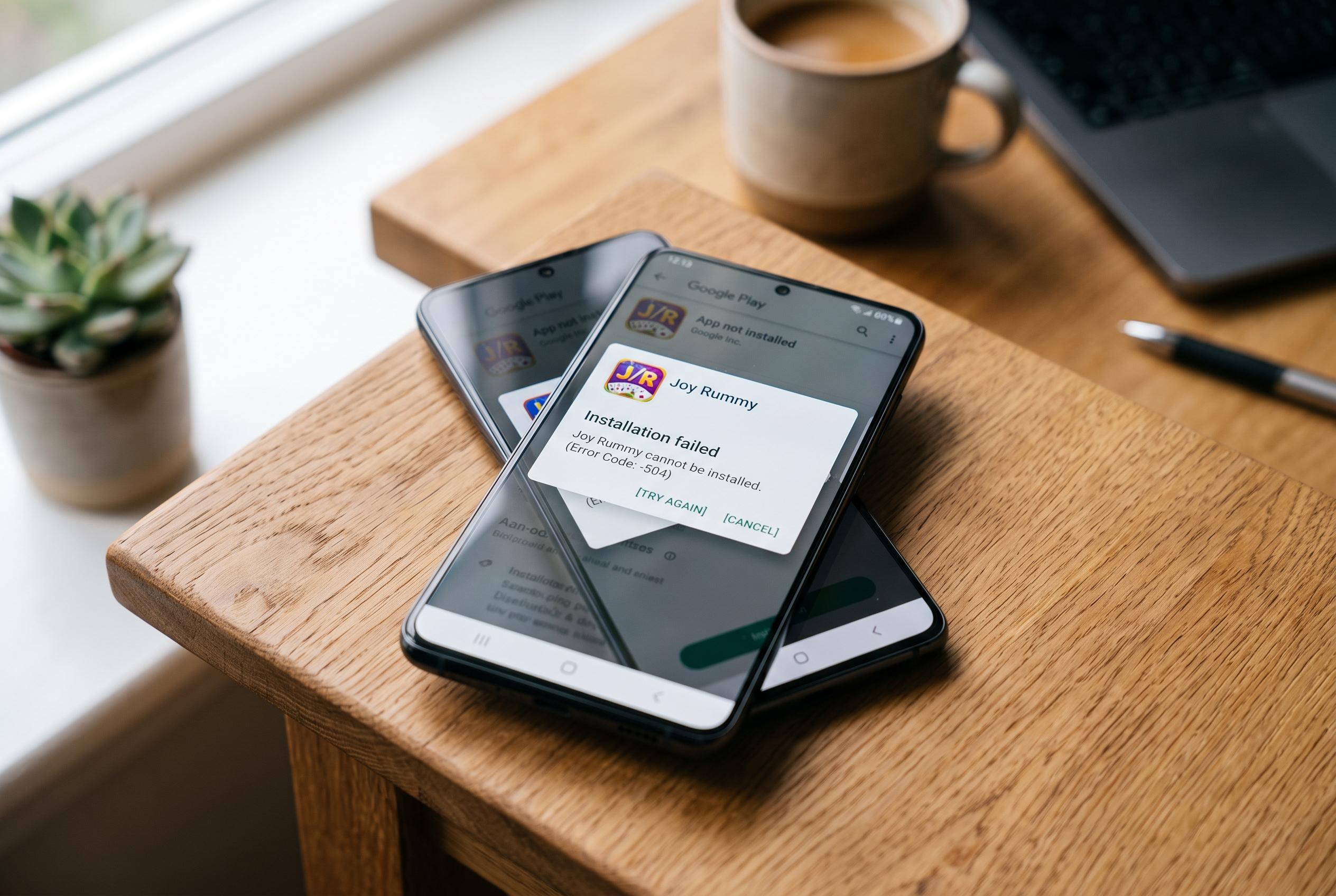

Common causes of Joy Rummy installation failures on Android devices include storage limitations, incomplete downloads, permission restrictions, and conflicting app versions. Addressing these issues through simple checks can often resolve the problem quickly.
Joy Rummy installation failures on Android usually point to a basic device or file problem rather than a fault with the app itself. In cases like this, the first checks are often the most useful: available storage, the integrity of the downloaded APK, and whether the device is actually allowed to install apps from that source. Android support discussions and troubleshooting guides consistently point to the same broad causes for an “App not installed” message.
Storage is one of the most common blockers. Android may need room not only for the app itself but also for temporary unpacking and system processes during installation, which means a phone can fail an install even when the APK looks modest in size. Several guides recommend freeing meaningful internal space before retrying, with some advising at least 100MB and others suggesting around 1GB to reduce failures.
The next step is to confirm that the download completed properly. A partial or corrupted APK can trigger a generic installation error, so it is worth deleting the file and downloading it again from a trusted source. Android version also matters: older releases can be incompatible with newer packages, while the app itself may require a more recent system build than the device is running.
Permission settings are another frequent cause. If the app was downloaded outside the Play Store, Android may block installation until the browser or file manager used to open the APK is explicitly allowed to install unknown apps. Guidance from Android security and file-access specialists also notes that modern permission models can restrict what a file manager can do unless the user grants the right access to the right app.
If those checks do not resolve the issue, a restart can clear a stuck package installer, and it is also worth checking whether an older version of the app is already present. Conflicting installs, cached installer data and security checks such as Play Protect can all interfere with a fresh installation. In practice, the most efficient approach is to work through the simple sequence first: storage, download, version, permissions, restart, and then any existing installation.
Disclaimer: This content is intended for informational purposes only. Readers are advised to exercise their own judgement, conduct due diligence, or consult a qualified expert before acting on any information provided.



