

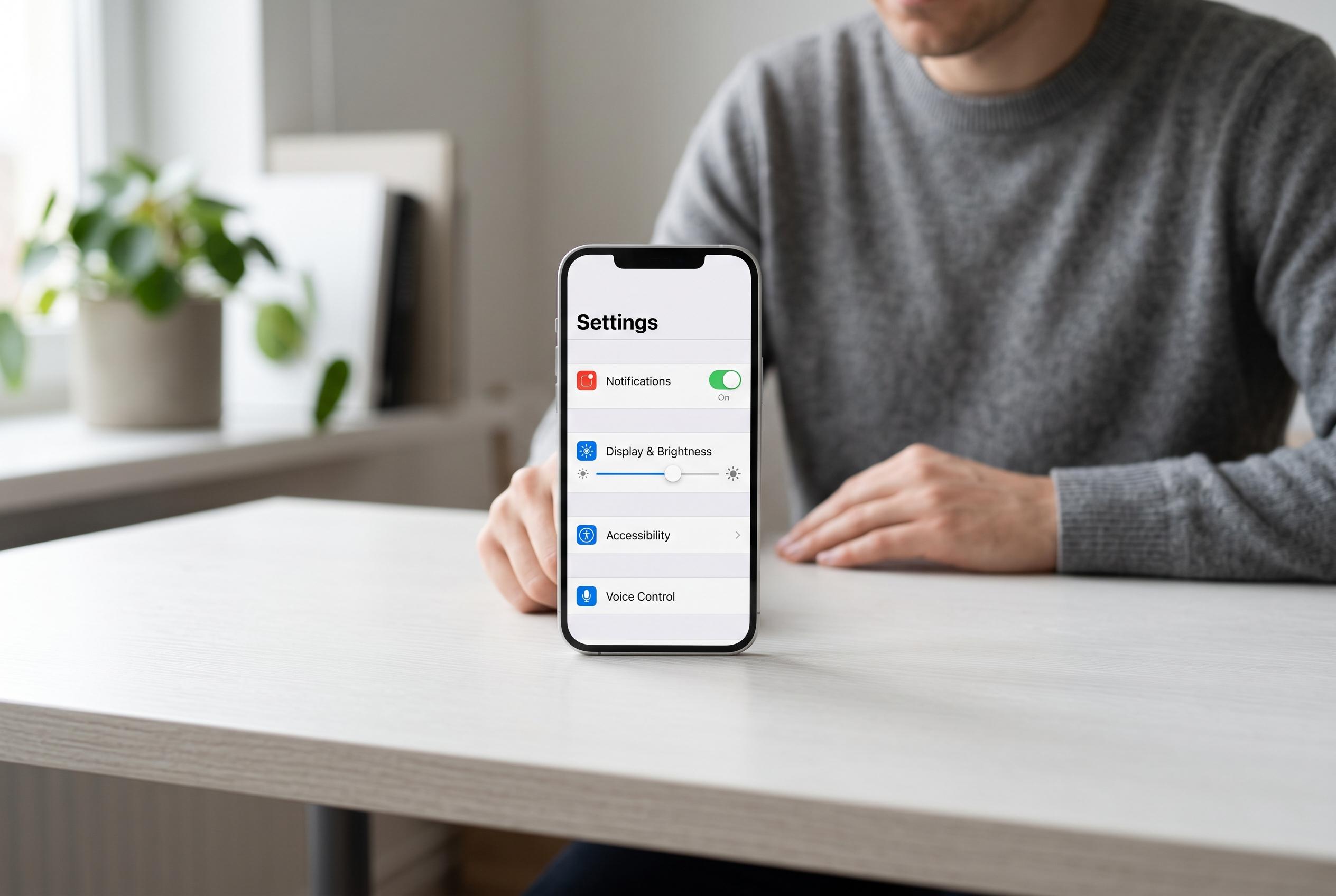

Minimal tweaks to default iPhone settings, such as notifications, display, and Siri, can reduce disruptions, enhance accessibility, and create a calmer, more predictable user experience, according to experts.
A handful of low-effort iPhone settings changes can cut noise, reduce distraction and make the device easier to live with. PCMag, in a guide by Jill Duffy and Ruben Circelli, argued that the biggest gains often come from simple adjustments in Settings rather than from advanced tweaks. The logic is straightforward: silence the alerts you do not need, keep the screen on when it matters, and stop features from starting up unless you actually use them.
One of the first settings worth revisiting is software update prompting. Apple’s default behaviour can surface repeated iOS update notices, which many users find intrusive. Turning off automatic iOS update reminders means fewer interruptions, but it also shifts the responsibility back to the user, who must check manually for new releases. PCMag also noted that notification badges can become a source of clutter, especially on apps that are opened once and then forgotten. Within Settings > Notifications, each app can be configured separately, allowing users to keep only the alerts that matter in real time.
Battery and display controls can make an even more practical difference. The Auto-Lock timer determines how long the screen stays awake, which is useful when following a recipe, reading notes or using the phone as a reference while working. Apple also lets users show the battery percentage in the status area, making it easier to judge remaining charge at a glance. Separately, the Battery Health screen gives a view of maximum capacity, which is helpful when deciding whether a replacement is becoming necessary. PCMag also highlighted the Control Centre as a place to prioritise the tools used most often, such as torch, hotspot, VPN, notes and screen recording.
The same principle applies to the camera and Siri. Live Photos can be convenient, but they also create larger files and may capture motion or sound that was not intended. Apple’s settings allow the feature to be kept disabled across future shots, rather than re-enabled each time. Siri is more personal still. Some users welcome hands-free voice control; others prefer not to leave the phone listening for a wake phrase. That can be switched off in the Siri settings, along with options that allow activation from the side button or on a locked device.
The final area is the interface itself. Apple’s Liquid Glass design, introduced in newer iOS versions, has drawn criticism from users who find the translucency harder to read in some lighting conditions. Guides from iDownloadBlog and MacRumors say the effect can be softened through Display & Brightness and Accessibility settings, including Clear and Tinted modes and the Reduce Transparency option. Tom’s Guide also reported that newer iOS builds add further accessibility controls, including Reduce Bright Effects and an improved Reduce Motion setting, while iOS 27 is expected to bring a more granular slider for transparency and tint. In practice, that means Apple is slowly giving users more control over how visually busy the system feels.
The broader point is that the iPhone’s defaults are not always the best defaults for every user. A few minutes in Settings can produce a calmer interface, fewer interruptions and a handset that behaves more predictably in daily use. For most people, that is a better gain than any obscure tweak hidden deep in the system.
Disclaimer: This content is intended for informational purposes only. Readers are advised to exercise their own judgement, conduct due diligence, or consult a qualified expert before acting on any information provided.



