

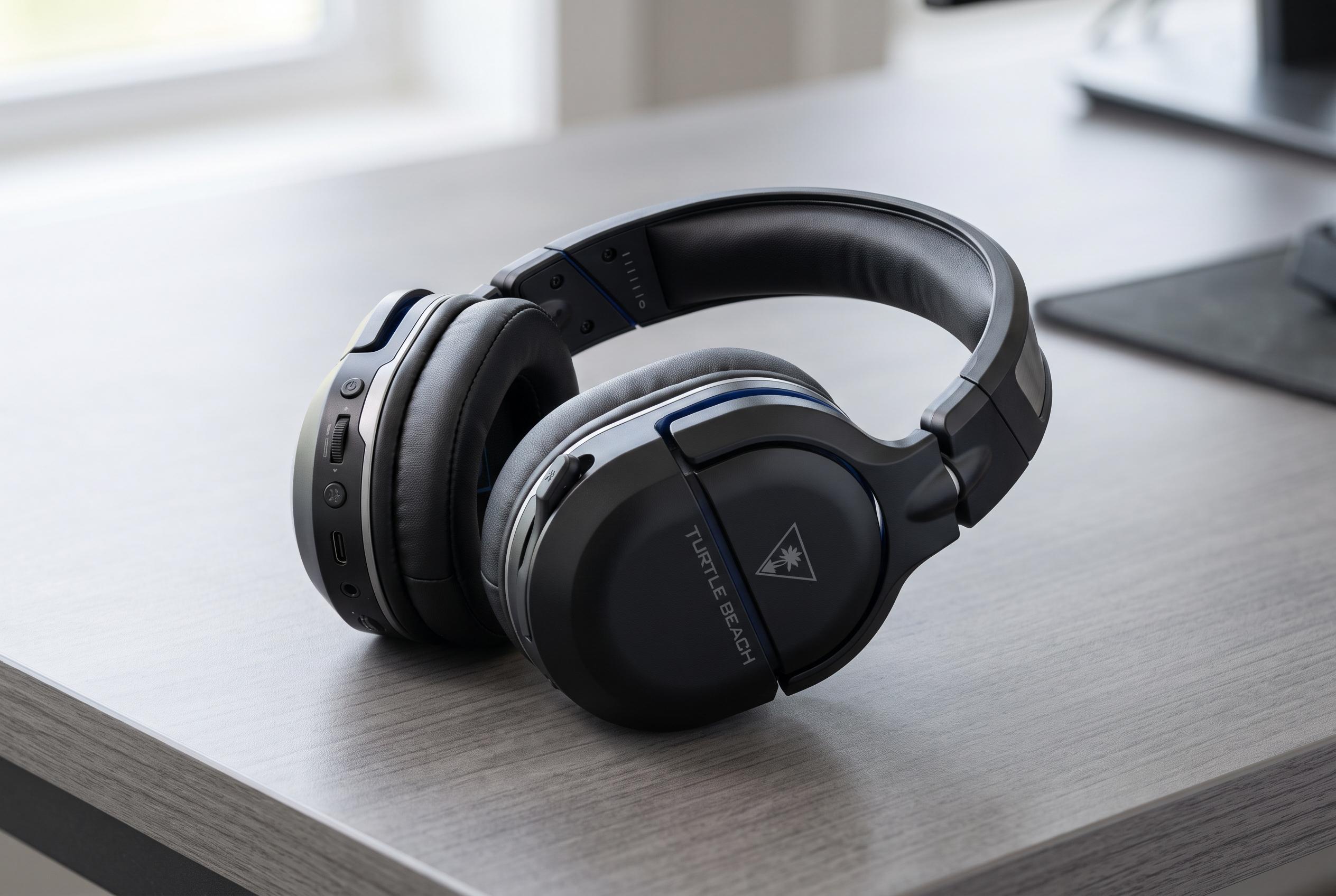

The ability of Turtle Beach headsets to connect directly to iPhones depends on specific models and their Bluetooth compatibility, not just marketing labels. Knowing the exact headset generation is crucial for seamless pairing and audio use.
Whether a Turtle Beach headset can connect directly to an iPhone depends on the exact model, not the marketing label. Turtle Beach’s own support material shows that some headsets use Bluetooth, while others rely on console transmitters, proprietary wireless links or a wired mobile cable instead. That distinction matters because “wireless” does not automatically mean iPhone-compatible Bluetooth. Official guides and manuals for the Stealth 700 Gen 2, Stealth 700 Gen 3 and older Ear Force i30 confirm that Bluetooth pairing is supported only on specific product lines and generations.
The practical starting point is to identify the full headset name and its generation before trying to pair it. Users should check the earcup, packaging, manual or Bluetooth name, then confirm that Bluetooth support is listed explicitly. If the model has no Bluetooth radio, the iPhone will not see it as a normal headset. Turtle Beach’s Stealth 700 Gen 2 materials, for example, cover Bluetooth use with mobile devices, while other models in the line can differ in controls and connection options.
When the headset does support Bluetooth, the pairing process is straightforward. Put the headset into its Bluetooth pairing mode, open Settings on the iPhone, go to Bluetooth and select the headset from the device list. Turtle Beach’s current documentation for the Stealth 700 Gen 3 and older pairing guides for the Stealth 700 Gen 2 show that the button used to enter pairing mode varies by model, so there is no single universal sequence. Some headsets also support simultaneous console and mobile connections, allowing the user to keep a gaming link active while taking calls or listening to audio on the phone.
Once paired, the headset still has to be chosen as the audio destination. On iPhone, that usually means opening Control Centre or the playback controls and selecting the Turtle Beach device rather than the built-in speaker. If the headset connects but sound still comes from the phone, the issue is often routing rather than pairing. Turtle Beach’s support notes also indicate that microphone behaviour can vary by app, permissions and model, so Discord, game chat and calls may not all behave the same way.
If the headset does not appear, the most common causes are simple: it is not a Bluetooth model, it is not in pairing mode, or it has already connected to another device nearby. Official Turtle Beach guidance for Bluetooth-capable headsets suggests checking the model, turning Bluetooth off on competing devices, restarting both devices and forgetting the headset on the iPhone before pairing again. For older transmitter-only models, the better answer is usually a supported cable or a different headset rather than trying to force a console accessory into iPhone Bluetooth use.
Disclaimer: This content is intended for informational purposes only. Readers are advised to exercise their own judgement, conduct due diligence, or consult a qualified expert before acting on any information provided.



