

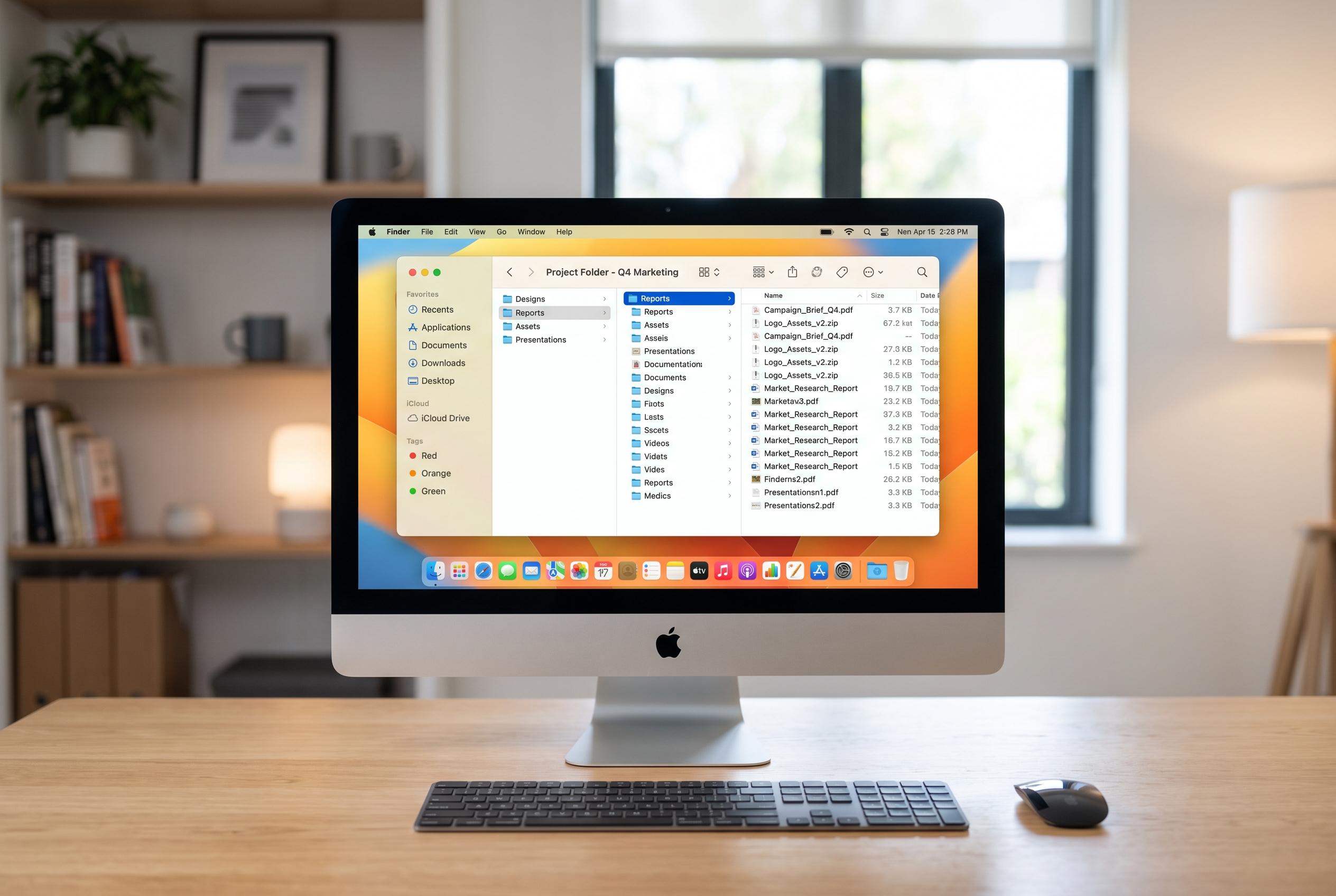

Discover how customising Finder’s settings and utilising lesser-known features can streamline file management and save time on your Mac.
Finder remains one of the Mac’s most useful tools, but many of its best features are easy to miss. Used well, it can reduce time spent navigating folders, searching for files and tidying up routine clutter. The result is a file manager that can be made far more efficient than its default appearance suggests.
One of the simplest gains is to tailor the sidebar to the work you actually do. Apple’s support guidance and other Mac tutorials both point out that the sidebar can be customised by adding frequently used folders, removing items you never touch and reordering entries so the most important locations appear first. That makes Finder feel less generic and more like a working dashboard.
Search is another area where a small change can save repeated effort. By default, Finder tends to search across the whole Mac, but iDownloadBlog explains that this can be changed so searches begin in the current folder instead. For anyone working inside large project directories, that narrower scope is quicker and reduces irrelevant results.
There is also a quiet housekeeping win in Finder’s Advanced settings. Apple allows users to have items removed from the Trash automatically after 30 days, which can help reclaim storage without manual clean-up. That matters most on machines with limited internal capacity, where forgotten deleted files can still occupy meaningful space.
Compressed archives can create similar clutter. The Archive Utility app can be configured so that expanded zip files are moved to the Trash after extraction, rather than being left behind in Downloads or another working folder. It is a small adjustment, but one that keeps the desktop file system easier to manage over time.
For quicker inspection, Finder’s built-in Quick Look remains central, but third-party tools can extend it. Lifehacker highlights Folder Preview, which adds a way to inspect the contents of a folder without opening it, and a paid Pro version that goes further by allowing interaction with files inside the preview. That is useful when you need to assess folder contents quickly without breaking concentration.
Finder also hides a more familiar Windows-style move workflow. After copying a file, pressing Command-Option-V moves it into the destination rather than duplicating it. In practice, that means Mac users can cut and paste files cleanly, even if the command is not surfaced as prominently as on other platforms.
Other controls are aimed at reducing mistakes. Quick Actions can remove an image background directly from the Finder context menu, while enabling all filename extensions makes it easier to spot file types before opening them. Those extensions are particularly important for security, since a file that looks harmless at first glance may not be what it seems.
Finder can also be adjusted visually and functionally. Lifehacker notes that the toolbar can be customised to add the Path button for displaying the full location of a file, while icons view allows the background of a window to be changed to a colour or image. Taken together, these features show how much of Finder’s value lies in settings that are present, but not always obvious.
Disclaimer: This content is intended for informational purposes only. Readers are advised to exercise their own judgement, conduct due diligence, or consult a qualified expert before acting on any information provided.



