

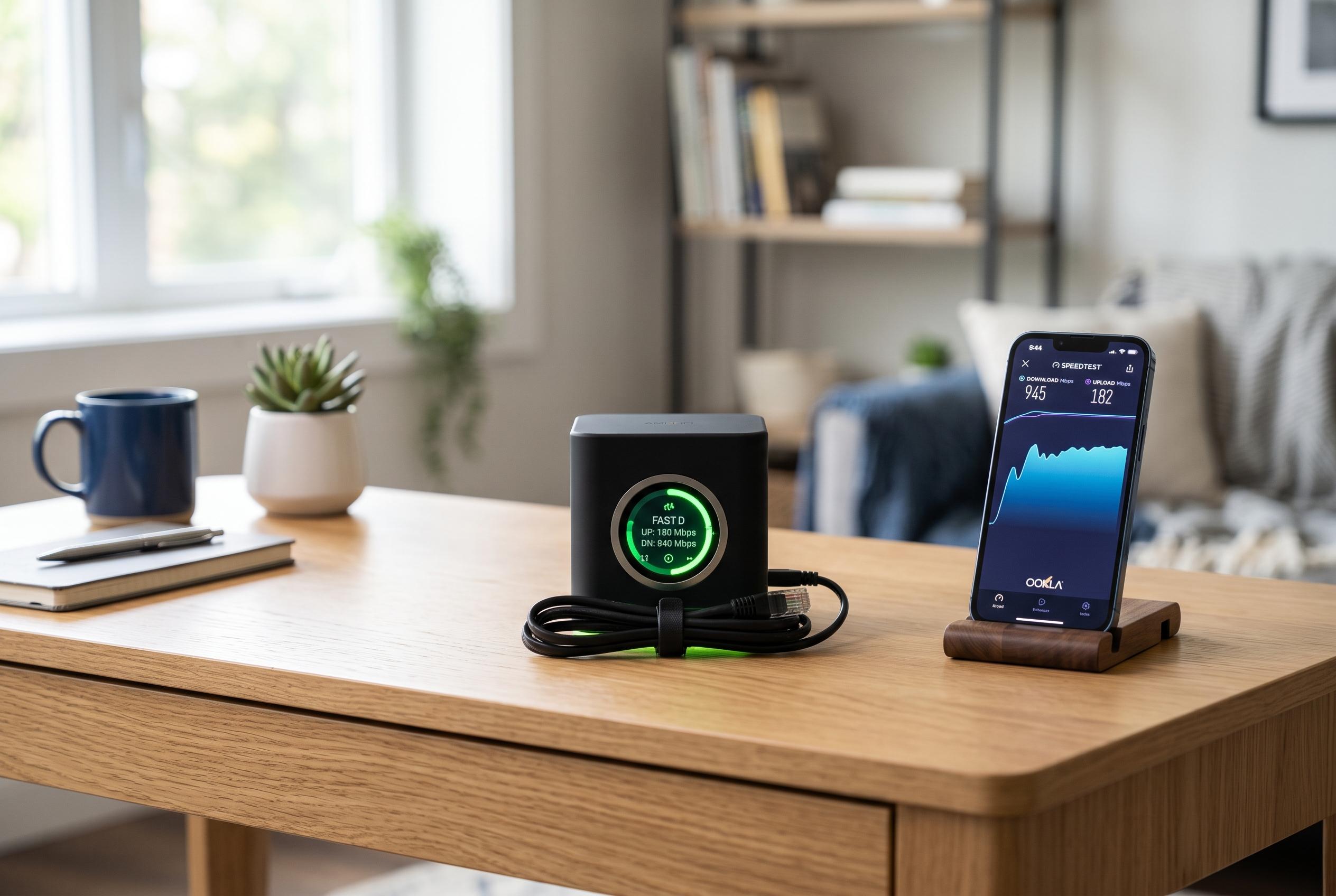

Optimising your Wi-Fi through basic tests, placement, band selection, and regular maintenance can resolve most slow internet issues without pricey upgrades or provider calls.
Slow Wi-Fi is usually not a single fault but a chain of them: the broadband line may be fine, while the wireless link is being weakened by poor placement, congestion, band choice or ageing hardware. The most useful first step is to separate the internet connection from the router’s radio signal. A wired test into the router shows what the line itself can deliver; a wireless test in the same spot shows how much performance is lost once the signal becomes Wi-Fi. SpeedtestHQ and similar technical guides note that this distinction matters because the fixes are very different depending on where the slowdown begins.
That basic split also explains why many homes blame the provider when the real issue is internal. If the wired result is strong but Wi-Fi is weak only in certain rooms, the problem is usually coverage or interference. If speeds are poor even beside the router, the bottleneck is more likely the router’s settings, the band in use, or the device itself. A simple pattern test, repeated at different times of day, is often enough to show whether the fault is local or upstream.
Placement is the lowest-cost fix and often the most effective. Access point placement guidance from Ars Technica, as summarised by iTechGuides, stresses that Wi-Fi behaves like radio, not like a utility cable: it weakens with distance and loses quality through walls, floors and metal objects. A router hidden in a cabinet, left on the floor or pushed behind a television will usually underperform compared with one placed centrally, high up and in the open.
Band selection matters just as much. Technical comparisons of 2.4 GHz and 5 GHz agree on the trade-off: 2.4 GHz reaches further and passes through walls more readily, but it is slower and more crowded; 5 GHz is faster and less congested, but it loses strength more quickly over distance. In practical terms, devices near the router that need higher throughput should usually use 5 GHz, while devices farther away may be more stable on 2.4 GHz.
Channel choice is the next layer. On 2.4 GHz, the usable non-overlapping channels are effectively 1, 6 and 11, which is why dense housing can create heavy self-interference if many routers default to the same lane. SpeedtestHQ’s channel guides also point out that 5 GHz offers far more non-overlapping options, which reduces crowding and usually improves performance. For households in busy areas, a Wi-Fi analyser can show which channel is least congested before the router is set manually.
Interference does not only come from neighbours. Microwaves, Bluetooth devices, baby monitors, cordless phones and some smart-home hardware can all add noise, especially on 2.4 GHz. In busy homes, the number of connected devices is often part of the problem too. TP-Link’s household guide notes that modern networks may support far more devices than older routers were designed to handle, and that crowding can reduce both speed and stability even when no single device is doing anything dramatic.
That is why the router’s age is worth checking early. Older hardware may still work, but it may not cope well with today’s mixture of phones, televisions, cameras, speakers and smart appliances. The faster standards, including Wi-Fi 6, 6E and Wi-Fi 7, are designed to manage more traffic more efficiently, and the newer higher-frequency bands add capacity at the cost of shorter range. In many homes, a router that predates these standards is not broken, but it is no longer well matched to the load placed on it.
Regular maintenance also matters more than many users realise. Rebooting a router can clear temporary faults, and firmware updates can improve stability, band steering and security. The comprehensive slow-Wi-Fi guide from Speedmesser highlights these routine checks as part of normal upkeep, not as emergency measures. For mesh systems and modern consumer routers, much of this is automatic; for older standalone hardware, it often is not.
Where one room is persistently weak, a range extender or a mesh system can help, but the choice should match the size and layout of the home. Extenders are cheap and suitable for a single difficult room, though they can reduce throughput because they have to repeat traffic. Mesh systems cost more, but they are generally better for larger homes or homes with multiple floors, because they create a more even blanket of coverage and reduce the need to manage multiple networks manually.
The most practical way to stay ahead of problems is to treat Wi-Fi as something that needs periodic tuning. That means testing wired and wireless speeds separately, keeping the router out in the open, choosing the right band for each device, checking channels when the neighbourhood becomes crowded, and updating the firmware before problems become chronic. In most homes, those steps resolve the issue without replacing the internet plan or buying new hardware.
Disclaimer: This content is intended for informational purposes only. Readers are advised to exercise their own judgement, conduct due diligence, or consult a qualified expert before acting on any information provided.



