

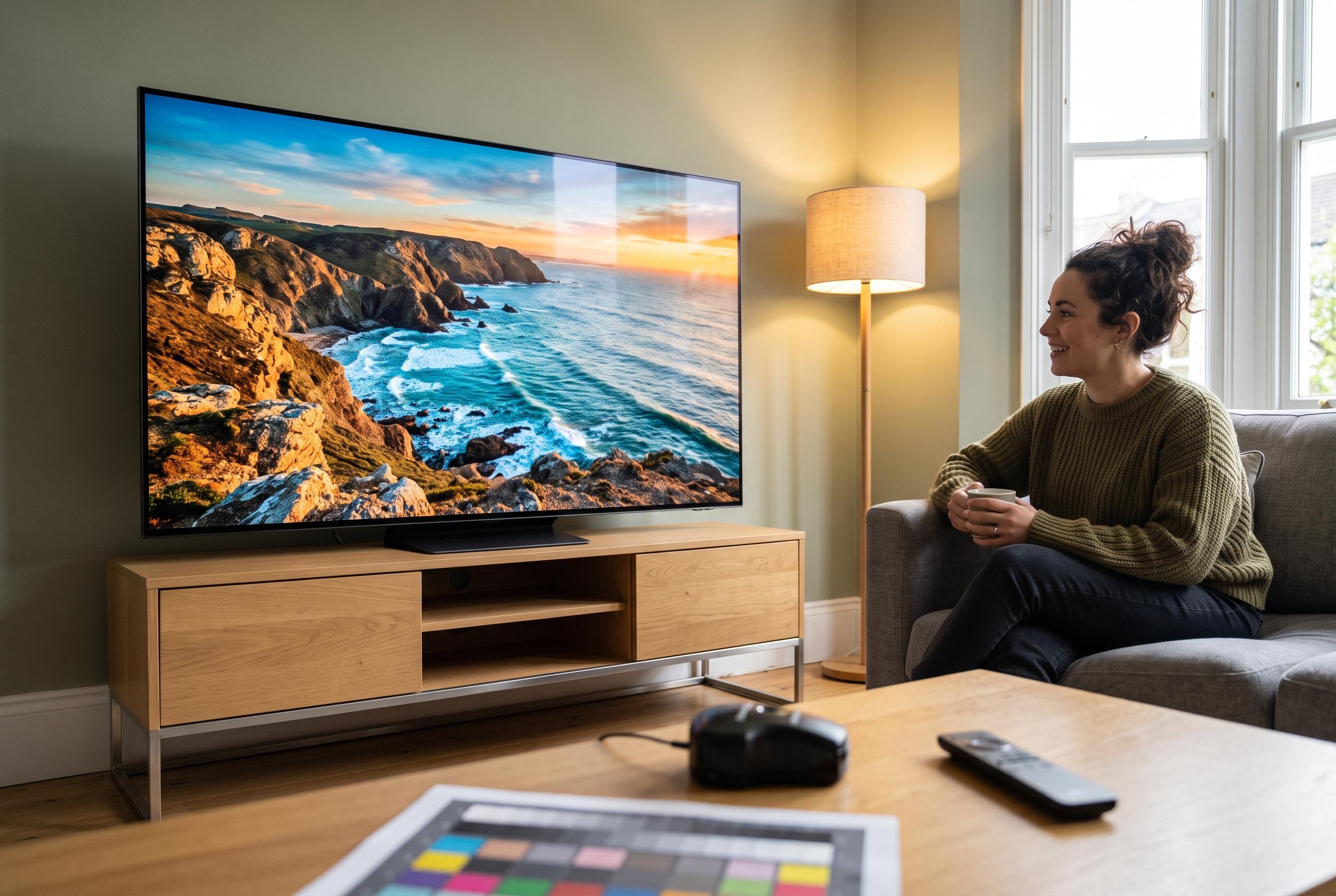

Despite the impact of default factory settings on image quality, many owners leave their smart televisions unadjusted for years. Tips from experts highlight simple adjustments to enhance viewing, especially when watching HDR content or gaming, revealing how small tweaks can significantly improve picture clarity and colour accuracy.
Many owners of smart televisions leave the factory picture profile unchanged for years, even though that is often the reason a new set looks flatter at home than it did under showroom lighting. MakeUseOf says the default configuration is usually designed to catch the eye in a shop, not to suit a living room.
The most important adjustment is the picture mode. Manufacturers typically include presets such as Cinema, Film, Sports and Game, each tuned for a different type of content. Tom’s Guide advises switching away from the standard or vivid profiles, while RTINGS notes that picture mode is the starting point for more accurate calibration. In practical terms, Cinema or Filmmaker settings usually give a more natural image for films and series, while Sports mode increases motion clarity and colour intensity for live broadcasts.
For gaming, the relevant setting is Game mode. This reduces processing delay so the television responds faster to controller input, which matters more than cosmetic image processing. Samsung’s support guidance also points users towards the picture menu and model-specific expert settings, where brightness, sharpness and colour tone can be refined further.
Several automatic features can work against good picture quality. Tom’s Guide recommends turning off ambient light sensors and energy-saving modes when the aim is consistent image reproduction, and it also suggests disabling motion smoothing and similar enhancements that can make movement look unnatural. RTINGS similarly treats controls such as backlight, gamma, contrast, sharpness and colour temperature as part of a proper calibration process rather than optional extras.
High dynamic range content needs particular attention. If HDR looks dim or inconsistent, the dynamic tone-mapping option may need to be enabled so the set can better manage brightness and contrast across different scenes. TechRadar and other calibration guides also note that poor source material, weak streaming bitrates and over-processed defaults can all make even a new 4K television look disappointing, which is why a few careful changes often produce a larger improvement than many buyers expect.
Disclaimer: This content is intended for informational purposes only. Readers are advised to exercise their own judgement, conduct due diligence, or consult a qualified expert before acting on any information provided.



