

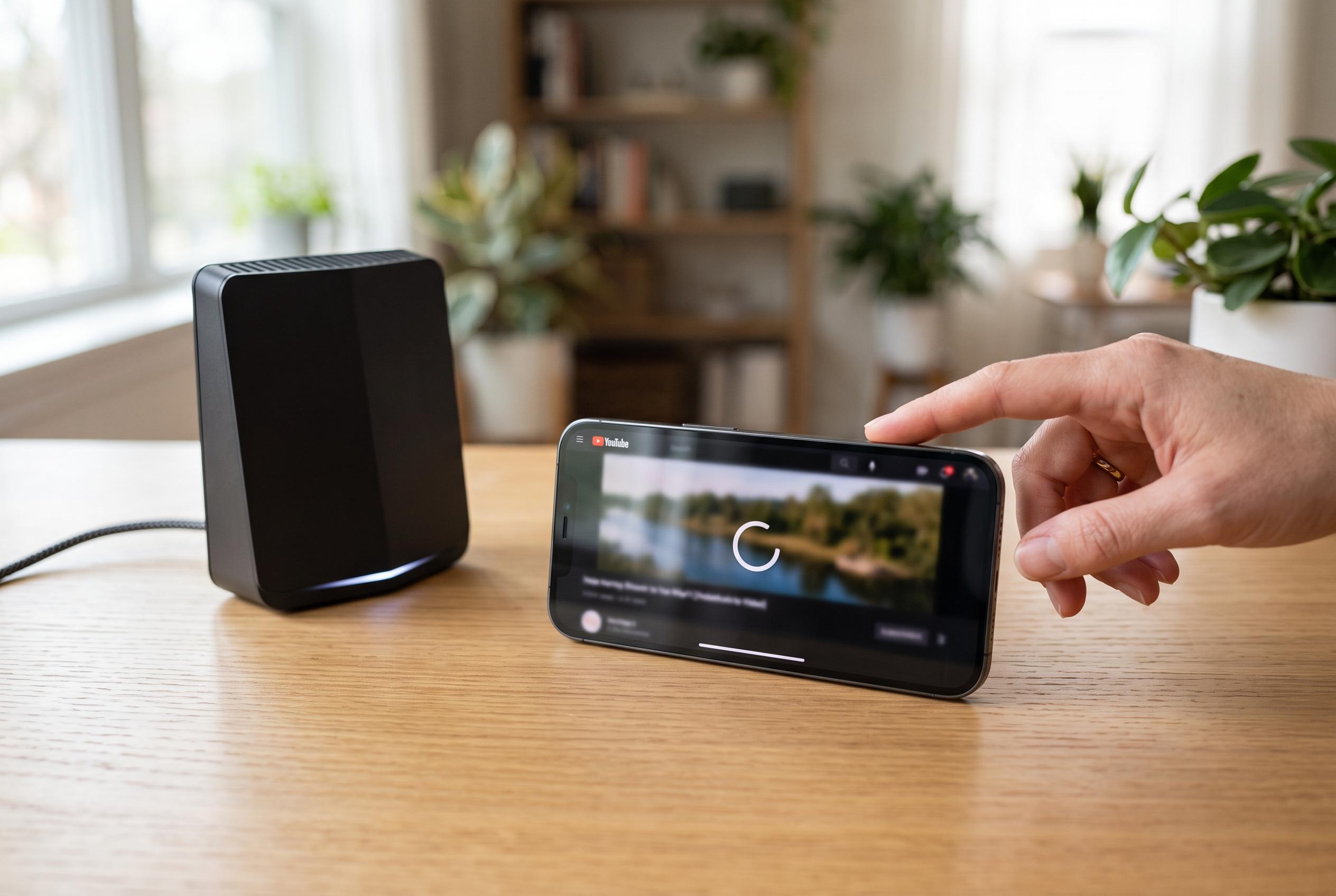

When YouTube becomes choppy or stalls, basic fixes like restarting devices, clearing cache, and adjusting network settings often provide quick solutions, saving users time and frustration.
When YouTube becomes choppy or refuses to load properly, the fix is often simpler than it first appears. Google’s own Help pages say the first steps should be to close and reopen the app, make sure it is updated, and restart the device. That advice applies on Android in particular, but the same basic approach is also relevant on phones, tablets, TVs and browsers.
A restart can clear temporary faults that build up during normal use. It forces the app, browser or operating system to start again, which can resolve stalled processes and minor software errors. If the problem seems broader than YouTube alone, restarting the whole device is more useful than relaunching the app, because it also refreshes memory and system services.
Cache issues are another common cause of poor playback, although clearing them is not always a cure. Google says clearing the YouTube cache on Android can help when videos buffer, fail to load or get stuck. On iPhone and iPad, there is no direct cache-clear option for the app, so users usually have to remove and reinstall it if they want a comparable reset. On televisions and streamers, cache controls vary by platform and may sit inside the device settings or app management menu.
Network quality matters just as much as the app itself. Sony’s support documentation for its TVs notes that YouTube problems can stem from weak or unstable internet connections, including app launch failures, freezing and error messages. Restarting Wi-Fi can sometimes help devices reconnect on a better band or channel, while rebooting a modem and router can establish a fresh link to the internet service provider. On mobile data, reconnecting may also push a phone on to a stronger tower.
When bandwidth is limited, lowering resolution is often the most practical answer. YouTube’s automatic quality setting is designed to balance speed and picture quality, but users on slower connections may need to choose a lower resolution manually. In a browser, that can be done through the video settings menu; on phones, the app offers data-saver style options. For viewers who subscribe to YouTube Premium, offline downloads provide the most reliable fallback, because cached videos play without depending on live network performance once they have finished downloading.
Disclaimer: This content is intended for informational purposes only. Readers are advised to exercise their own judgement, conduct due diligence, or consult a qualified expert before acting on any information provided.



