

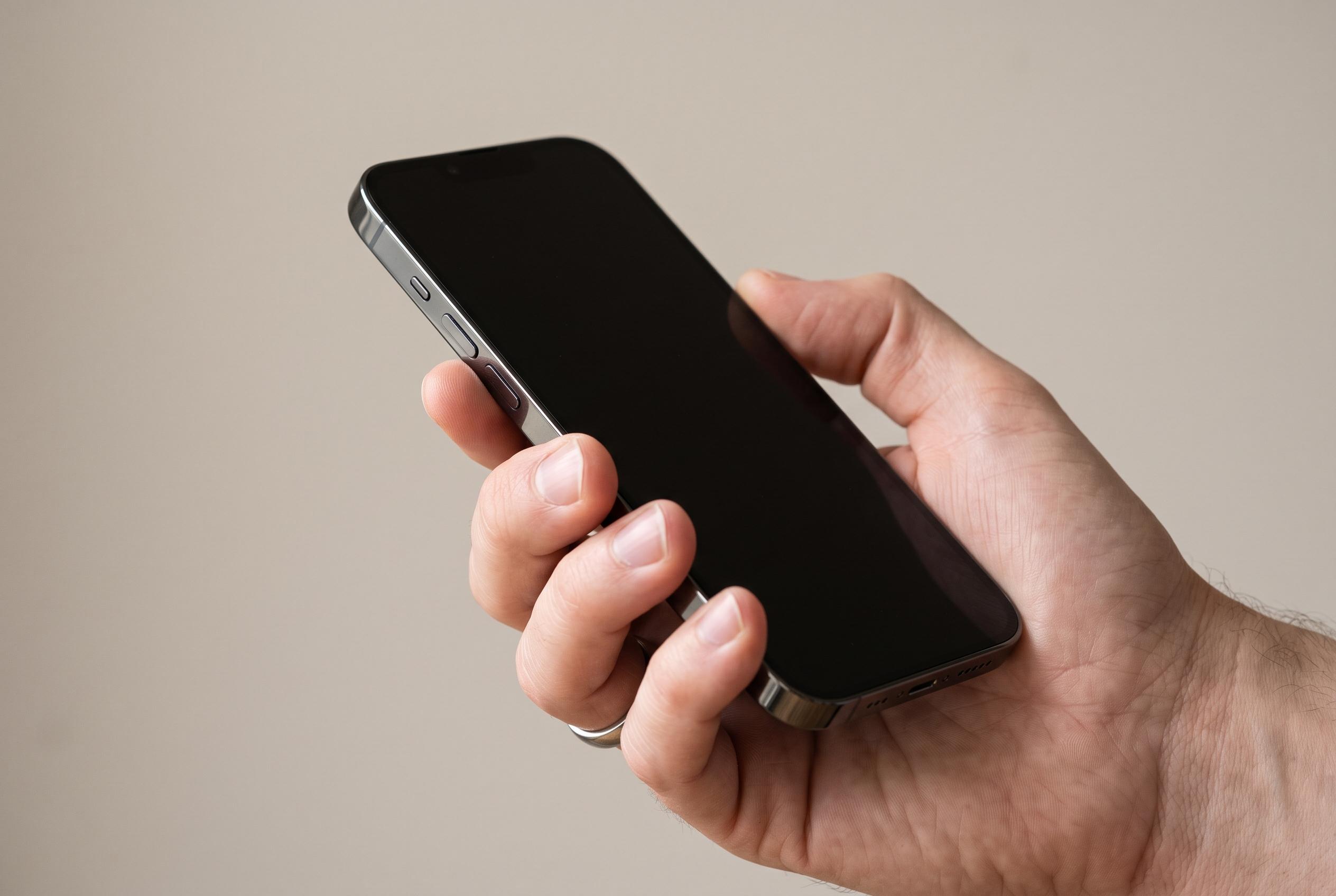

Understanding the differences between standard and force restarts can help iPhone users resolve common issues without professional repair, with clear guidance on methods for various models and scenarios.
When an iPhone begins to misbehave, the safest first step is usually the simplest one: restart it. Apple’s support guidance, together with recent how-to guides from DevX and Tom’s Guide, shows that many faults can be cleared without resorting to repair, especially when the issue is a frozen screen, sluggish performance or a device that will not respond normally. In practical terms, the difference between a standard restart and a force restart matters because the latter is designed for phones that cannot be switched off in the usual way.
The terminology remains inconsistent across the tech industry. Some writers use “soft reset” to mean a normal restart and “hard reset” to mean a factory reset that wipes the phone. Others use the same words to distinguish between a standard power-down and a forced reboot. For readers trying to fix a problem rather than erase the device, the useful distinction is between restarting through the menus and forcing the phone to reboot by using button combinations.
For iPhones with Face ID, Apple says the device should first be switched off by holding the side button and either volume button until the power slider appears. On iPhone models with a Home button, the method varies by generation, but the aim is the same: shut the phone down cleanly, then power it back on. Apple also provides separate instructions for force restarting unresponsive models, including older devices such as the iPhone 6, 7, 8 and SE ranges, as well as earlier handsets.
A force restart is the more aggressive option. Techbout describes it as a way to cut power to the processor briefly, clear memory and restart iOS when the phone is frozen, stuck on a black screen or trapped in a boot loop. Tom’s Guide says the current sequence on modern iPhones is to press and release volume up, press and release volume down, then hold the side button until the Apple logo appears. If the device still will not start properly afterwards, charging it or contacting Apple Support are the usual next steps.
Disclaimer: This content is intended for informational purposes only. Readers are advised to exercise their own judgement, conduct due diligence, or consult a qualified expert before acting on any information provided.



