

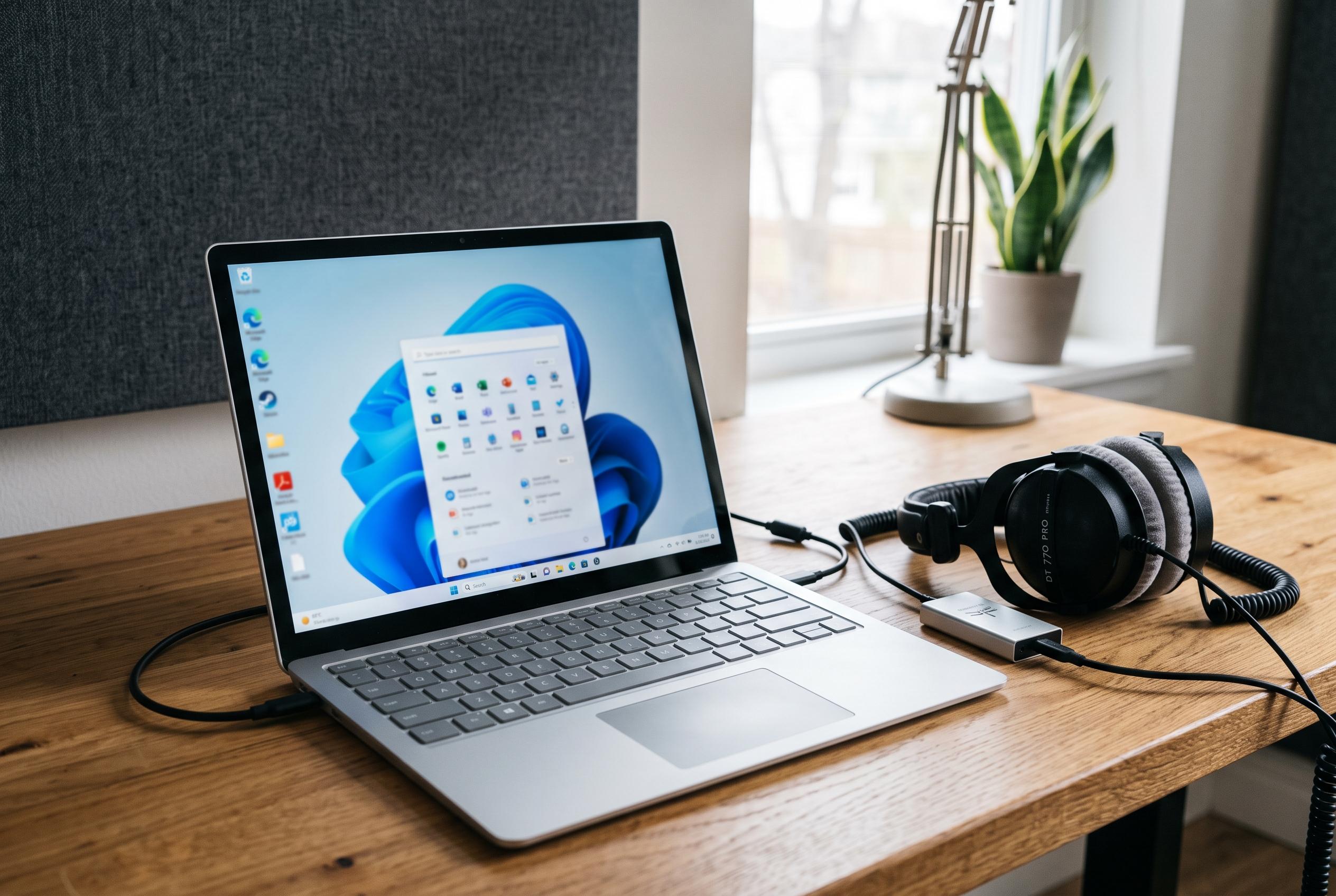

Most Windows 11 sound issues stem from misconfigured output settings or driver glitches rather than hardware failure, with solutions ranging from selecting the correct device to updating drivers and services.
When Windows 11 falls silent, the cause is usually a simple routing or configuration fault rather than a dead speaker. Microsoft’s support guidance points first to the selected output device, the default playback setting and the state of the audio driver, while several independent troubleshooting guides make the same basic point: most cases are resolved without replacing hardware. The fastest checks are to confirm the speakers or headphones are plugged into the correct socket, raise the system volume and test another app or website to see whether the fault is system-wide or limited to one programme.
The most common fix is to choose the correct playback device. Windows can switch output automatically after a monitor, docking station or Bluetooth accessory is connected, so sound may be sent somewhere other than the device the user expects. Microsoft recommends checking the sound output in Settings, setting the default playback device and, where needed, confirming the choice in the legacy Sound control panel. A similar pattern appears in other step-by-step guides, which advise users to verify both the quick output selector and the older default device settings.
If only one application is silent, the problem is often in the Volume Mixer rather than the operating system itself. Windows 11 allows independent app-level volume and mute control, and an individual app can also be routed to a different output device. That makes it easy for Chrome, Zoom or a game to appear broken even while the rest of the system plays normally. Microsoft and other support articles also note that the app’s own audio settings may need checking if the Windows mixer looks correct.
When the basic controls do not help, Microsoft advises running the Playing Audio troubleshooter, which looks for muted devices, driver faults and disabled outputs. The same guidance covers missing or undetected output devices, where Device Manager can reveal whether Windows has lost track of the audio hardware. If playback sounds muffled, distorted or unstable, turning off audio enhancements is another useful test, because processing effects such as spatial sound and equalisation can conflict with certain drivers or devices.
A deeper fault usually involves the audio driver. Microsoft’s documentation recommends updating the driver first, then reinstalling it if necessary, and in some cases rolling back a recent update that introduced the problem. Several troubleshooting guides also warn that a Windows Update can replace a manufacturer driver with a generic one or ship a regression that breaks sound after an otherwise routine restart. For Bluetooth headphones and speakers, the key point is that pairing does not automatically make the device the active output, so the device should be removed and paired again before the output setting is checked.
If every app is silent, the Windows Audio service chain is worth checking next. Windows Audio and Windows Audio Endpoint Builder manage playback for the whole machine, and if either service hangs, all sound can disappear even when the hardware appears healthy. The final checks are to confirm that both services are running, that RPC remains enabled as a dependency, and that Windows Update has no pending fix for a newly introduced driver issue. In persistent cases, the most practical next step is often to note the driver version in Device Manager and compare it with the manufacturer’s latest release.
Disclaimer: This content is intended for informational purposes only. Readers are advised to exercise their own judgement, conduct due diligence, or consult a qualified expert before acting on any information provided.



