

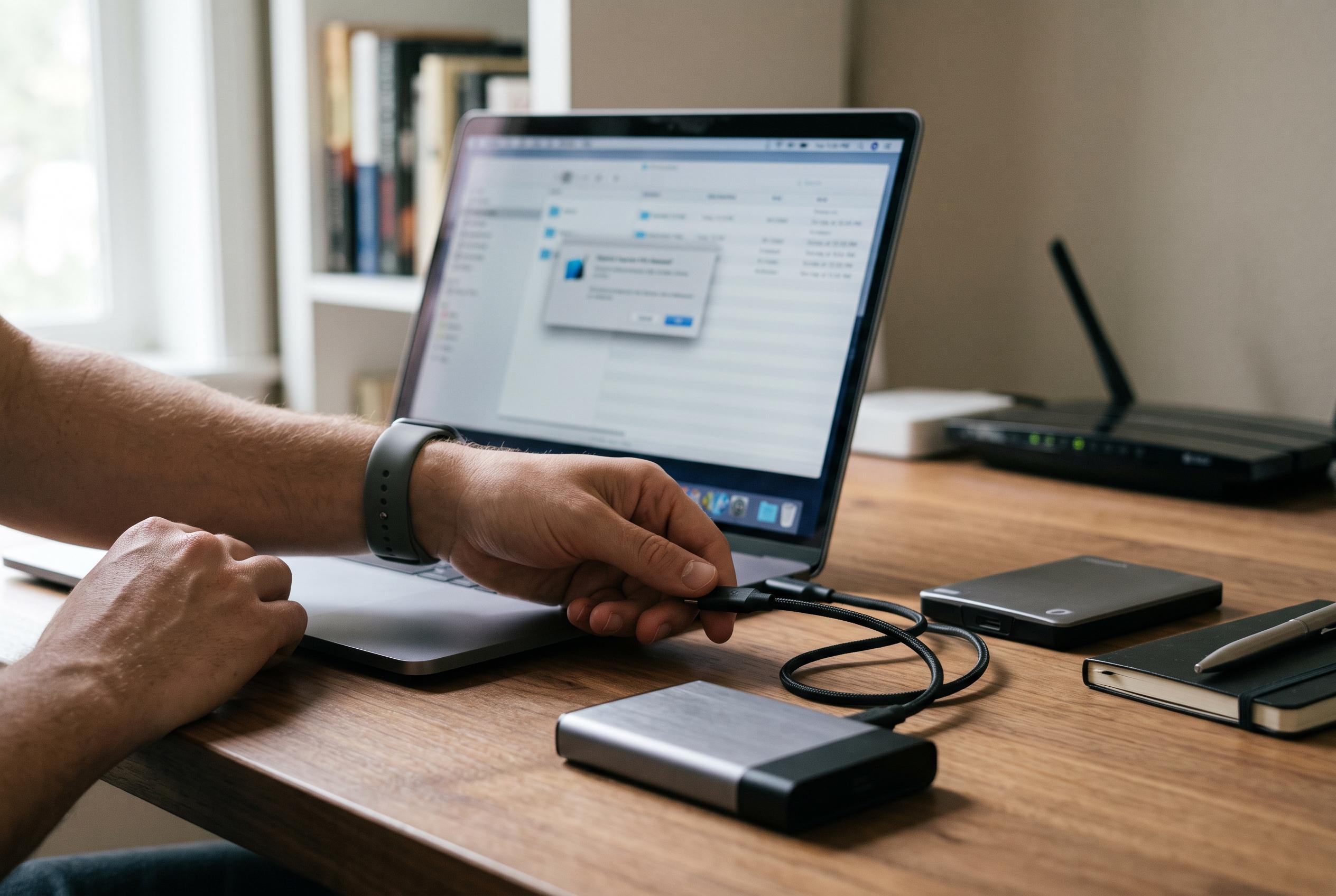

Setting up an external SSD for backups involves careful formatting, encryption, and verification to ensure long-term data reliability and security, moving beyond simple plug-and-play to a strategic process.
Setting up an external SSD for backups is less about plugging in a drive and more about preparing it for long-term reliability. The first step is to choose a file system that matches how the drive will be used. Seagate says its external SSDs are often shipped in exFAT for broad compatibility, while NTFS is better suited to Windows-only use and APFS to Mac-only use. That choice affects speed, features and how easily the drive can be read on other machines.
Formatting the drive is the next essential stage. On macOS, utilities such as Disk Utility can reformat an SSD to APFS, while Windows users will typically use NTFS for a dedicated backup disk. The main point is that formatting removes any existing data and sets the drive up for its intended role, so anything important on the SSD should be copied elsewhere before the process begins.
Security should then be added before backups are written. Crucial’s guidance on self-encrypting drives explains that hardware encryption can be enabled through supported firmware and system settings, while SanDisk notes that hardware encryption keeps protection always active without a heavy performance penalty. Where hardware encryption is not available, software options such as BitLocker or FileVault provide a practical alternative for most users.
Once the drive is prepared, backup software should be configured to send data there automatically. A reliable backup plan should cover the files that matter most, whether that means selected folders or a full system image. The aim is consistency: scheduled backups reduce the risk of gaps, while automation makes the process far less dependent on memory or manual effort.
Verification is the part many users skip, but it is one of the most important. Backups are only useful if they can be restored when needed, so test recovery of a few files and confirm that the copies open correctly. Regular checks also help identify problems early, such as failed jobs, disconnected drives or damaged archives. In practice, a well-set-up external SSD should be formatted correctly, encrypted appropriately and checked often enough to prove it still works.
Disclaimer: This content is intended for informational purposes only. Readers are advised to exercise their own judgement, conduct due diligence, or consult a qualified expert before acting on any information provided.



