

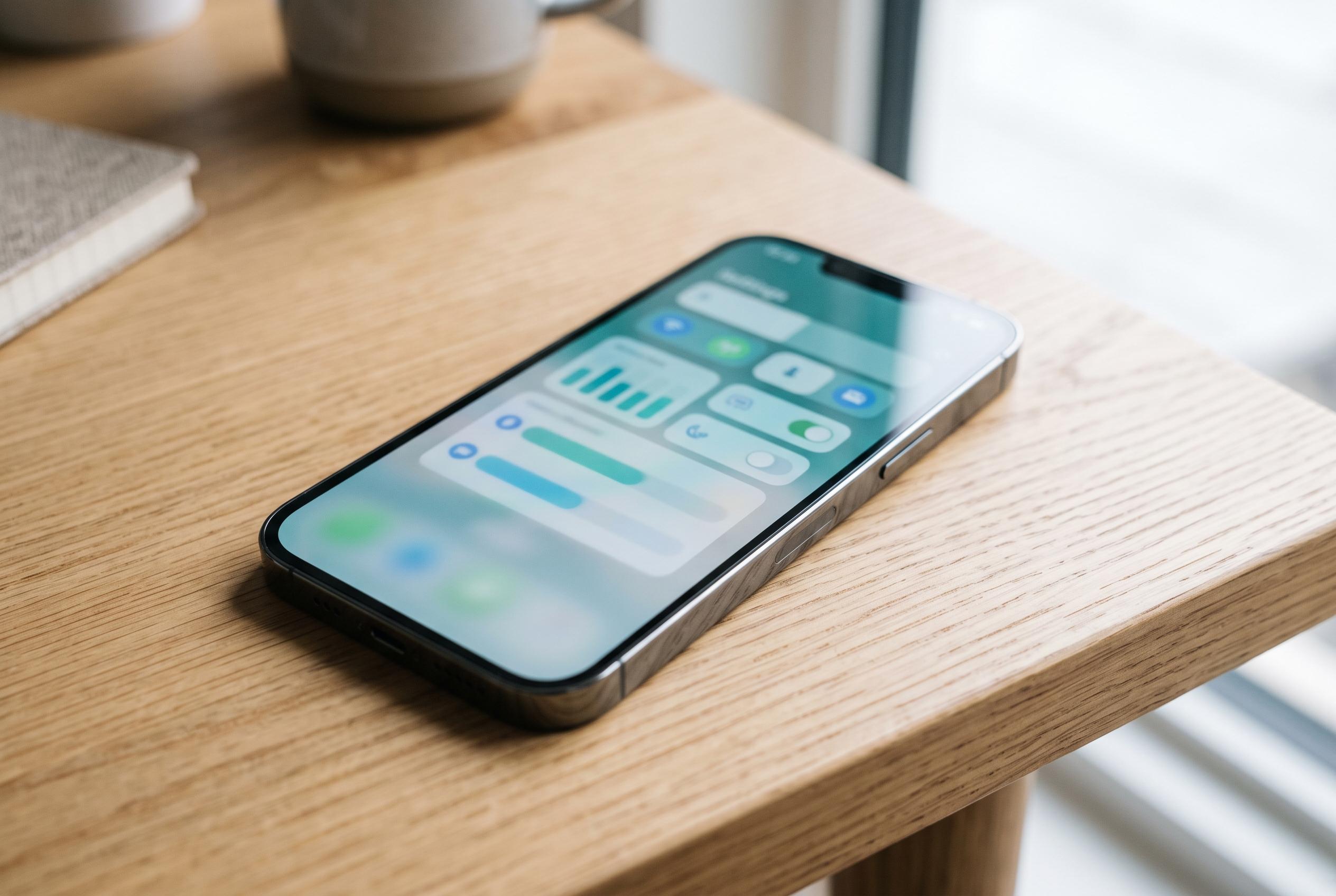

A simple audit of default background and location settings, notification preferences, and storage can significantly enhance older smartphones’ responsiveness and conserve battery, uncovering that sluggishness often hides in permissions rather than hardware failing.
Modern smartphones often feel slower and less efficient not because the hardware is failing, but because several default settings keep working in the background long after they are useful. Retail-friendly features such as constant refresh, always-on location access and instant mail delivery can steadily drain battery life and increase processing load. The result is a phone that appears tired when the real problem is hidden in its settings.
One of the most effective changes is to limit background app activity. Apple’s Background App Refresh and similar Android controls allow apps to update content even when they are not open. Guides from iDownloadBlog, Asurion and CyberGuy all recommend turning this off for non-essential apps, or restricting it to Wi-Fi only, to reduce battery use and mobile data consumption. Mail and navigation tools may justify background access, but many social, shopping and news apps do not.
Location permissions deserve the same scrutiny. Google’s Android support guidance explains that location can be switched on and off from settings or Quick Settings, while Android Central notes that users can balance accuracy against power use by choosing less demanding location modes. On both iPhone and Android, apps set to access location continuously should be changed to “while using” unless there is a clear need for constant tracking. Retail apps, games and other low-value services rarely need permanent access.
Email and notifications can also keep a device busy unnecessarily. Push email maintains a live connection to the mail server, which adds to power consumption, while constant alerts wake the screen and radio for messages that may never be read. Switching to fetch intervals, or manual checking where practical, reduces the strain without meaningfully affecting most users. The same logic applies to notifications from apps that are routinely ignored.
Display effects and storage pressure can further affect how fast a phone feels. Motion reduction on iPhone and reduced animation scales on Android can make menus and app launches feel sharper, even if the technical gain is modest. Storage matters as well: when free space falls too low, the phone has less room to shuffle temporary files, which can slow everyday tasks. Keeping some headroom and enabling photo optimisation where available helps avoid that problem.
The quickest improvements usually come from a short audit: disable or restrict background refresh, reduce unnecessary location access, switch push mail to fetch, cut back on low-value notifications, and check available storage. None of these steps requires advanced knowledge, but together they can extend battery life and make an older handset feel more responsive. In practice, the phone often was not ageing badly; it was simply carrying too many permissions.
Disclaimer: This content is intended for informational purposes only. Readers are advised to exercise their own judgement, conduct due diligence, or consult a qualified expert before acting on any information provided.



