


New Android guidance emphasises best practices for factory resetting devices, highlighting risks of data loss and lockouts, especially on encrypted devices, and offering tips for recovery and proper procedures across different models.
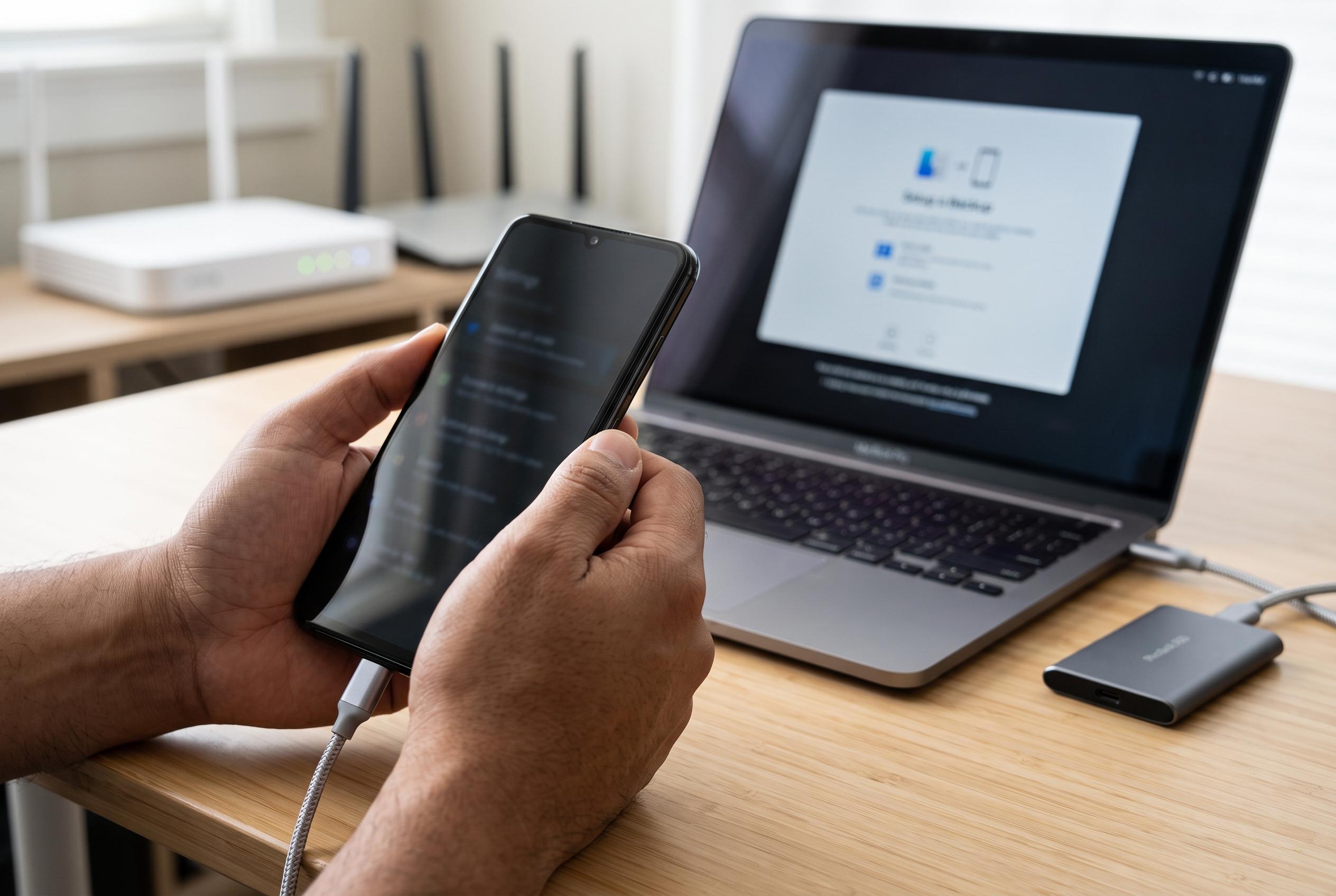
A factory reset returns an Android phone to its original software state by removing accounts, apps and stored data. It is commonly used before selling a device, handing it on, or clearing persistent software faults. Google advises users to back up important information first and to make sure they know their Google Account details and screen lock, because both may be needed again after the reset. Official Android guidance says the process can also be used to restore a phone that has become cluttered or unstable.
The main risks are avoidable. The first is losing files, photos or contacts that were never backed up. The second is locking yourself out after the reset if the Google Account is not removed or if the correct credentials are not available afterwards. On newer encrypted devices, a reset is designed to make personal data inaccessible. On older or unencrypted phones, however, some information may still be recoverable, so a reset should not be treated as a guarantee of complete data destruction.
If the phone still works normally, the reset should be done through Settings. Google’s support pages and Android’s own instructions both point to the same general route: open the system reset menu, choose the factory reset option and confirm the warning prompts. Samsung and Pixel devices use slightly different labels, but the principle is the same. The phone may restart several times, and the full process can take up to an hour.
If the device is frozen, stuck on a logo or cannot reach Settings, recovery mode is the alternative. Google’s Pixel guidance uses hardware buttons to reach Fastboot, then Recovery Mode, and from there the wipe command. Other manufacturers use similar recovery menus, though the button combination may differ. That is why checking the model-specific support page matters before trying the procedure. The method is less intuitive, but it is often the only option when the touchscreen does not respond.
A successful reset should end at the standard Android welcome screen, with language and Wi-Fi setup prompts. If Factory Reset Protection appears, that is normal: the phone is asking for the Google Account that was previously on the device. If the phone was bought second-hand and the previous owner did not remove their account correctly, there may be no legitimate way past that lock. A reset also does not erase external SD cards, repair damaged hardware, or necessarily remove management controls on school or workplace phones, so it should be seen as a software reset rather than a complete fix.
Disclaimer: This content is intended for informational purposes only. Readers are advised to exercise their own judgement, conduct due diligence, or consult a qualified expert before acting on any information provided.



