

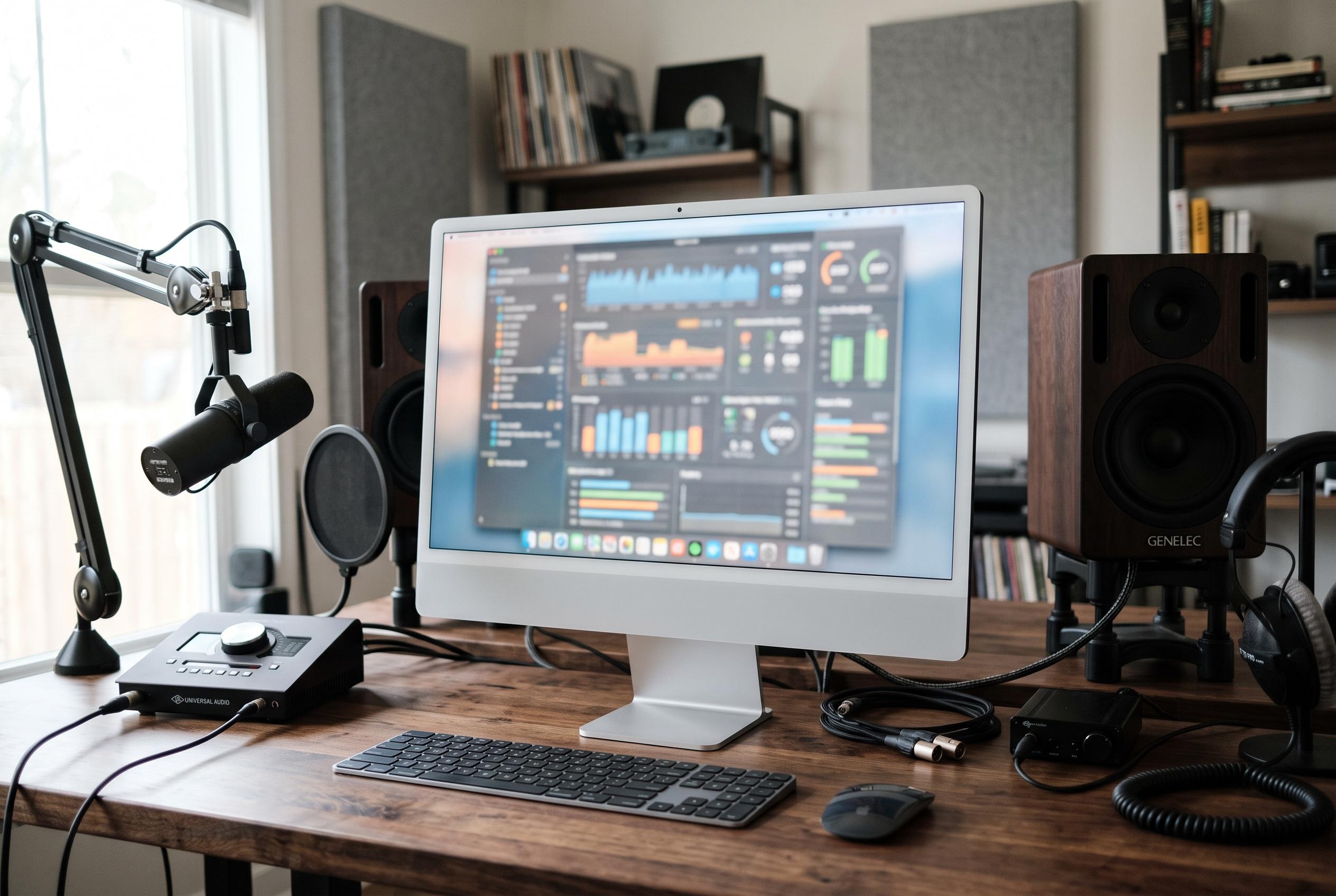

Apple has upgraded its hardware testing tools with a more targeted, component-based approach for Apple silicon Macs, alongside changes in how diagnostics are accessed during startup, signalling a shift towards more precise troubleshooting on its latest hardware.
For MacBook owners trying to track down a supposed diagnostics menu, the important point is that there usually is no hidden panel inside macOS to open at leisure. Apple’s hardware test is launched during startup, and on Apple silicon machines running macOS Tahoe 26 or later it may now open a choice of targeted checks rather than dropping straight into one automatic scan. Apple’s own support note describes that as a change in behaviour; independent reporting from The Eclectic Light Company argues it is better understood as a broader replacement of the old tool on newer Macs. (support.apple.com)
That distinction matters because Apple Diagnostics is aimed at internal hardware faults, not general performance complaints. Apple says it is designed to help identify problems with components such as memory, wireless hardware and the logic board, and it can be started even when macOS itself will not boot normally. Apple also makes clear that it does not test external accessories or diagnose software conflicts, which means a clean result does not rule out a damaged USB device, a failing app or a macOS problem. MacRumors likewise notes that the results screen is really a triage step: it produces reference codes, suggests support options and points users towards further action rather than offering a full repair in itself. (support.apple.com)
Before running it, Apple recommends some unglamorous preparation that can affect the result. The Mac should be updated first if it is still usable, then shut down completely. External devices should be removed apart from the keyboard, mouse, display, Ethernet and mains power, and the machine should be left on a hard, flat surface with adequate ventilation. MacRumors adds that keeping the Mac connected to power is sensible throughout, while Howard Oakley at The Eclectic Light Company notes that on a laptop the mains adaptor itself can be included in testing if it is attached. (support.apple.com)
On Apple silicon Macs, the route into diagnostics now sits inside the same startup environment used for other low-level recovery tasks. Apple says users should press and hold the power button until startup options load, release it when the Options icon appears, then hold Command-D until the Mac restarts. AppleInsider places that sequence alongside Startup Disk Selection and Recovery, which helps explain why some users go looking in the wrong place: diagnostics is part of the boot process, not a settings feature. In other words, the same screen that can lead to the Options gear for Recovery is also the gateway to hardware testing on modern MacBooks. (support.apple.com)
Intel Macs still follow the older shortcut-driven approach. Apple says to power on and immediately hold D, releasing it when a progress bar appears or the language selector opens. If that does not work, the company recommends trying Option-D instead, which loads diagnostics over the internet. That matches long-standing guidance collected by iMore in its list of Mac startup shortcuts, where diagnostics sits alongside Safe Mode, Startup Manager and Recovery. AppleInsider’s broader guide underlines the contrast: Recovery on Intel still uses Command-R, while diagnostics keeps its own separate D-key path. (support.apple.com)
The more interesting change is what happens after Command-D on Apple silicon systems running Tahoe. Apple’s support page says users are asked to choose a specific diagnostic, such as one for the built-in display, keyboard or trackpad, instead of waiting for an automatic test to run. Oakley argues that this wording understates the shift. Writing in February 2026, he said Tahoe had brought “a completely new and redesigned replacement for Apple Diagnostics in Apple silicon Macs” and described a Repair Assistant-style interface offering Mac Resource Inspector, Display Anomalies, Keyboard, Trackpad, Touch ID and Audio tests. iFixit’s repair documentation provides the technical backdrop: Apple silicon diagnostics are tied to Apple Service Toolkit 2, a cloud-based system with OS-based tests and Wi‑Fi as the standard connection method, which helps explain how Apple has moved towards more selective, component-level checks. (support.apple.com)
There is, however, some ambiguity about exactly when every user will see that newer interface. Apple’s official article, published on December 24, 2025, mentions the new component selection but does not spell out the wider redesign. In comments on The Eclectic Light Company article, readers reported mixed results on Tahoe 26.3 and 26.4 beta systems. Oakley replied that some Apple silicon Macs could still show the older diagnostics when they booted into fallback Recovery based on an earlier system, even while primary Recovery on the same machine exposed the newer Repair Assistant path. That nuance is absent from Apple’s public instructions, but it helps account for why one Tahoe Mac may not behave exactly like another. (support.apple.com)
Once the test completes, Apple says the Mac will display reference codes that can be used to interpret the fault and support a repair booking. MacRumors adds a few practical details missing from shorter explainers: users can repeat the test with Command-R, or, if the Mac is online, choose Get started or press Command-G to open a support webpage with more information. Apple says the machine may first ask for Wi‑Fi or Ethernet, and in some cases it may offer a Run Offline option unless Apple Support or a technician has initiated an online session. If the codes point to hardware trouble, Apple says to keep them for an Apple Store, an Apple Authorised Service Provider or an Independent Repair Provider. If diagnostics comes back clear, the smarter next step is usually software troubleshooting or macOS Recovery rather than another hunt through System Settings for a menu that was never there. (macrumors.com)
Disclaimer: This content is intended for informational purposes only. Readers are advised to exercise their own judgement, conduct due diligence, or consult a qualified expert before acting on any information provided.



