

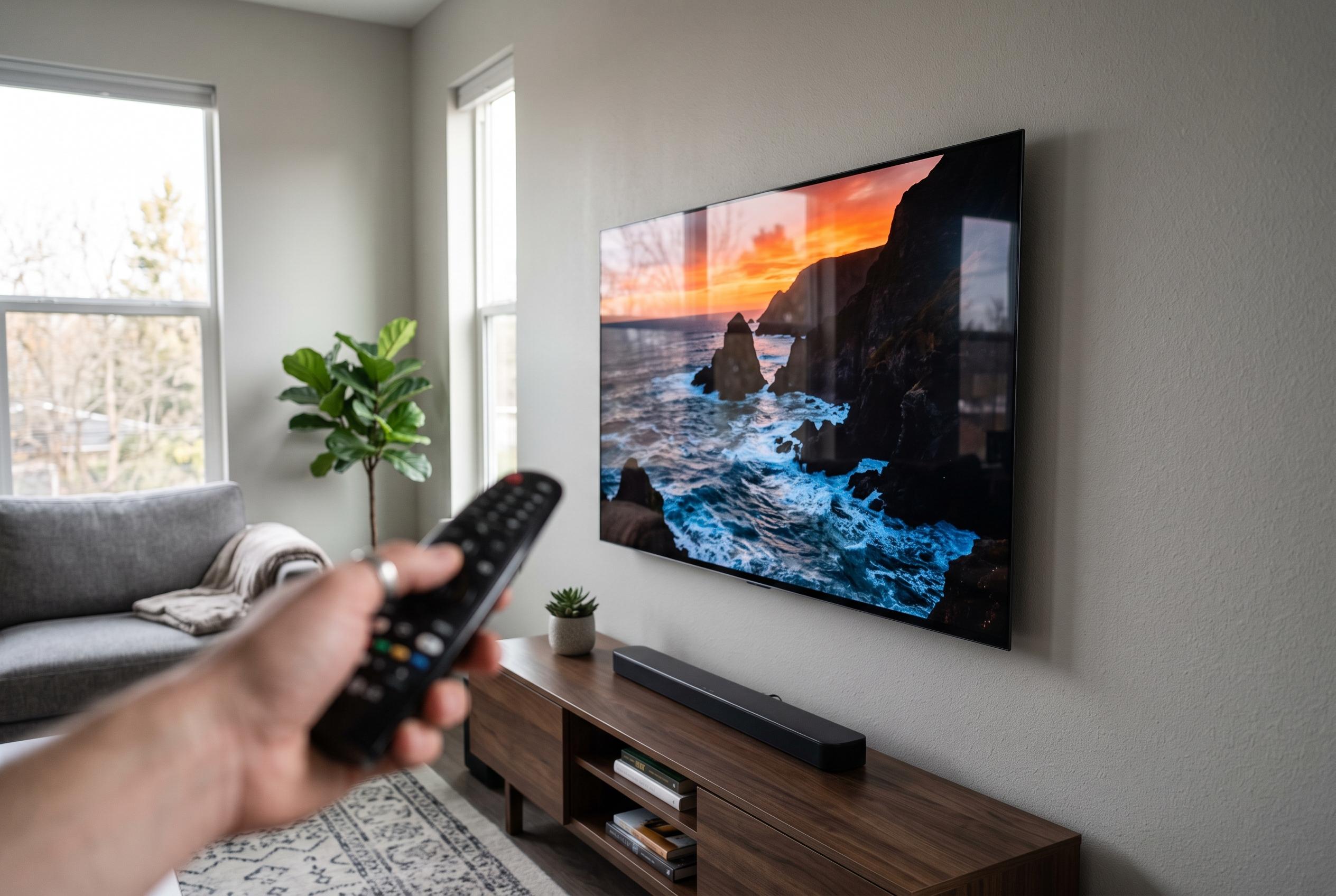

Standard user habits, from improper software resets to static image display, significantly impact the performance and lifespan of Roku TVs and OLED screens, with manufacturers emphasising proactive care to prevent deterioration.
A Roku TV is unlikely to fail because of one dramatic mistake. More often, its performance and lifespan are chipped away by routine habits: never giving the software a proper restart, leaving the set running when nobody is watching, blocking airflow, or preventing the panel from carrying out its own maintenance cycles. Guidance from Roku and several television manufacturers shows that these are not cosmetic issues. They affect stability, heat, power use and, on OLED models, the risk of permanent image retention.
Roku’s own support material makes a useful distinction that many owners miss. If a set becomes frozen, unresponsive or even “stuck at the Roku logo”, the first step is a system restart rather than a more disruptive reset. Roku describes this as the “least invasive reset method” and says it does not change the user’s settings. On a Roku TV, that also means more than pressing the power button on the remote or the set itself. The menu path is Home, then Settings, System, Power and System restart. If the software will not respond, Roku says the power cord can be removed for at least 10 seconds before reconnecting it. Only if problems continue does Roku direct users towards a network reset, which requires wireless setup again afterwards.
That advice matters because owners often jump from mild sluggishness to more drastic measures. Regular software upkeep is the better first line of defence. TCL’s support guidance recommends keeping firmware current on Roku TV, Google TV and Fire TV sets, and adds some less glamorous checks that can prevent faults being misread as hardware failure: inspect cables, replace weak remote batteries and use a surge protector. The company also advises unplugging the television during storms. It further notes that higher contrast and brightness settings increase power use and can shorten longevity, a reminder that picture modes are not only about image quality but also about wear.
The physical environment is just as important. TCL advises switching the television off and unplugging it before cleaning, then using a dry microfibre cloth on the screen. It explicitly warns against alcohol, ammonia and window cleaners, which can damage the panel coating. Dust on the frame and rear casing should be removed regularly, and compressed air can be used to clear vents so heat does not build up. Placement matters too: the set should be kept away from direct sunlight, heaters and damp areas, with roughly 4 to 6 inches of space around it for airflow. If the television sits inside a tight cabinet or entertainment centre, TCL suggests extra cooling, including a fan, to reduce thermal stress.
The habit of leaving the screen on for hours is another quiet source of wear, but the risk depends on the panel type. With OLED, the concern is not a backlight but image retention caused by static content displayed repeatedly or for long periods. Sony’s support notes are more specific than most consumer advice. They list black bars from letterboxed or 4:3 material, photo stills, video games with fixed interface elements, on-screen menus, programme guides, app overlays and rolling news tickers as typical triggers. Sony also stresses that some image retention can occur as part of the technology’s normal behaviour, rather than signalling a defect.
Manufacturers have built defences into modern OLED sets, but they only help if the owner lets them work. LG says most burn-in is linked to static on-screen elements shown uninterrupted for many hours or days, typically at peak brightness. Its OLED models include a screen saver that activates automatically when a static image is detected after about two minutes, alongside panel-care tools such as Clear Panel Noise, Screen Shift and Logo Luminance Adjustment. Samsung offers similar protections. Its support guidance says Pixel Shift should remain enabled, while “Adjust Logo Brightness” can be raised from its default Low setting to High to dim fixed logos more aggressively. Samsung also says Screen Optimization begins automatically after 4 hours or more of cumulative screen time, but it will not run until the display is turned off. A manual Pixel Refresh is available as well, although the company warns that it can take more than an hour and should not be interrupted.
The bluntest warning comes from Philips. In its OLED907 manual, the company says the display periodically performs a clean-up process while the TV is in standby, and that repeatedly postponing it may cause image retention and may void the warranty. That is a stronger statement than most public-facing support pages. Philips advises owners to leave the set plugged in and switch it off with the remote so the background process can run. It distinguishes between a normal refreshing cycle, which takes a few minutes in standby, and a deep refreshing cycle that should be used only when residual image remains after 8 hours of standby. The same manual singles out news ticker bars, football score graphics and game HUDs as content that should not be left on screen continuously.
The practical lesson is that “turning the TV off” is not always the same as maintaining it properly. A real system restart can resolve software instability without wiping settings. Sensible placement, modest brightness, clear vents and careful cleaning reduce heat and avoid accidental panel damage. On OLED Roku TVs, leaving the set in standby is part of normal care because that is when the panel may run its housekeeping routines. Owners who ignore those routines, or who keep static content on screen for long stretches, are not just risking a slower television. They may be shortening the useful life of the panel itself.
Disclaimer: This content is intended for informational purposes only. Readers are advised to exercise their own judgement, conduct due diligence, or consult a qualified expert before acting on any information provided.



