

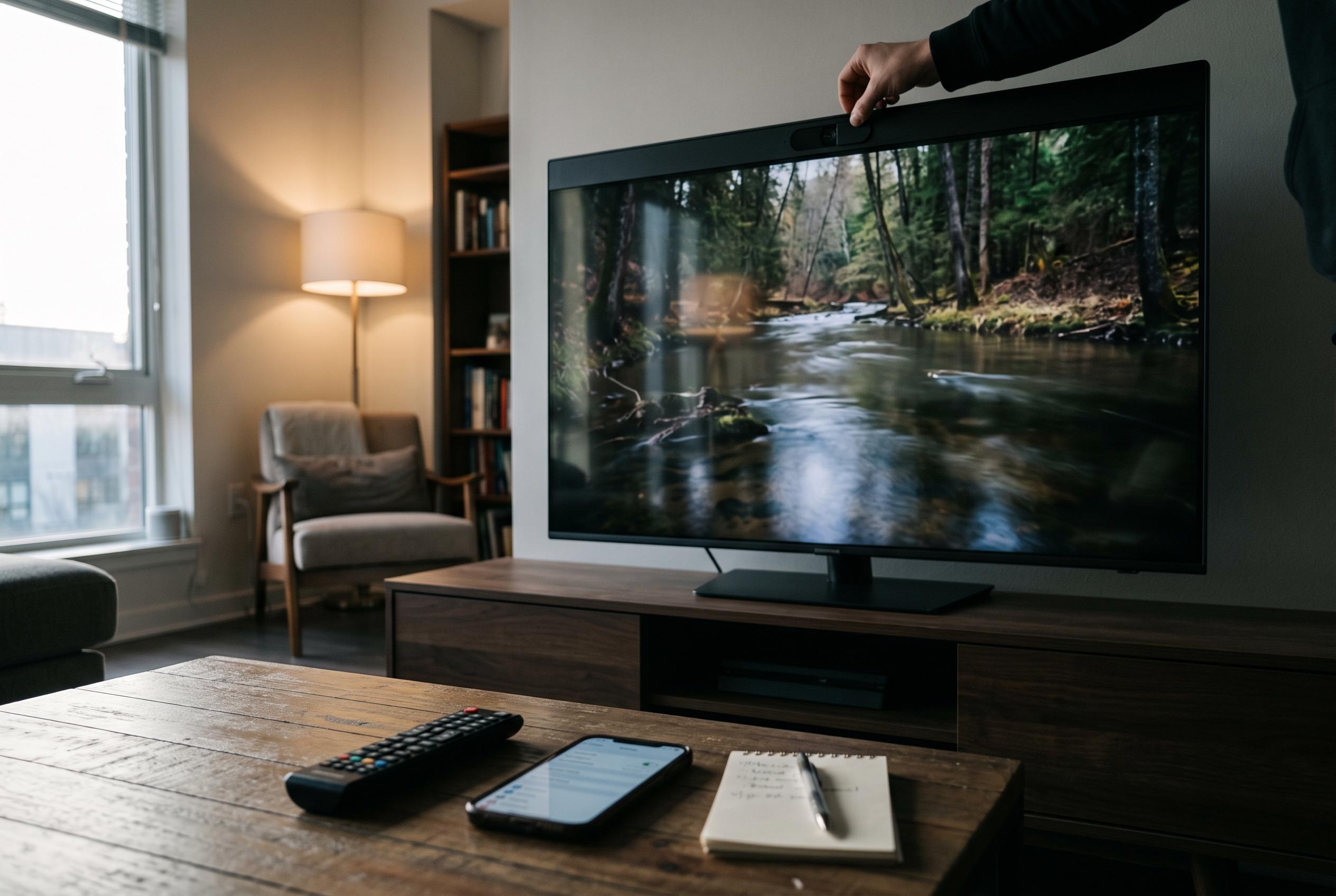

A comprehensive guide reveals how disabling energy-saving modes, privacy features, and motion smoothing can significantly improve your TV’s image quality and protect your personal data without extra costs.
The cheapest way to make many modern televisions look better is not to buy a new panel or a soundbar, but to start removing the defaults the manufacturer turned on. Across recent guides from LG, RTINGS, TechRadar, What Hi-Fi? and Tom’s Guide, the same pattern appears: power-saving modes can dim the screen, motion processing can make films look unnaturally slick, and privacy tools that monitor viewing habits are often enabled or scattered across several menus.
LG itself now frames one of the biggest picture complaints in exactly those terms. In a support note updated on 28 July 2026, the company says a dark or dim image is usually caused by Energy Saving being enabled or by the picture mode being set incorrectly. Its recommended fix is to turn “Energy Saving Step” off and switch the picture mode to “Standard”. The menu path changes by software generation: on 2026 models running webOS 26 it sits under Settings, All Settings, System, Energy Saving; on 2022 sets and later webOS 22 models it moves to General; on 2021 sets it is under Support; and on 2020 and older televisions the control is in the Picture menu. That is a useful reminder that “eco” settings are not cosmetic. They are designed to cut power consumption, and reduced brightness is part of the bargain.
The privacy issue runs deeper than a single toggle. RTINGS describes Automatic Content Recognition, or ACR, as the core technology that lets a television identify what appears on screen by sampling the image and matching it to a database, effectively a Shazam-style system for video. In its tests, the site found that this monitoring was not confined to built-in apps. On an LG G5, identifiable ACR-related traffic appeared while the set was idle, while video was playing from USB, and most heavily when HDMI devices were connected. RTINGS also reported that on Samsung’s S95F, Sony’s Bravia 8 II and LG’s G5, regular bursts of traffic to identifiable ACR-related services stopped or changed markedly after consent was withdrawn or the relevant setting was disabled.
Tom’s Guide says that is why privacy settings on smart TVs often feel harder to turn off than they should. On LG sets, it advises users to disable “Live Plus”, which handles ACR, but says that is only the first step. The same guide recommends checking the Advertisements menu for “Do Not Sell My Personal Information” or “Limit Ad Tracking”, then reviewing User Agreements covering “Viewing Information”, “Interest-Based Advertising”, “Voice Information” and Live Plus ACR. Roku uses different language again, hiding the relevant control under Privacy, Smart TV Experience, where the user must disable “Use Info from TV Inputs”. Amazon Fire TV splits the same kind of data collection across “Device Usage Data”, “Collect App and Over-the-Air Usage” and “Interest-Based Ads”. Sony televisions may use Samba Interactive TV, while Vizio labels the feature “Viewing Data”. The practical point is that many brands do not offer one obvious master switch.
Picture quality is affected just as heavily by motion processing. TechRadar describes motion smoothing, also called motion interpolation, as one of the most divisive settings on any television. The system analyses a video signal and inserts new frames between the real ones, often using blur-reduction and judder-reduction controls, to make fast movement look smoother. That can help sport, where a fast-moving ball or camera pan may benefit from added fluidity. But films are usually shot at lower frame rates, and RTINGS notes that aggressive interpolation gives them the glossy, synthetic “soap opera” look many viewers dislike. It also draws an important distinction: removing judder from 24fps material is not necessarily the same as inventing extra frames. Some televisions can present film motion more evenly without pushing the picture into full smoothing.
A simpler workaround on compatible sets is Filmmaker Mode. What Hi-Fi? says the mode was developed through the UHD Alliance with input from film-makers, studios and technology companies, and its purpose is to disable post-processing that alters the image away from the creator’s intent. Motion smoothing is one of the clearest examples, but not the only one. On many TVs, choosing Filmmaker Mode also strips back other enhancements that exaggerate sharpness, colour or texture. Even so, this is one area where preference still matters. TechRadar argues that some cheaper sets and some 60Hz panels can genuinely benefit from a little help on fast movement, especially in sport, and RTINGS similarly treats interpolation as optional rather than inherently wrong.
There is also a gaming caveat. RTINGS says most televisions do not offer motion interpolation in Game Mode, because the processing adds delay. If a player disables Game Mode in order to keep smoothing active, input lag typically rises sharply. Samsung is unusual in allowing motion interpolation to remain available in Game Mode while keeping lag relatively low. For anyone using a PS5, Xbox or gaming PC, that makes motion settings less about taste and more about responsiveness.
The bluntest fix of all is to take the television off the internet when its smart features are not needed. That will not suit households that rely on built-in streaming apps, but it makes sense for anyone who uses an external box or console for everything. RTINGS argues that connected TVs are priced in part on the assumption that manufacturers can continue making money from them after the sale through home-screen advertising, sponsored recommendations, content partnerships and app purchases. Remove the network connection and much of that disappears with it, along with a sizeable share of the tracking surface. It is not a perfect privacy solution, because an attached streaming stick can still collect its own data, but it is the most direct way to stop the television itself from behaving like an advertising platform.
Taken together, the advice amounts to a simple audit. First, disable energy-saving controls if the image looks too dim. Next, review every privacy menu rather than assuming one switch covers the lot. Then turn off motion smoothing for films, or use Filmmaker Mode if the set supports it. Finally, if the television is only acting as a display for external devices, consider disconnecting its Wi-Fi entirely. None of those changes costs anything, and on many current sets they do more for picture quality and privacy than buying another accessory.
Disclaimer: This content is intended for informational purposes only. Readers are advised to exercise their own judgement, conduct due diligence, or consult a qualified expert before acting on any information provided.



