

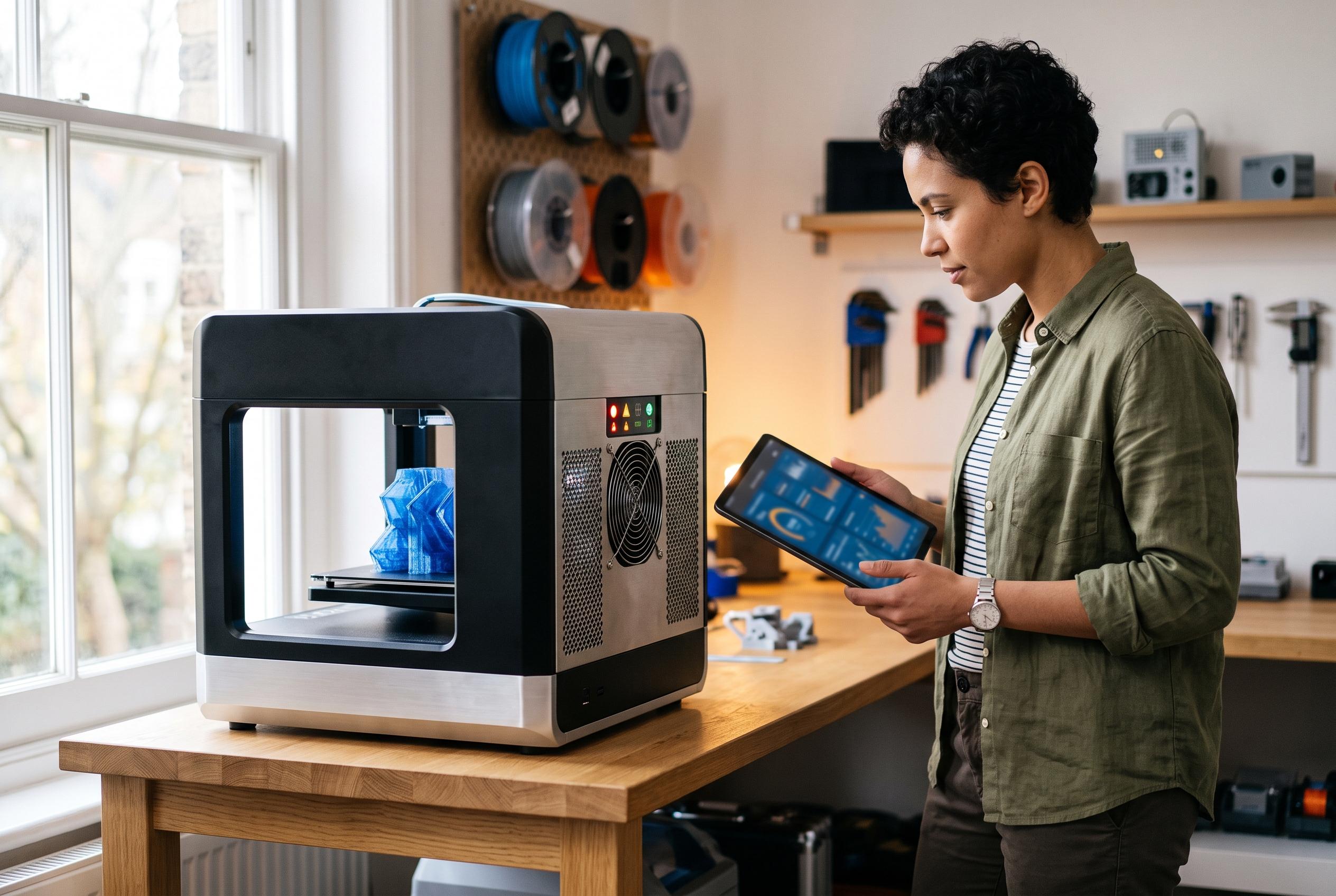

A step-by-step guide uncovers recent advances in diagnosing Wi‑Fi issues in 3D printers, highlighting the importance of identifying the specific failure point before attempting resets or updates.
When a 3D printer will not join Wi‑Fi, the first task is to identify which part of the connection has failed. A machine that cannot see the network is dealing with a different problem from one that rejects the password, fails to obtain an address, or appears connected while the slicer or cloud app still shows it as offline. According to troubleshooting guides from Speedefy and Nozzle Nerd, that distinction is the quickest way to avoid random resets and focus on the real fault.
The next step is to check the printer’s own network status, not just the router or a phone. Printer Triage and Speedefy both stress that model support varies widely: some printers work only on 2.4GHz, some support 5GHz as well, and some rely on specific security modes or setup tools. If the printer cannot detect the network, the most likely causes are band mismatch, weak signal, hidden SSID settings or a setup method that does not match the hardware.
If the password is being refused, the issue is usually authentication rather than coverage. The practical checks are straightforward: clear any saved network entry, re-enter the passphrase carefully, and watch for case-sensitive characters, stray spaces and unsupported symbols. TechDIY and TechYorker both note that firmware and driver updates can matter as well, but only after the basic password and compatibility checks have been confirmed.
A printer that shows a Wi‑Fi symbol but no address may have joined the radio network without completing router assignment. Speedefy and Error Code Reference both describe this as a separate stage from discovery or authentication. In that situation, it is worth waiting briefly, then checking whether the router’s DHCP service is active and whether signal quality is strong enough for the printer to finish the handshake. A router reboot may help; a factory reset is usually excessive at this stage.
If the printer has an address but the computer cannot find it, the problem is often local network isolation rather than the printer itself. Printer Triage and Speedefy both point to guest networks, client isolation and VPN software as common causes. The computer and printer should be placed on the same trusted network for testing, and slicer filters or device lists should be checked if local discovery still fails.
When local printing works but the cloud service still says the device is offline, the fault may lie beyond the home Wi‑Fi link. Speedefy and Formlabs’ documentation, as summarised in the supplied material, separate local connectivity from internet access, account binding and provider-side service status. A temporary hotspot test can help confirm whether the printer can join a simple supported network, but it should be used only as a diagnostic step, not a permanent workaround.
Firmware and resets should come later, not first. The supplied guides from Speedefy, Sovol’s wiki and TechYorker all show that update methods vary by model and may use USB, removable storage or a manufacturer app when Wi‑Fi is unavailable. Network resets should be limited to the printer itself until the evidence points there, because wiping the router can disrupt every device in the home. The most reliable sequence is simple: confirm the failure point, verify the model’s supported band and security mode, test the same trusted network on both devices, and only then move on to reset or update steps.
Disclaimer: This content is intended for informational purposes only. Readers are advised to exercise their own judgement, conduct due diligence, or consult a qualified expert before acting on any information provided.



