

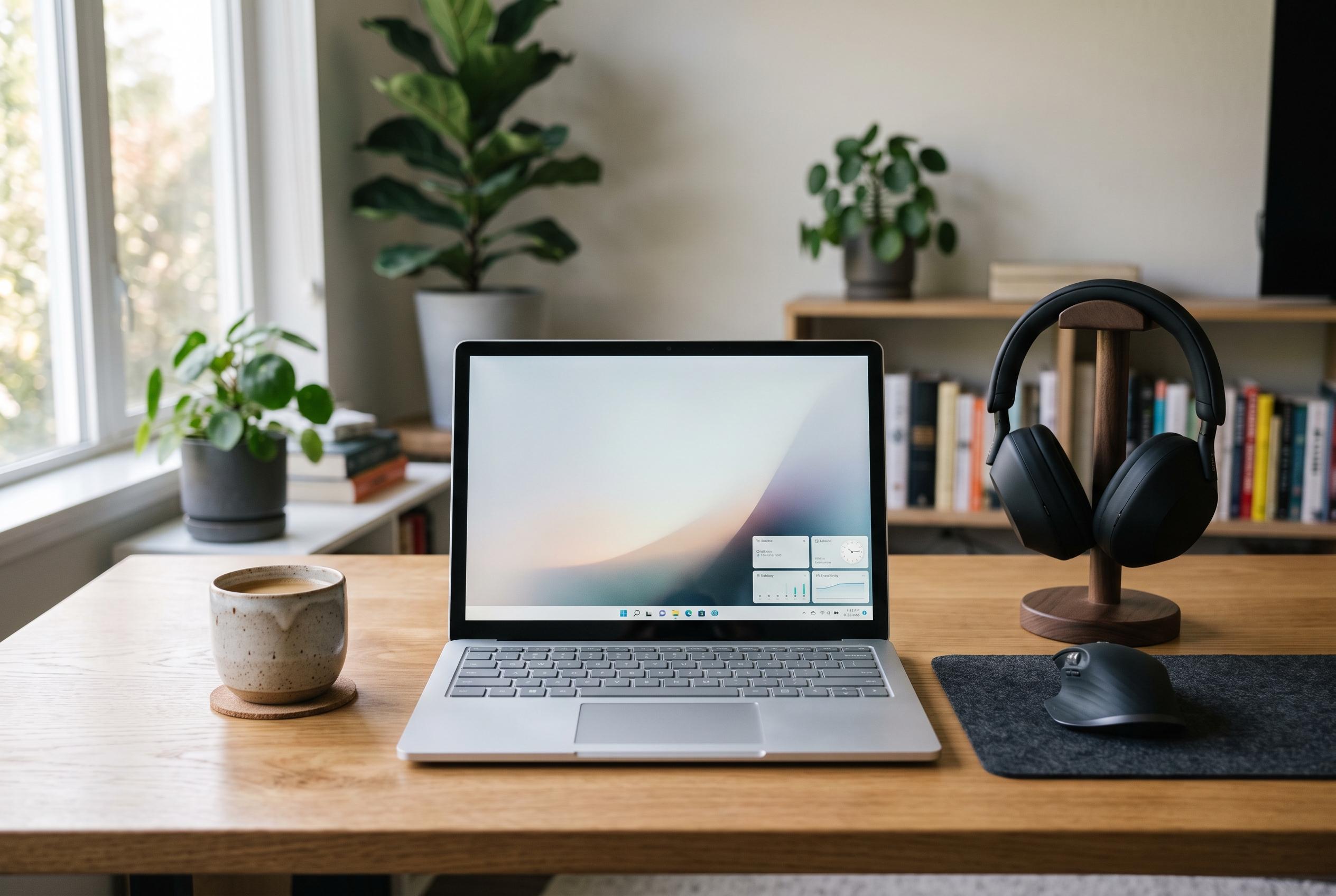

A guide to configuring Windows 11 for maximum efficiency by focusing on subtle yet impactful adjustments that reduce clutter and enhance daily workflow.
A practical Windows 11 productivity setup begins with restraint. The most effective changes are usually the least visible: trim startup clutter, suppress routine interruptions, keep files in predictable places and use the operating system’s built-in tools before adding anything extra. Microsoft already includes features such as Snap layouts, virtual desktops, clipboard history, Storage Sense and Windows Backup, so a useful setup is often more about configuration than software sprawl.
The first step is to shape the desktop around daily work. Keep the taskbar limited to the apps you open constantly, then use the Start menu for secondary tools and shortcuts to folders such as Documents or Downloads. Microsoft’s business guidance for Windows 11 also points to intelligent recommendations in Start and taskbar, plus quick access to AI help through the Copilot key on supported devices, but the underlying principle remains the same: the interface should reflect actual habits, not default clutter.
Notifications deserve immediate attention. Windows 11 lets users turn off promotional noise, reduce banners and sounds for lower-priority apps, and reserve urgent alerts for calls, calendar reminders and security warnings. Focus and Do Not Disturb can be scheduled or triggered automatically in certain situations, while Microsoft’s own productivity guidance also highlights Live Captions and the Snipping Tool as useful built-in tools for people who need to capture or follow information quickly without breaking concentration.
Window management is another area where the operating system is already strong. Snap layouts work well for most laptop users, while larger displays benefit from more structured arrangements. Virtual desktops help separate tasks, though they do not silence alerts, so they work best when paired with Do Not Disturb. That combination creates a cleaner boundary between projects without forcing a complicated workflow or extra software.
File discipline matters more than any utility. A folder system built around active work, completed work and supporting material is far easier to maintain than a desktop full of temporary documents. File Explorer can be made more useful by showing file name extensions and pinning current projects to Quick access. Search indexing is worth adjusting only after the filing structure is under control; Microsoft and independent Windows guides alike treat organisation as the foundation, not the last step.
Keyboard shortcuts and startup management provide the next gains. Simple combinations such as Windows key plus E for File Explorer, Windows key plus V for clipboard history and Windows key plus Tab for Task View remove repeated clicks. Meanwhile, disabling unnecessary startup apps can reduce delay at sign-in, although it will not uninstall those programmes. Windows Central notes that many users also benefit from removing bloatware and reducing visual effects, but the broader point is to cut wasted background activity without affecting essential tools.
Storage, power and backup settings complete the base layer. Storage Sense can clear temporary files, but it should be reviewed carefully before removing Downloads or cloud content that may still be needed. Power mode should match the task, with balanced settings suitable for most office work and higher performance reserved for sustained processing. Windows Backup and OneDrive can protect selected folders, but they are not a substitute for an independent copy on an external drive or another service. Microsoft says Windows 11 Pro also includes productivity features such as File Explorer assistance and Snipping Tool improvements, but those additions work best once the device is already tidy and recoverable.
Only after those basics are in place does it make sense to add Microsoft PowerToys or other extras. FancyZones is useful for ultrawide or multi-monitor layouts, Workspaces can reopen grouped apps, and PowerRename is helpful for batch file changes, yet many users will not need them if Snap and Start already cover their needs. The same applies to newer Windows 11 features now being tested, such as automatic theme switching: useful for some, unnecessary for others. A good setup is not the one with the most options, but the one that quietly reduces friction day after day.
Disclaimer: This content is intended for informational purposes only. Readers are advised to exercise their own judgement, conduct due diligence, or consult a qualified expert before acting on any information provided.



