

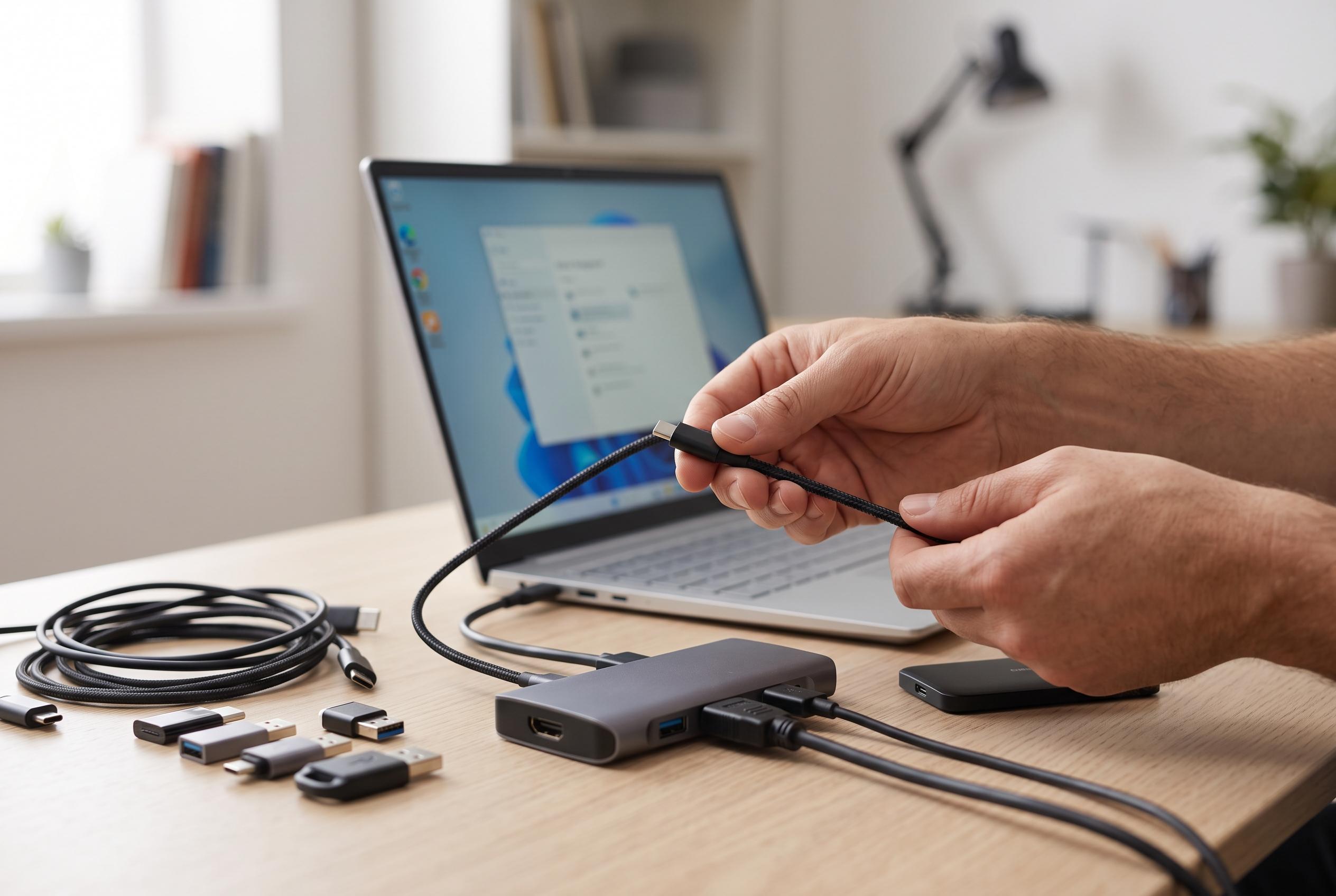

A step-by-step guide reveals how users can resolve common issues with USB device recognition on Windows 10 and 11, from basic hardware checks to driver updates and deeper system repairs.
When Windows 10 or Windows 11 fails to recognise a USB device, the problem is often caused by something basic: a loose connection, a power-setting conflict, a driver fault or a damaged port. PCWorld says the first checks should be physical ones, while Microsoft’s own support guidance for unrecognised peripherals also starts with the connection, power and port. In many cases, a simple restart is enough to reset USB controllers and clear a temporary system fault.
If the device still is not detected, the next step is to test another USB port and, if possible, another cable or another computer. That helps separate a device fault from a PC fault. Guides from PCWorld, Help Desk Geek and Samnet.dev all recommend this approach because a bad port, hub or lead is one of the most common reasons Windows reports that a device has malfunctioned.
Driver problems are another frequent cause. PCWorld and Help Desk Geek both advise using Device Manager to update, reinstall or refresh USB drivers, while Microsoft notes that driver updates and Windows updates can address known recognition issues in related hardware scenarios. AllThings.how adds that power management settings can also interfere, especially when USB selective suspend is allowed to switch off a port to save power. Disabling that setting can help prevent an otherwise healthy device from dropping offline.
If the problem affects a flash drive rather than a peripheral such as a printer, Windows Disk Management may also need attention. PCWorld says a drive that is physically present but not showing up may simply need a drive letter assigned before File Explorer can display it. If the storage itself is corrupted, formatting may restore access, although that will erase data and should be treated as a last resort. Several guides also recommend testing for malware or system corruption when the issue persists after basic hardware checks.
The practical order is straightforward: restart, check ports and cables, try another machine, refresh drivers, review power settings and then move on to deeper repairs if needed. That sequence reflects the common pattern across Microsoft’s support material and independent troubleshooting guides. For most users, it resolves the issue without requiring specialist tools.
Disclaimer: This content is intended for informational purposes only. Readers are advised to exercise their own judgement, conduct due diligence, or consult a qualified expert before acting on any information provided.



