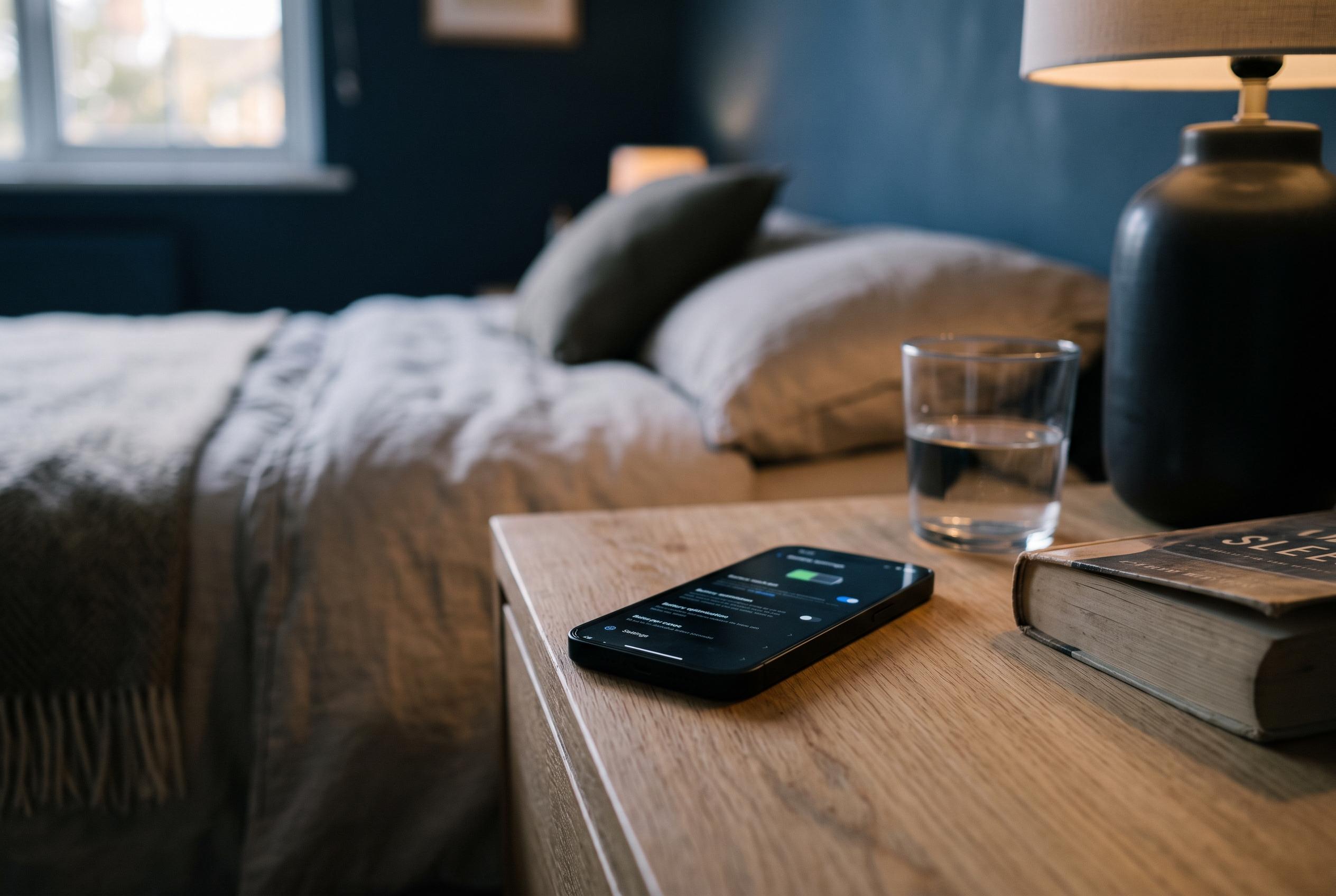

Android users often face significant battery drain overnight, but most causes are fixable. This guide explains how to identify and reduce unnecessary background activity, optimise display settings, improve reception, and activate features like Adaptive Battery for longer-lasting power during sleep hours.
Night-time battery loss on Android is often larger than users expect, but it is usually not random. A phone that is properly tuned should lose only a small amount of charge while idle, and a bigger drop usually points to a setting, signal problem, or background process that can be fixed. The most useful first step is to check Android’s battery screen so you can see which apps and system functions are actually drawing power, rather than guessing. According to the supplied guide and Google’s own advice, that gives the clearest picture of whether the drain is coming from display settings, location features, or active apps.
One of the most overlooked causes is poor reception overnight. If a phone is left in a back room, basement, or anywhere with weak mobile signal, it can waste power constantly searching for a stronger connection. Moving the device to a room with better reception, or closer to a window, can reduce that load. Where supported by the carrier, turning on Wi‑Fi calling can also help because it reduces reliance on the cellular network for voice and related services.
Display settings matter as well. Always-on display is convenient, but it keeps part of the panel active throughout the night and can meaningfully add to standby drain. The article’s example suggests this can account for several percentage points of battery loss over a full night, so it is sensible to switch it off or schedule it to disable automatically while you sleep. Google’s battery guidance and other Android help pages also point to screen-related settings as a major source of avoidable consumption.
Location services are another common culprit. Android can keep scanning for nearby Wi‑Fi networks and Bluetooth devices even when those radios are not actively being used, because the scans help with approximate location detection. That behaviour can wake the processor unnecessarily during periods when the phone should be in deep sleep. Disabling Wi‑Fi and Bluetooth scanning in the location settings is a practical way to cut that background activity without fully disabling GPS when it is actually needed.
For broader background control, Adaptive Battery is worth enabling if it is not already on. Google describes it as a feature that learns app usage patterns and limits battery-heavy behaviour from apps that are not used often. The article argues that this is especially useful overnight, when the phone is idle and unnecessary network access offers little benefit. For more stubborn offenders, Android also allows per-app restrictions, which can be applied to social media apps and other services that are prone to waking the phone in the background, although this may delay some notifications. That trade-off is often acceptable if the goal is to reduce overnight drain as much as possible.
Disclaimer: This content is intended for informational purposes only. Readers are advised to exercise their own judgement, conduct due diligence, or consult a qualified expert before acting on any information provided.