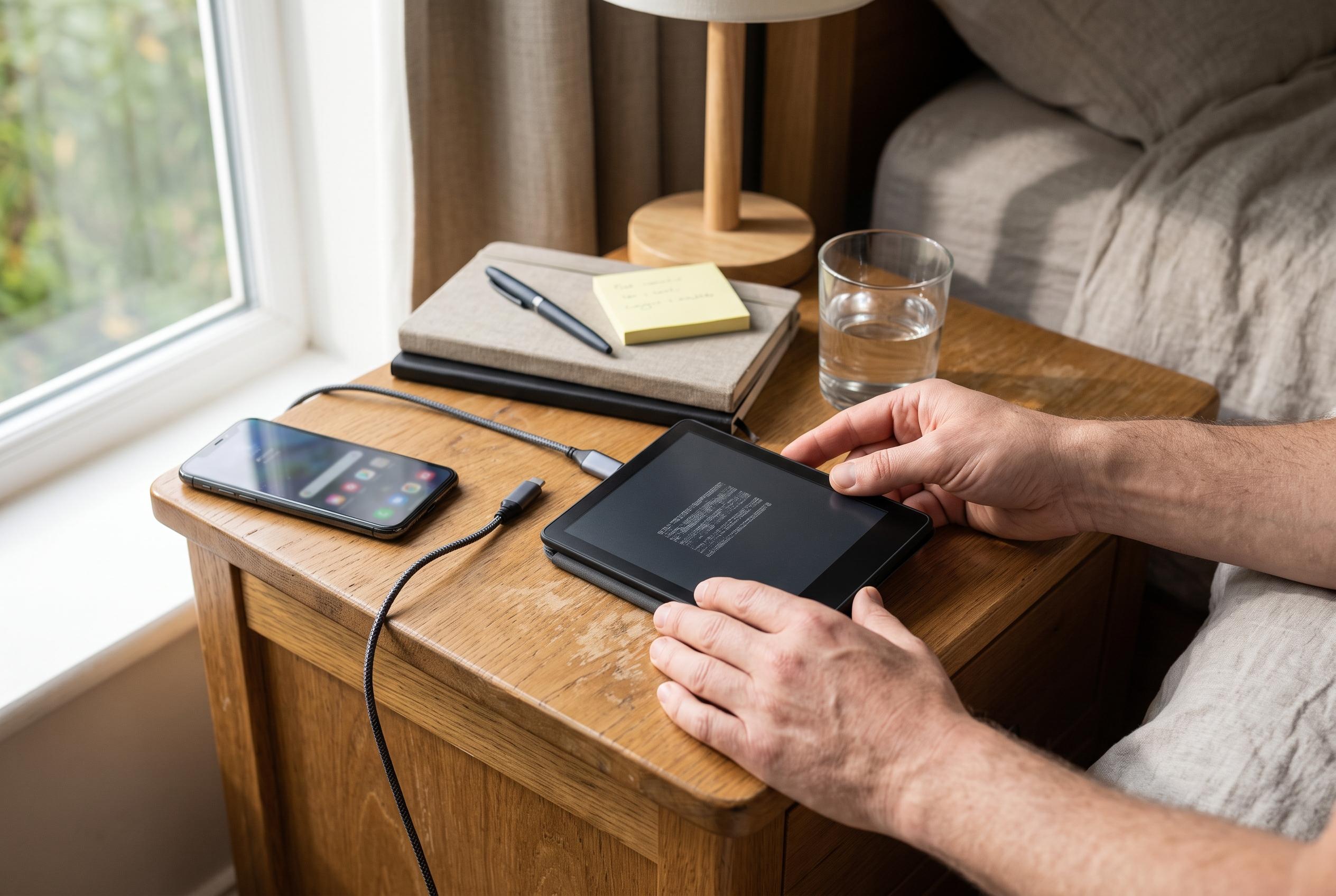

Experiencing trouble opening a Kindle book? This guide explores the latest fixes, including device, account, and file issues, to get your digital library back on track.
A Kindle book that appears in your library but refuses to open is usually pointing to a problem with the file, the account, or the device’s connection to Amazon’s services. The safest place to start is with the simplest checks: confirm Wi-Fi is working, make sure Airplane Mode is off, restart the device or app, and sync the library so the Kindle can refresh its content list. Amazon also advises that a failed or incomplete sync can leave a title visible but unusable, while third-party troubleshooting guides agree that a damaged download is one of the most common causes.
If the issue affects only one title, the evidence points more strongly to that book than to the Kindle itself. In that case, removing the local download and fetching it again is often the most effective fix. It is also worth checking the book’s compatibility, especially if it contains enhanced formatting, images, or other features that may not be supported on every Kindle model or app. Amazon’s content management tools can help confirm whether the book is properly assigned to the correct account and can be delivered again if needed.
Software and account state also matter. An out-of-date Kindle operating system or app can prevent newer content from opening properly, so updates should be checked early in the process. If the book still fails to open, verify that the device is registered to the correct Amazon account, that the title appears in the user’s content library, and that the Kindle has enough storage available for a fresh download. Technical guides from multiple sources note that account mismatches, licence issues, and limited storage can all produce the same symptom even when the book is present in the library.
When the problem is broader and several books are affected, the fault is more likely to be with the device itself. In that situation, Amazon’s recommended troubleshooting path includes checking the network connection, toggling Airplane Mode, testing another Wi-Fi network, and, if necessary, deregistering and registering the Kindle again to refresh authentication. On tablets and phones, app updates and possible software conflicts should also be considered. More advanced steps, such as a factory reset, should be left until the end because they remove local content and require the device to be set up again.
If none of those measures works, the next best diagnostic step is to test the same title on another Kindle or in the Kindle app on a different device. If it opens elsewhere, the original Kindle is probably at fault; if it fails everywhere, the problem is more likely tied to the book file, the licence, or the account. That distinction is important, because it determines whether the fix should focus on the device, the network, or the specific title. Amazon support will usually want the Kindle model, software version, exact error message, and whether the book opens on another device before escalating further.
Disclaimer: This content is intended for informational purposes only. Readers are advised to exercise their own judgement, conduct due diligence, or consult a qualified expert before acting on any information provided.