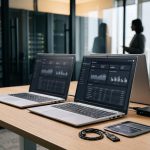
Latest Thunderbolt 5 monitors set a new standard for integrated LAN ports, offering higher bandwidth, improved charging, and seamless multi-PC control, transforming desk setups for hybrid work.
Monitors with an integrated LAN port have become a practical alternative to a separate docking station, especially for laptop users who want to reduce cable clutter. In this setup, the screen acts as a hub: one USB-C or Thunderbolt connection can carry the video signal, charge the notebook and provide wired networking at the same time. That makes the category particularly useful for office work, hybrid desks and machines that no longer include a native Ethernet socket.
The key point is that the RJ45 socket on the monitor is not a stand-alone feature. It behaves like a USB network adapter built into the display, which means the computer must be linked by USB-C, Thunderbolt or, on some models, USB-B. If the screen is connected only by HDMI or DisplayPort, the network port does not function. Windows and macOS usually detect the adapter automatically, although some manufacturers also supply their own drivers. According to Dell’s product information for the UltraSharp U2724DE, the monitor combines Thunderbolt 4, 90W power delivery, a 2.5 Gigabit Ethernet port and KVM support for two PCs.
Performance depends heavily on how much bandwidth is left after the display signal has been carried. On some USB-C monitors, a high-resolution image can consume all available lanes, forcing the hub side of the display down to USB 2.0 speeds. In that case, even a 2.5 Gigabit Ethernet controller may deliver only a few hundred megabits per second in practice. That is usually fine for calls, browsing and general office work, but it can become a bottleneck when copying large files or working against a NAS. The practical workaround is either a monitor with a menu option for prioritising data traffic or, better still, a Thunderbolt model with more bandwidth headroom.
That is why Thunderbolt 4 and, more recently, Thunderbolt 5 monitors are the most capable docking displays, albeit also the most expensive and least common. Dell’s UltraSharp U2724DE, for example, pairs a 27-inch QHD panel at 120 Hz with 2.5 Gigabit Ethernet and 90W charging, while Lenovo’s ThinkVision P40WD-40 steps up to a 40-inch 5K2K panel at 120 Hz, Thunderbolt 4, 140W delivery and 2.5 Gigabit Ethernet. Dell’s larger UltraSharp U4025QW follows a similar formula with a 40-inch curved 5K2K panel, Thunderbolt 4, 90W charging and 2.5 Gigabit Ethernet.
For buyers who do not need Thunderbolt, USB-C docking monitors can be a more affordable route. Dell’s UltraSharp U2424HE and U3224KB both use USB-C, provide up to 90W power delivery and include 2.5 Gigabit Ethernet, while still offering KVM support for two computers. That kind of specification is attractive for users who want a neat desk setup but do not need the higher cost and complexity of Thunderbolt. In this segment, AOC’s Q27P4CV also fits the pattern, with USB-C, 2.5 Gigabit Ethernet and support for multiple upstream connections, making it a lower-cost option for mixed-device desks.
KVM support is another feature worth checking carefully before purchase. A monitor with KVM lets one keyboard and mouse control two computers through the same display, which is useful for people who switch between a work notebook and a private machine. However, the Ethernet port does not always behave the same way when the KVM input is changed. On some models it follows the active computer automatically; on others, it can remain tied to one device or be managed through a menu setting. For business environments, functions such as MAC address pass-through, PXE boot and Wake-on-LAN can also matter, particularly for IT-managed notebooks.
The result is that a monitor with LAN is easiest to recommend when the buyer’s priorities are clear. If the goal is a clean desk, one-cable connectivity and a laptop-friendly dock without a separate hub, the category makes sense. If the aim is maximum flexibility, a separate docking station may still be the better long-term purchase, especially if the monitor will be replaced later. For most users comparing specifications, the most important checks are the connection type, the charging wattage, the Ethernet speed and, where two PCs are involved, how the KVM switch handles the network link.
Disclaimer: This content is intended for informational purposes only. Readers are advised to exercise their own judgement, conduct due diligence, or consult a qualified expert before acting on any information provided.