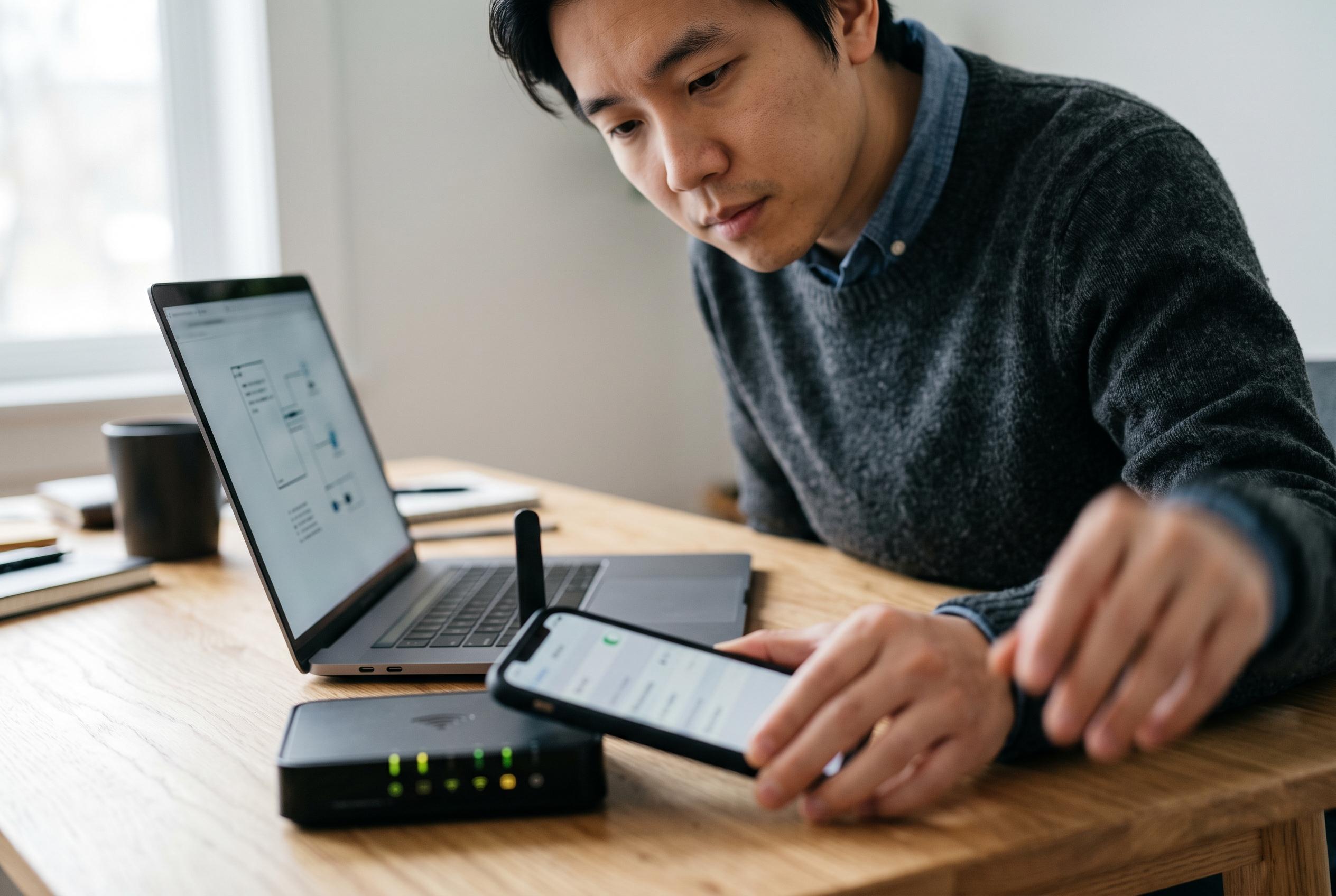

A guide to resolving frequent reasons behind mobile hotspot issues, from network settings to carrier restrictions, with practical troubleshooting steps.
Mobile hotspot failures are usually caused by one of a small number of faults rather than a single obscure defect. The most common explanations are disabled mobile data, carrier limits on tethering, temporary software errors, incorrect network settings, or battery-saving features that interrupt sharing. Troubleshooting works best when these causes are checked in a sensible order, beginning with the phone’s cellular connection and then moving through permissions, software and carrier configuration.
The first test is basic but decisive: confirm that mobile data is actually working on the handset itself. A hotspot depends on the cellular connection, not on Wi-Fi, so if the phone cannot load a page or access an app on mobile data, tethering will fail as well. Several troubleshooting guides also note that toggling the hotspot off and back on can clear a short-lived fault without affecting saved settings.
If the feature still will not stay on, restart the phone. Temporary background faults can freeze network services, and a full reboot often restores cellular, Wi-Fi and Bluetooth processes that the hotspot relies on. It is also worth checking whether the device is connected to a supported plan. Some carriers block tethering altogether, restrict it to specific tariffs, or cut it off once a hotspot allowance has been used. In those cases, the control may appear to work but the connection will not remain active.
Software status matters as well. Outdated iOS or Android releases can contain bugs that affect hotspot controls, while carrier-side changes may not work properly until the handset has been updated. On Android devices in particular, battery-saver and data-saver tools can interfere with tethering by limiting background networking or switching the hotspot off automatically. Turning those features off temporarily is a practical way to see whether power management is the cause.
Network configuration is another common source of failure. Carrier settings updates on iPhone, or APN details on Android, can be essential for mobile data and tethering to function correctly. Incorrect APN values are especially disruptive because they can break data access even when calls and texts still work. If the phone has recently changed SIM, network, or provider, these settings deserve close attention before more disruptive steps are taken.
If none of the simpler checks solve the problem, resetting network settings is often the last software step worth trying. This clears stored Wi-Fi, cellular, VPN and other network preferences, forcing the phone to rebuild them from scratch. Guides aimed at both iPhone and Android users generally place this option near the end of the process because it can resolve corrupted settings, but it also removes saved network details, so it should be used only after the less invasive fixes have failed.
Disclaimer: This content is intended for informational purposes only. Readers are advised to exercise their own judgement, conduct due diligence, or consult a qualified expert before acting on any information provided.