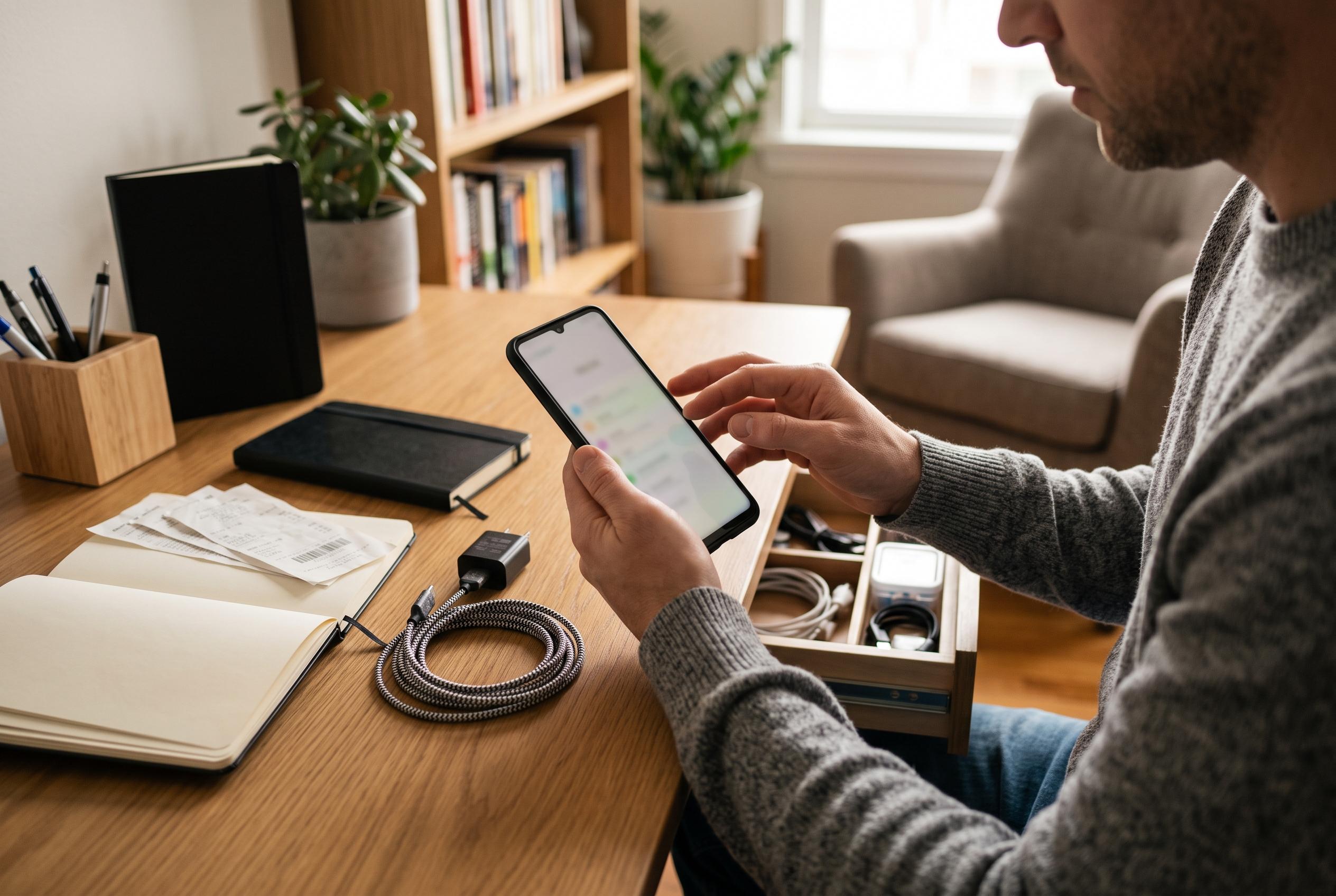

A slow Android device is often a sign of usage habits rather than hardware failure. Effective storage management, background activity control, and customising visual effects can significantly enhance device responsiveness without costly upgrades.
A slow Android phone is not always a sign that the device has reached the end of its life. In many cases, the real problem is how the handset is being used day to day. Storage pressure, background activity and performance-limiting settings can all make a perfectly serviceable phone feel far older than it is.
One of the most common causes is a nearly full storage drive. Android uses local storage for cache files and temporary data while apps are running, and when space runs short the system has less room to work efficiently. Google says phones need at least 10% of total storage left free for smooth operation. When that buffer disappears, the system spends more effort shuffling files and clearing space, which can translate into visible lag. A practical response is to remove unused apps, move photos and other large files to cloud storage, and use the Clean tools in Files by Google or the app-archiving options now available on Android and iOS devices to free space without fully uninstalling everything you do not need.
Another frequent issue is unchecked background activity. Android is designed to manage most of this on its own, so repeatedly clearing recent apps is usually unnecessary. The bigger risk comes from poorly optimised apps that continue to consume battery, memory and processing time long after you stop using them. Android’s battery settings can help identify these cases by showing which apps use a disproportionate amount of power without much screen time. If one stands out, restricting its background access can make a noticeable difference. Some support guides for Android slowdown also point to low storage and background services together as a common combination behind sluggish behaviour.
Virtual RAM is another feature that can be misunderstood. Phone makers often present it as a simple way to add memory, but it does not work like physical RAM. Instead, it uses part of the internal storage as a temporary extension of memory. Because storage is slower than real RAM, especially on mid-range devices, the result can be slower app loading rather than better performance. On phones that already have 8GB of RAM or more, the benefit is often limited, and in some cases the feature can make responsiveness worse rather than better.
Power-saving mode can also create the impression that an older phone is struggling. It is useful when battery life is running low, but it is not designed for permanent use. Manufacturers commonly reduce processor speed and cap refresh rates when battery saver is enabled, which means scrolling, gaming and app switching can feel less fluid. If endurance is the issue, a spare charger, a power bank or a battery replacement is usually a better answer than leaving energy-saving mode switched on all the time.
Finally, visual effects can add unnecessary strain on older hardware. Android’s animations are meant to make transitions feel polished, but on a modest or ageing device they can make the system seem slower than it really is. Disabling or reducing window, transition and animator scales in Developer Options can make menus and apps appear to open more quickly. It does not increase raw performance, but it reduces the amount of time the processor spends rendering cosmetic motion, which can improve the phone’s perceived speed.
Disclaimer: This content is intended for informational purposes only. Readers are advised to exercise their own judgement, conduct due diligence, or consult a qualified expert before acting on any information provided.