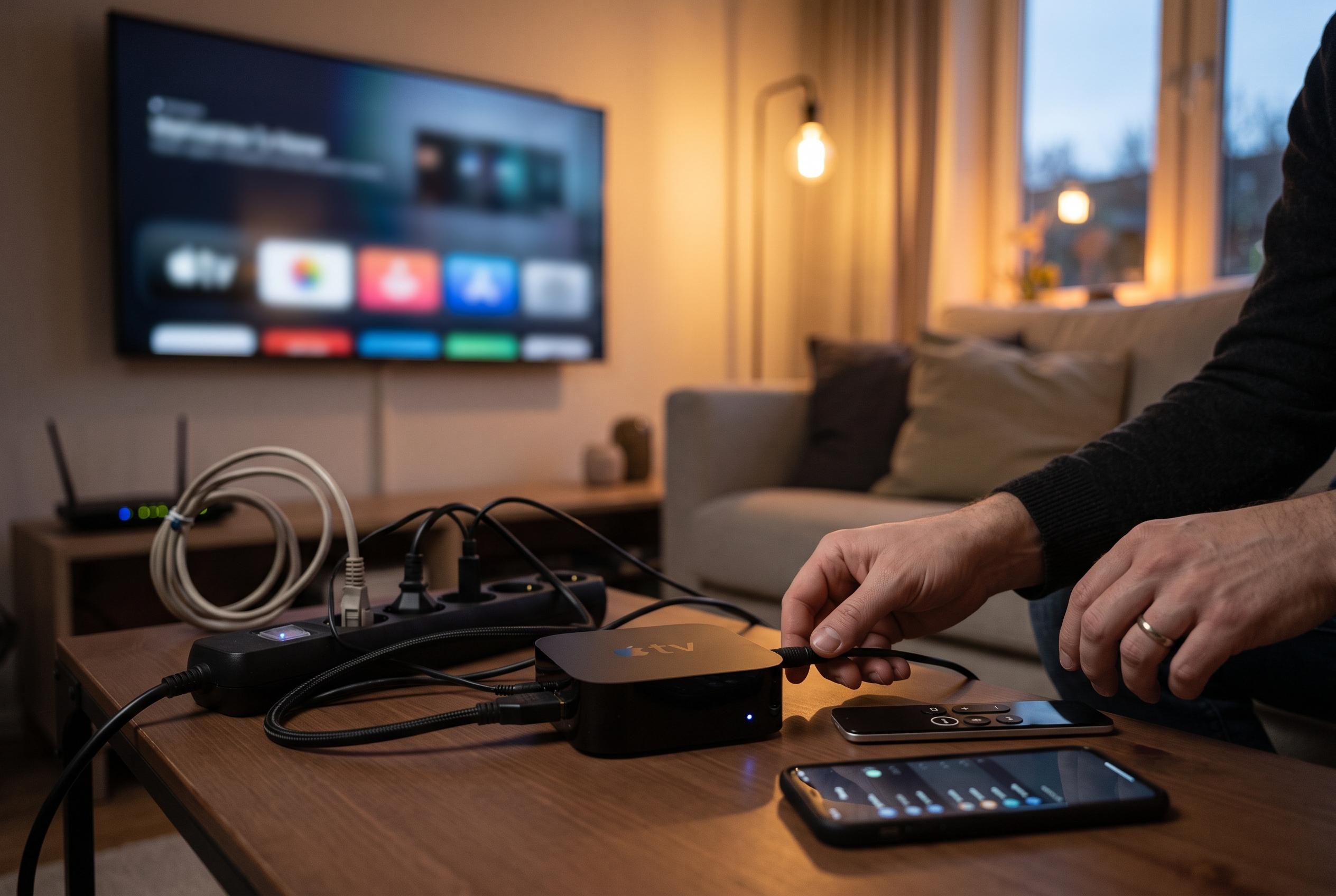

A clear sequence of checks, from service status to device resets, can effectively resolve common Apple TV app crashes, with recent advice highlighting the importance of updating and resetting as key solutions.
When the Apple TV app suddenly stops loading, crashing, or refusing to play a title, the cause is often more ordinary than it first appears. Windows Report says the first checks should be the simplest ones: confirm whether Apple’s own service is having trouble and then test the internet connection before making any deeper changes. That sequence matters because an outage or a weak connection can look very similar to an app fault.
If the service is operating normally, the next step is to close the app fully and reopen it, then restart the device it is running on. Troubleshooting guides from Guiding Tech, Position is Everything and iDownloadBlog all point to this as a practical way to clear temporary glitches on phones, tablets, TVs and computers. In many cases, an app that appears frozen is simply stuck in a bad session rather than suffering permanent damage.
Software updates are the next most important fix. Windows Report recommends checking for updates to the Apple TV app and to the underlying operating system, whether that is iOS, iPadOS, macOS, Android or Windows. iTechGuides notes that on Windows 11, app failures can stem from corrupted app data or an outdated Microsoft Store installation, while Guiding Tech says iPhone and iPad users often need to rely on system updates rather than a separate Apple TV app update.
Network-related settings can also interfere with playback. Windows Report advises turning off any VPN, while other troubleshooting guides add that restarting the router or briefly disconnecting and reconnecting to Wi‑Fi can help if streaming stalls or buffers endlessly. On some devices, sign-out and sign-in can also refresh a broken account session, particularly when the app opens but the library, subscription or playback controls do not behave correctly.
On Android, clearing the app cache is another useful step when loading screens or crashes persist. If the problem remains after that, reinstalling the app is the cleanest way to remove damaged files and start again. Apple’s own support documentation also describes a reset option on compatible smart TVs, warning that it restores the app to its original settings and removes personal information, shows and films stored locally on the device.
Taken together, the advice from Apple and independent troubleshooting guides points to a clear order of operations: check service status, verify connectivity, restart the app and device, update software, remove anything that might interfere with streaming, and only then move on to cache clearing, sign-in refreshes, resets or reinstallations. For most users, that approach is enough to restore the Apple TV app without more drastic measures.
Disclaimer: This content is intended for informational purposes only. Readers are advised to exercise their own judgement, conduct due diligence, or consult a qualified expert before acting on any information provided.