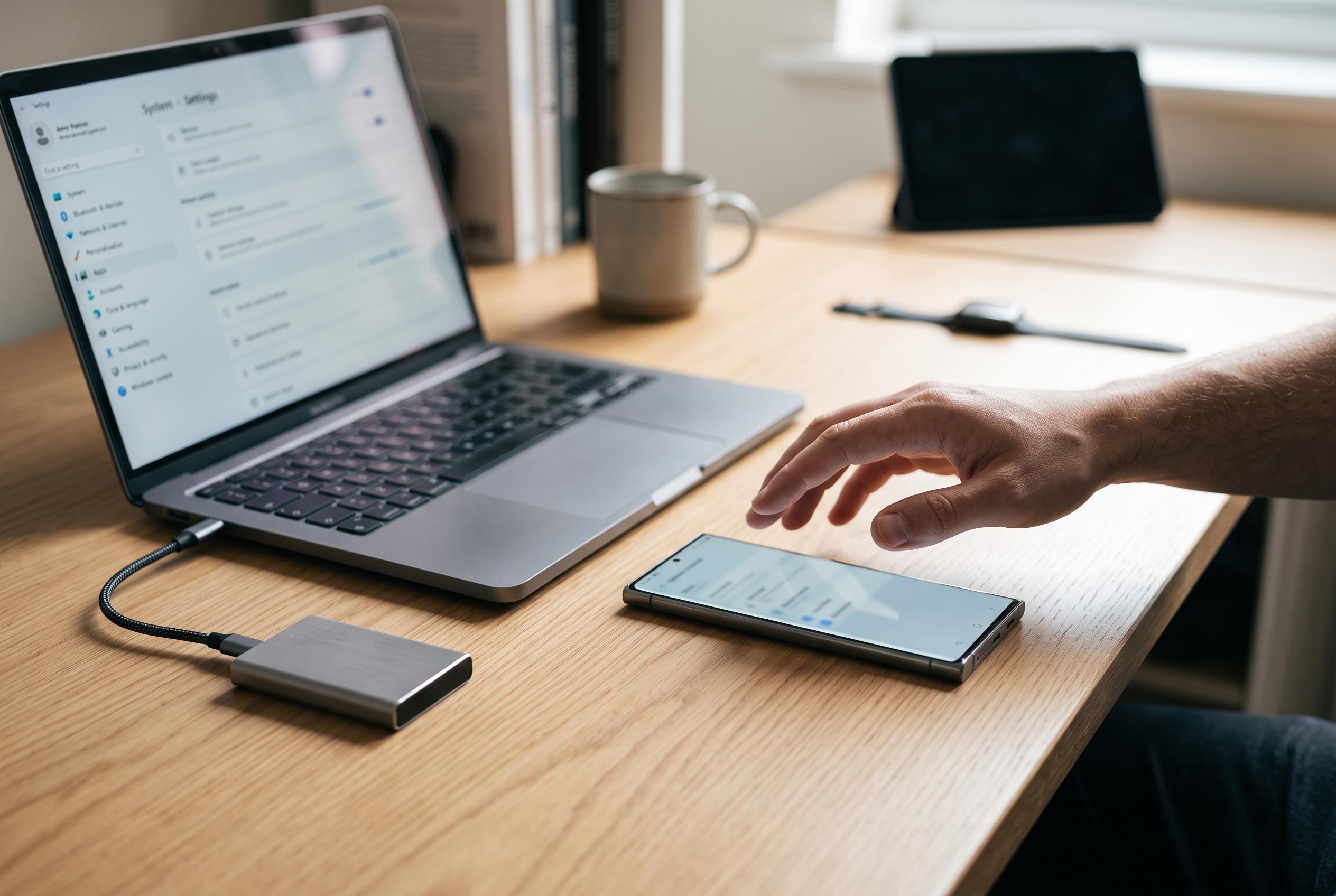

Understanding the different reset options for Samsung Galaxy devices is essential before wiping data – learn how to perform soft, hard, and factory resets safely and effectively.
Before starting a reset on a Samsung Galaxy device, the main point is simple: make sure the data you want to keep is backed up, because the process removes personal files, accounts and settings. Samsung’s support documentation says a factory data reset returns the device to its original state, while also warning that Google’s Factory Reset Protection may require the previous account to be verified before the phone can be used again.
For most users, the safest route is through the Settings menu. Samsung’s UK support page says this is one of three standard methods, alongside hardware-button recovery and the SmartThings Find service. TechBone similarly notes that the in-settings route is intended for devices that still boot normally and can be unlocked. In practice, this is the most straightforward option when the phone is responsive and the owner can enter the required PIN, password or pattern.
A hard reset is different. As Rogers explains, it is typically used when the phone is frozen, unresponsive or otherwise cannot be operated in the usual way. The process involves switching the handset off and using a specific button combination to enter Android system recovery, where the user can choose the reset option and then restart the device. SamMobile gives the same broad guidance for Samsung Galaxy models, adding that the procedure may be easier to follow when the device is connected to a computer for reference or support.
There is also an important distinction between reset types. DevX describes soft reset, hard reset and factory reset as separate actions with different purposes. A soft reset is generally a simple restart, while a hard reset through recovery mode is used for more serious faults, including boot loops or lockouts. A factory reset is the most complete option, and is the one that wipes user data and restores the device to its original configuration.
Samsung’s own support material also points to SmartThings Find as another route for remotely resetting a device, provided the phone is signed in and available to the service. That can be useful if the handset has been lost or left inaccessible, but it also reinforces the need for account access and prior setup. In all cases, the practical advice is consistent: back up first, confirm account details, and choose the reset method that matches the device’s condition.
Disclaimer: This content is intended for informational purposes only. Readers are advised to exercise their own judgement, conduct due diligence, or consult a qualified expert before acting on any information provided.