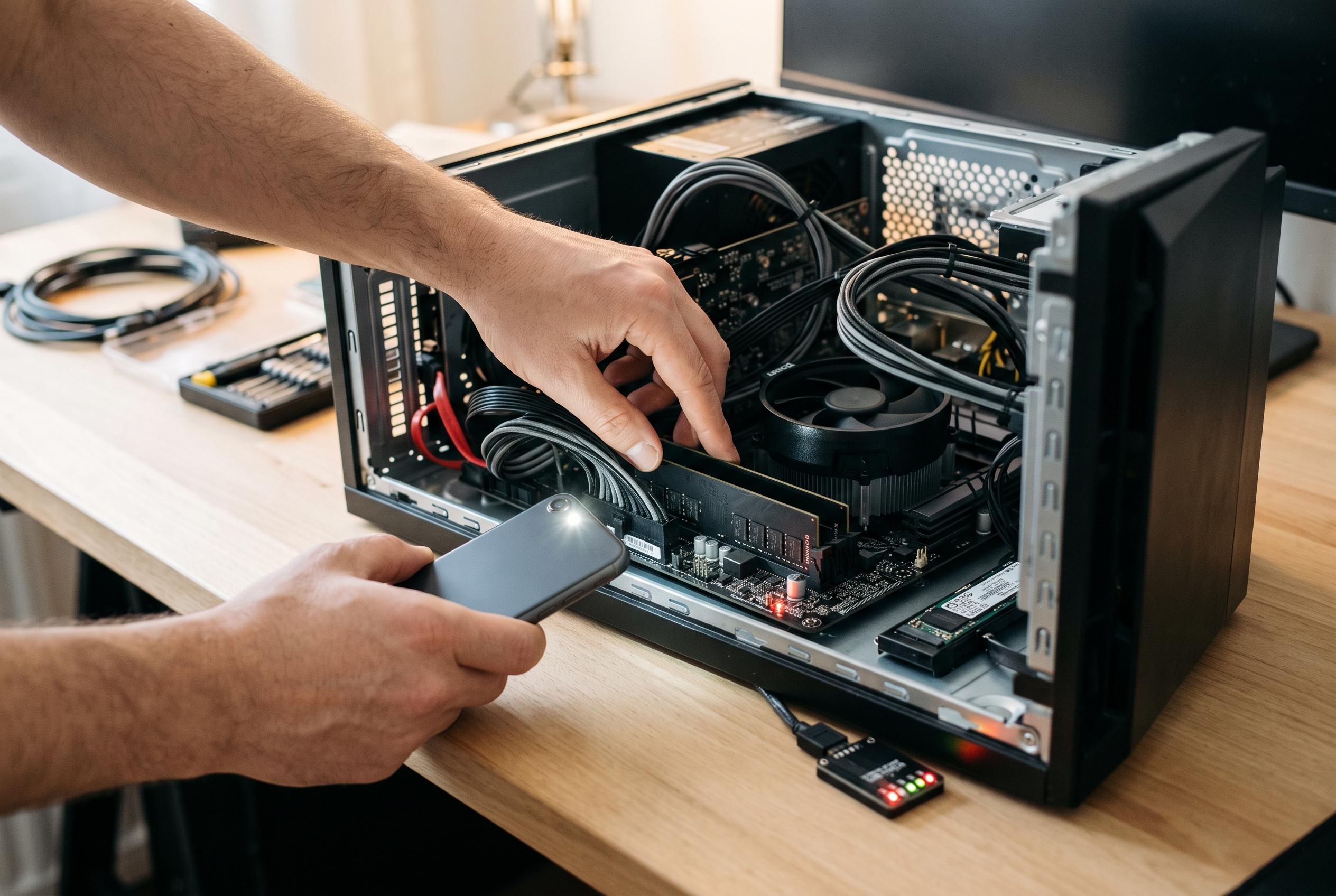

Before blaming Windows for startup issues, recognising where the boot process fails can direct you to the right hardware or firmware problem, saving time and avoiding unnecessary reinstallation.
A PC that fails to start cleanly does not automatically mean Windows is to blame. The first and most useful clue is how far the machine gets before it stops. If there is no power at all, or if the system begins to start and then dies before the motherboard logo appears, the fault is usually below the operating system layer. At that stage, the more likely suspects are the power supply, memory, graphics hardware, the motherboard itself, or a problem in the firmware. Hardware support guides from Intel, Dell and PC-Doctor all stress that a machine which cannot complete power-on self-test has not yet reached the point where Windows can take control.
That distinction matters because a failed boot can look very different depending on where the process breaks down. A black screen before the BIOS or UEFI splash screen usually points away from software and towards power delivery, storage detection, or a component that is not being initialised properly. Intel’s troubleshooting advice for systems stuck at the BIOS stage also highlights settings errors, disconnected storage devices and CMOS battery issues as common causes, which is why checking the firmware layer is often more productive than immediately blaming the operating system.
Once the machine passes self-test and begins loading Windows, the picture becomes more complicated. A system that reaches a spinning loading indicator but then hangs for minutes may be dealing with a faulty driver, a damaged update, or a deeper hardware weakness that only appears once Windows changes how devices are initialised. Safe Mode and Windows Recovery Environment are useful in that situation because they remove many of the variables that normally load during a standard boot. They can also open the door to tools such as Startup Repair, System Restore and the option to remove a recent update, all of which help separate a Windows problem from a broader instability issue.
Even so, timing alone is not proof. PC-Doctor and other technical guides note that a Windows update can expose an underlying fault rather than create one. A patch may trigger reboot cycles, swap drivers or alter how storage and peripherals are brought online, which can reveal marginal RAM, an unstable SSD or another component that was already close to failure. That is why a successful Safe Mode boot should be treated as evidence, not a final verdict. It suggests the core hardware may still be functioning, but it does not rule out an intermittent hardware defect that only appears under normal load.
For that reason, reinstalling Windows should usually be the last step, not the first. Before taking that route, it is wiser to confirm that the machine can boot consistently, that Safe Mode is stable, and that built-in recovery tools do not point to a firmware, power or storage fault. If the system can run with stripped-down drivers but fails in a normal boot, software rises on the list of suspects. If it cannot even reach the point where Windows would begin to load, the problem is much more likely to lie with the hardware chain that gets the PC to that stage in the first place.
Disclaimer: This content is intended for informational purposes only. Readers are advised to exercise their own judgement, conduct due diligence, or consult a qualified expert before acting on any information provided.