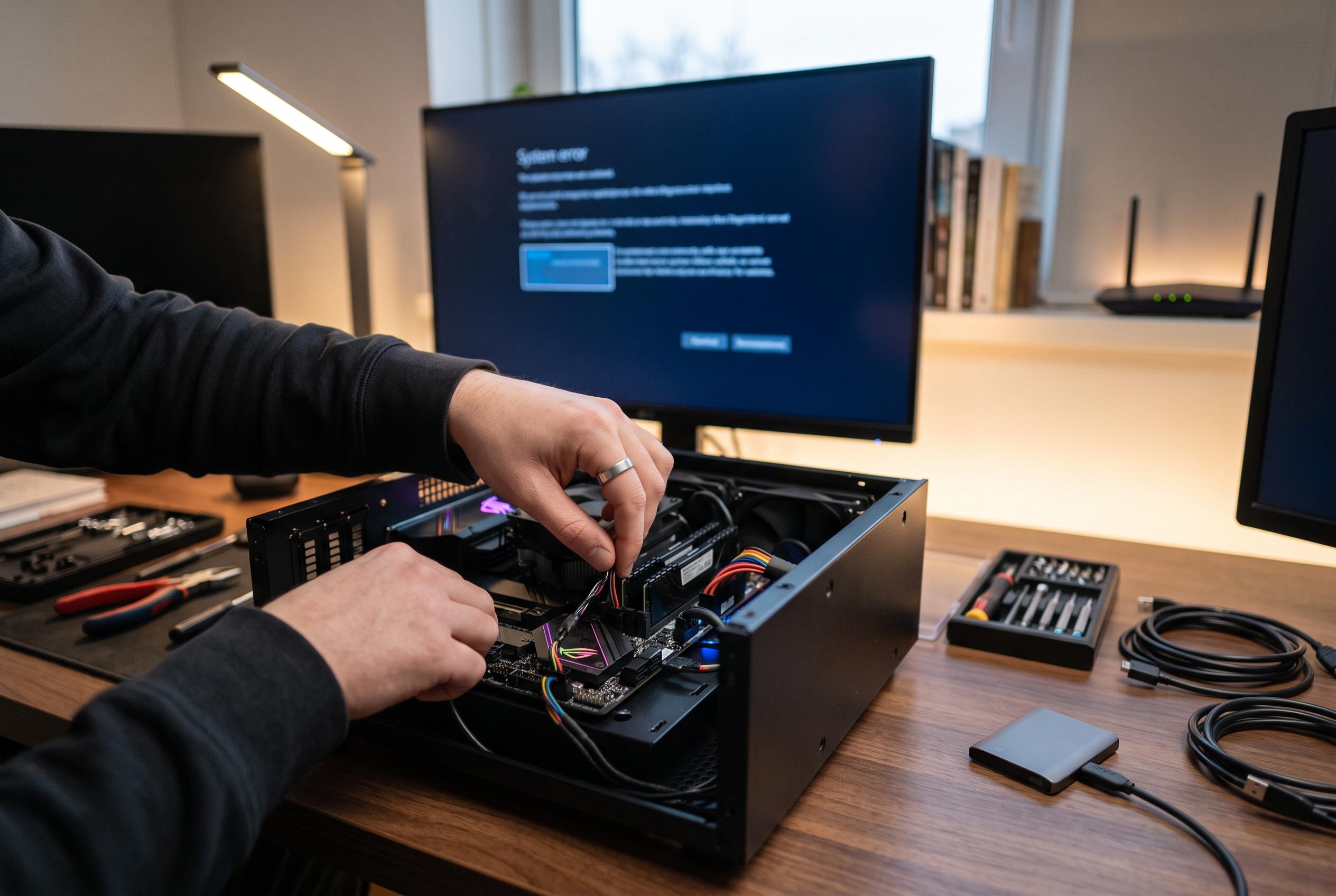

Expert guides reveal advanced methods to diagnose and resolve the disruptive ‘Thread Stuck in Device Driver’ error, highlighting updates in system maintenance and hardware checks.
The “Thread Stuck in Device Driver” blue-screen error is one of the more disruptive Windows faults because it often appears without warning and can force repeated restarts. Support guides from Support.com, FoneTips and Drivers.com all point to the same broad pattern: the failure is usually tied to a device driver, most often the graphics driver, that stops responding while Windows is waiting for hardware to complete a task. In practical terms, the system reaches a deadlock and then halts to protect itself.
The symptoms are usually easy to recognise. According to Support.com, affected PCs may crash during graphics-heavy work, freeze intermittently, flicker on screen, or restart in a loop. FoneTips adds that the stop code is commonly associated with 0x000000EA, which appears when a driver does not return control in time and Windows’ watchdog mechanism intervenes. The underlying causes are often mundane rather than catastrophic: an outdated or corrupted driver, an overheating component, software interference or failing hardware.
A sensible response is to begin with the least invasive checks. Several of the guides recommend updating Windows, rebooting in a clean state and using built-in troubleshooting tools before moving to deeper repairs. That sequence matters because the problem may be caused by a temporary software conflict rather than a permanently damaged component. If the error appeared after a recent installation, removing the new application or security tool can also be useful, especially when the crash began immediately afterwards.
If the system files themselves have been damaged, Windows repair utilities can help. The article on TechPout recommends using System File Checker and DISM, both of which are designed to identify and restore corrupted operating system files. Those checks are worth running because a driver fault is not always the only problem; sometimes the operating system layer that supports the driver stack is also unstable. Updating the operating system is also sensible, since newer patches may improve device compatibility and resolve known faults.
Driver maintenance remains the most important step. Support.com, Drivers.com and PCRisk all highlight the link between this error and display drivers in particular, although audio and other device drivers can also be involved. Updating graphics, audio and chipset drivers from a trusted source is usually preferable to relying on generic replacements. If automatic tools are used, they should be treated as a convenience, not a substitute for checking that the correct hardware model and Windows version are selected.
In more stubborn cases, the fault may sit deeper in the hardware path. TechPout and the other guides note that disk checks, BIOS updates and attention to overheating or failing components can all matter. A damaged storage drive, unstable overclock or ageing motherboard firmware can keep a driver from working correctly even when the software itself is current. That is why a full diagnosis sometimes has to move beyond Windows settings and into firmware, storage health and thermal management. The error is frustrating, but it is usually tractable once the driver, system files and hardware are examined in a structured order.
Disclaimer: This content is intended for informational purposes only. Readers are advised to exercise their own judgement, conduct due diligence, or consult a qualified expert before acting on any information provided.