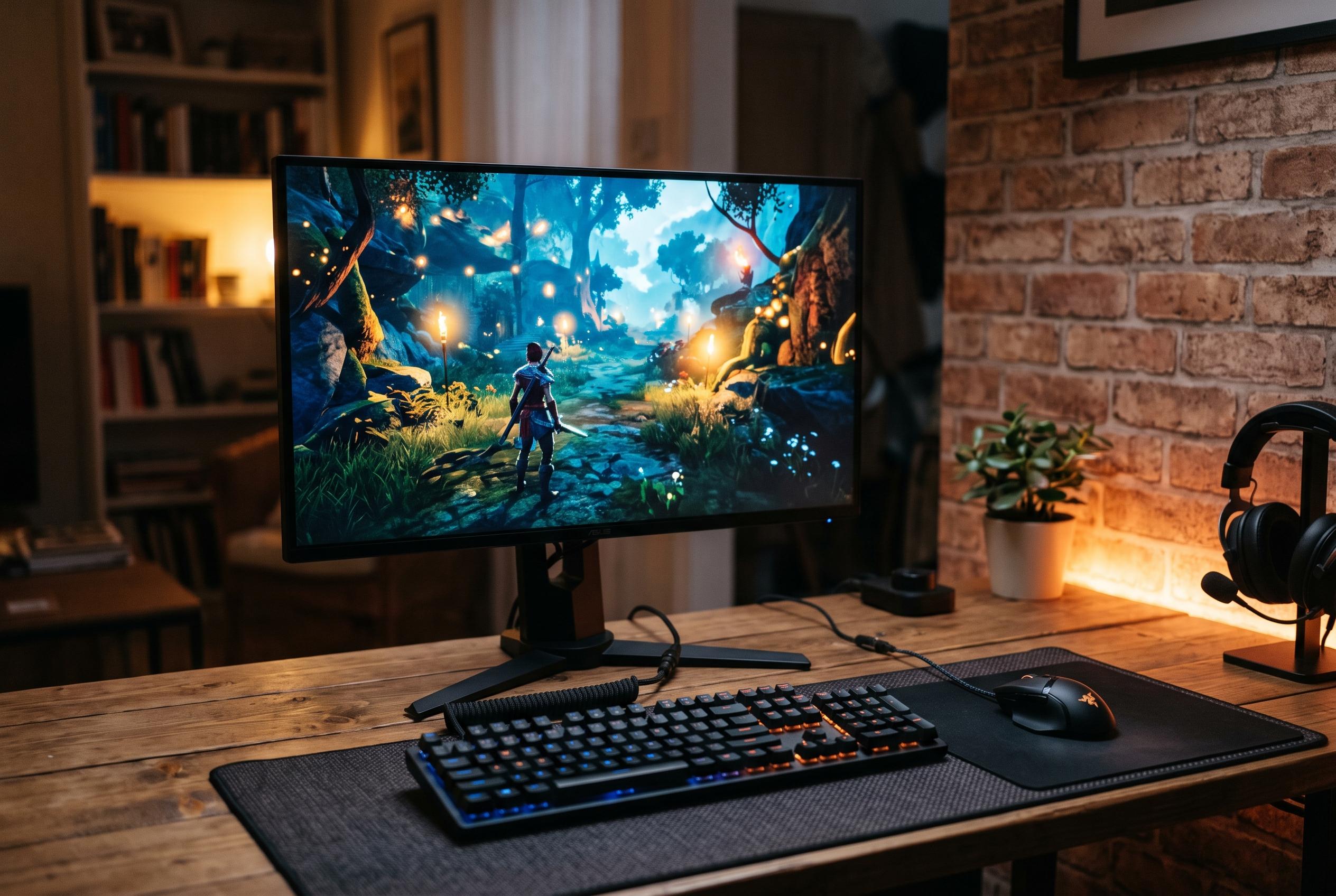

Factory defaults can leave your monitor looking dull, running less smoothly and wasting power. These key settings can improve picture quality, responsiveness and everyday efficiency.
Many monitor owners spend years using default settings that were chosen for showroom effect rather than day-to-day accuracy. That can leave image quality, gaming performance and power use far from optimal. A quick review of a few core options can make a clear difference, particularly on displays that support higher refresh rates or gaming features.
The first place to start is the basic picture controls. Brightness and contrast should be matched to the room rather than left at factory values, while sharpness is often best kept modest to avoid artificial edge enhancement. Gamma also matters more than many users realise, because it affects how smoothly the display moves between dark and light tones. If shadows look crushed or the image appears flat, adjusting gamma can restore balance and make the panel look more natural.
Refresh rate is another setting that is often overlooked after a new monitor is installed. On a high-refresh display, Windows does not always default to the highest available rate, so it is worth checking the Advanced display menu and selecting the maximum supported option. This is especially important for gaming and fast motion, where a higher refresh rate can make movement look smoother and more responsive.
Preset picture modes can also save time, provided they are used sensibly. Cinema or movie-style modes are generally better for films and video, game modes are tuned for faster response, and standard presets usually offer a safer all-round profile. For users who want more accurate colour work, specialist guidance from Creative Bloq on colour grading underlines the importance of a well-calibrated, colour-accurate monitor rather than relying on vivid factory presets.
For gaming, variable refresh technologies such as FreeSync and G-Sync are worth enabling where supported. HP, Lenovo and PCWorld all note that these systems synchronise the monitor’s refresh rate with the graphics card’s frame output to reduce tearing and stuttering. The feature usually has to be switched on both in the monitor’s on-screen menu and in the GPU software, but once active it can significantly improve consistency in supported games.
A low blue light or eye-saver mode is also worth using, especially in the evening. The evidence around blue light and eye damage is mixed, but reducing it late at night can make prolonged screen use feel less harsh and may help avoid sleep disruption. If the monitor lacks such a mode, Windows Night Light offers a similar adjustment. It is a practical compromise for long working sessions, even if it should not replace good ambient lighting or regular breaks.
Finally, the power menu deserves a look. Many monitors include an auto-off or sleep timer that shuts the display down after a period of inactivity, which is useful if the PC is left on, downloads run overnight or the desk is used intermittently. It is a simple setting, but one that can cut unnecessary power use and reduce the habit of leaving a bright screen running when no one is there to see it.
Disclaimer: This content is intended for informational purposes only. Readers are advised to exercise their own judgement, conduct due diligence, or consult a qualified expert before acting on any information provided.