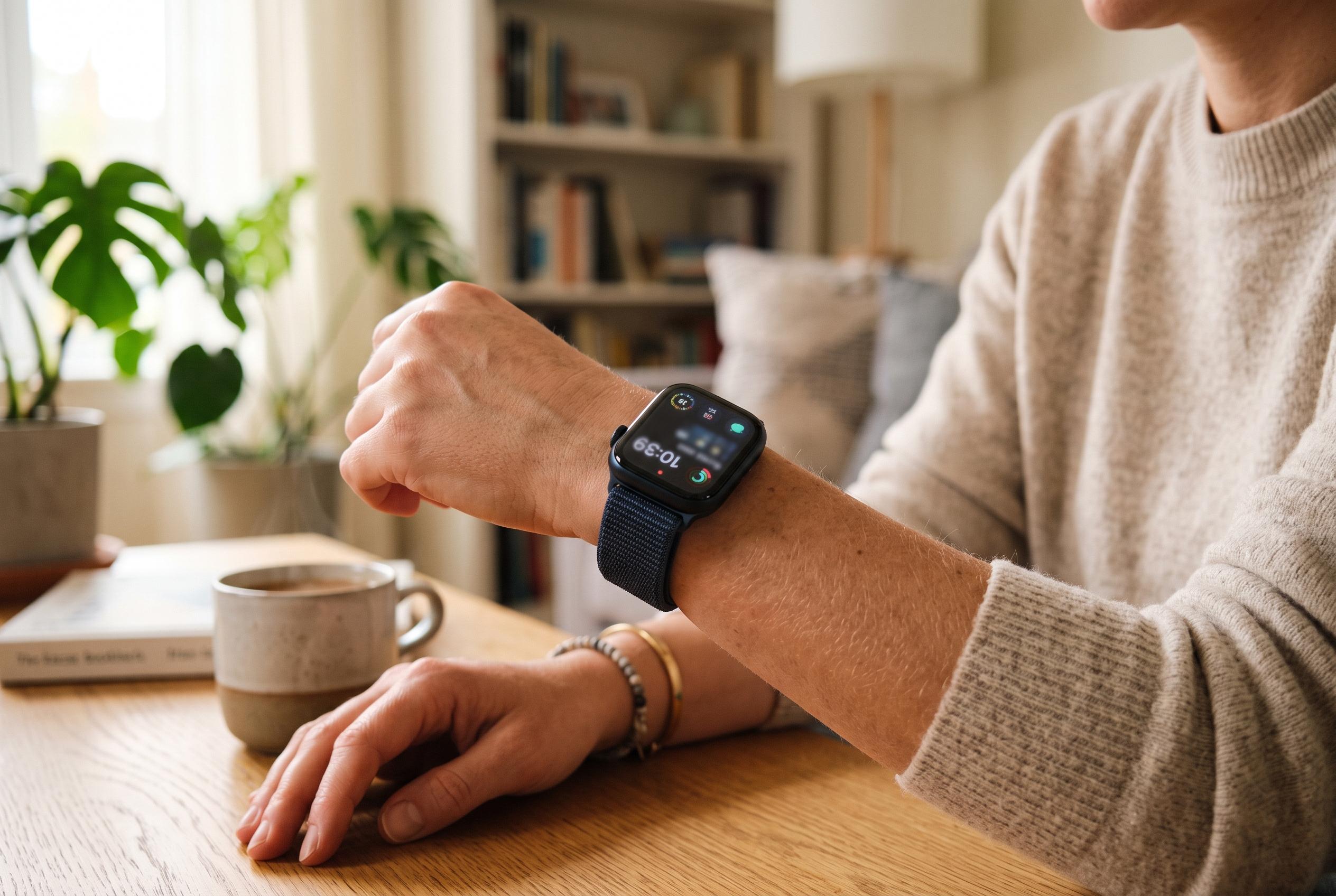

From personal photos and useful complications to automatic Focus-based changes, Apple Watch faces can be tailored for work, exercise and everyday use.
Changing an Apple Watch face is one of the simplest ways to make the device more useful without adding any software. The wearer can switch between analogue and digital layouts, show a personal photograph, and place information such as weather, calendar entries or activity progress directly on the screen, according to ClickDo’s guide to Apple Watch customisation.
The fastest method is on the watch itself. A user wakes the display, presses and holds the current face, swipes through the saved options and taps the one they want. If swipe switching has been enabled in Settings under Clock, the process becomes even quicker because faces can be changed with a left or right swipe rather than a long press.
An iPhone offers a broader way to manage the collection. In the Apple Watch app, the Face Gallery lets users browse available designs, adjust colours and complications, and add a chosen face to the watch. The same guide notes that new faces can also be added directly from the watch by opening the add screen from the face carousel, which is useful when no iPhone is nearby.
Customisation is a central part of the experience. Apple Watch faces can usually be edited for colour, style and complication placement, although the exact options depend on the face itself. Complications are small data panels or shortcuts, and the most practical setups tend to focus on information that is genuinely useful throughout the day, such as the next appointment, battery level, temperature or activity progress.
The Photos face remains one of the most personal options. It allows a wearer to display images from the paired iPhone, either by selecting one picture or by using a shuffle mode. The article advises choosing uncluttered images, since busy backgrounds can make the time harder to read. If photos fail to appear, the likely causes are usually sync problems, an incorrect album selection or a connection issue between the watch and the phone.
Apple Watch faces can also change automatically. According to the guide, Focus modes can be linked to specific faces, so the watch can switch layouts for work, personal time or exercise without manual intervention. A weekday Work Focus, for example, can display appointments and reminders during office hours, while a different face can take over in the evening.
The same article says the range of available faces and complications varies by model and watchOS version, with newer hardware gaining more options. That means some features are not universal across all watches, and a missing face is often a compatibility issue rather than a fault. Users who want a tidier setup can delete unused faces, rearrange the order of saved designs and keep only the layouts they actually use.
Third-party apps can offer additional watch face styles, but they do not replace Apple’s native system. The guide makes clear that these apps generally work within Apple’s existing framework, often by sharing configurations rather than installing wholly new faces. That distinction matters for buyers who expect a more open customisation platform than Apple currently provides.
For most users, the best everyday approach is not to force every function onto one face, but to save a few faces for different tasks. A minimal design suits casual wear, a data-heavy face works better for work, and a fitness-focused layout can keep health information visible with fewer taps. The result is a device that changes with the day rather than demanding that the wearer adapt to a single screen.
Disclaimer: This content is intended for informational purposes only. Readers are advised to exercise their own judgement, conduct due diligence, or consult a qualified expert before acting on any information provided.