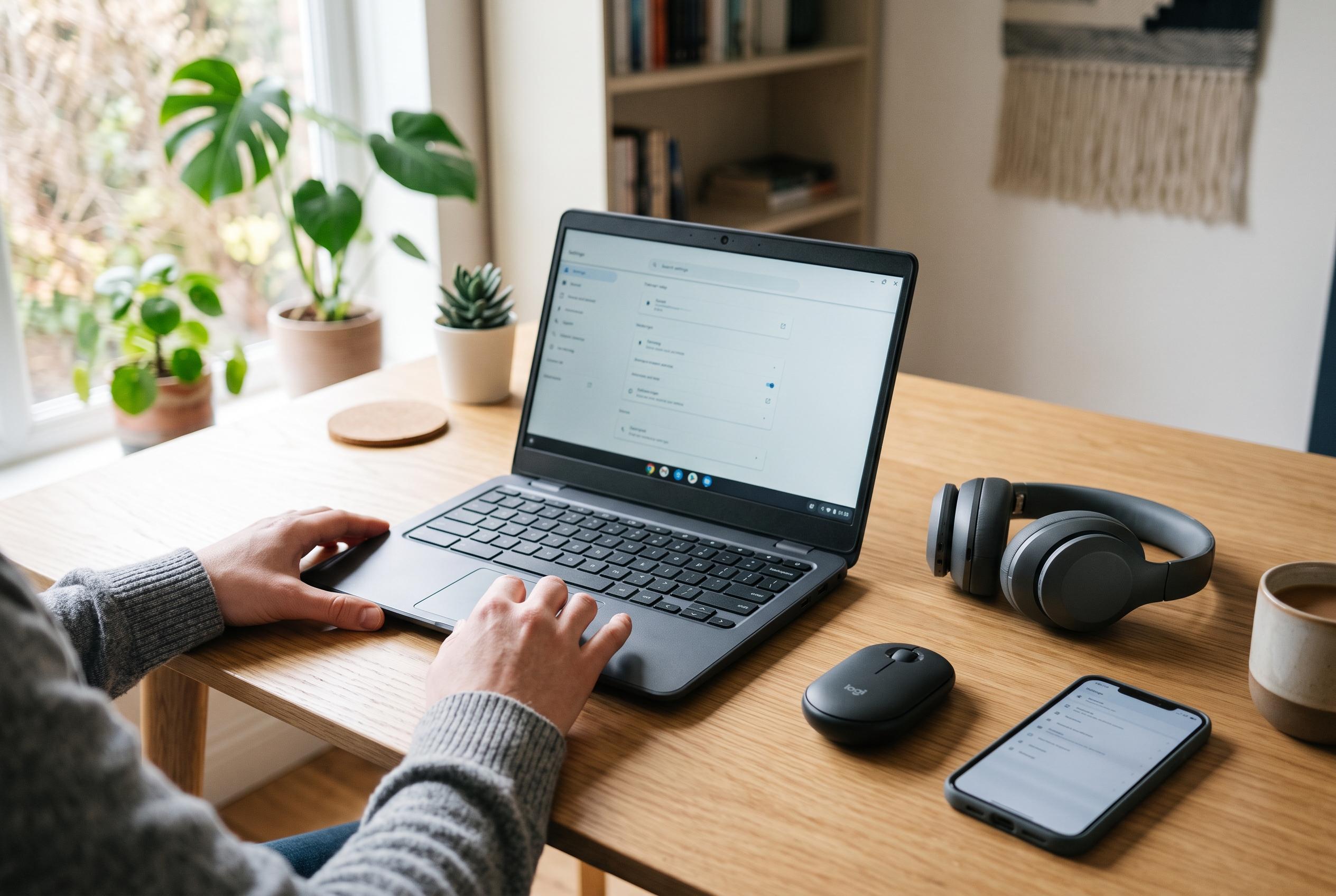

Stale pairing records, low batteries and interference can often explain Bluetooth problems on a Chromebook before hardware failure is considered.
Bluetooth faults on a Chromebook are often less mysterious than they first appear. In many cases, the accessory is not truly broken; the connection record is stale, the device is still attached to another machine, or the Chromebook’s Bluetooth radio has simply become unresponsive. Google’s own support material points users first towards basic checks such as confirming Bluetooth is enabled, ensuring the accessory is discoverable and in pairing mode, and verifying that the Chromebook actually has supported Bluetooth hardware.
The quickest fixes are also the least disruptive. Turning Bluetooth off and on again can clear a temporary radio fault without affecting anything else, while a full restart can finish pending updates and reset services that have stalled in the background. Google also advises users to confirm that the accessory has enough charge, because low battery can prevent headphones, mice and keyboards from entering pairing mode even when their lights still appear normal.
When a device paired before but will not reconnect, the saved pairing record is often the problem. Forgetting the accessory and pairing it again from scratch is one of the most reliable remedies, and it is especially useful after a ChromeOS update or after the accessory has been used with several devices. For keyboards, the pairing process can be particularly time-sensitive: if ChromeOS asks for a PIN, it usually needs to be typed on the Bluetooth keyboard itself before the prompt times out.
Another common cause is that the accessory is already connected elsewhere. Headphones and many mice can usually maintain only one active Bluetooth connection at a time, so a phone, tablet or another laptop may quietly reclaim the device. Disconnecting Bluetooth on the other machine, or placing the accessory back into pairing mode, often resolves the issue immediately. Some accessories with multi-device channel buttons also need to be switched to the correct profile before the Chromebook can see them.
If the connection works but is unstable, the problem may be interference rather than pairing. Bluetooth operates in the crowded 2.4GHz band, which it shares with Wi-Fi and other wireless gear. Google’s guidance and wider technical advice both point to a familiar set of culprits: crowded radio environments, nearby USB 3.0 peripherals, and weak batteries. Moving the Chromebook and accessory closer together, unplugging nearby USB 3.0 drives or hubs, and switching the Chromebook to a 5GHz Wi-Fi network can all improve reliability.
ChromeOS itself can also be part of the problem. Google regularly ships Bluetooth fixes through system updates, and the company’s own support pages recommend checking for the latest release before moving on to more invasive steps. A user who is running an older build may be dealing with a software bug that has already been corrected in a later version. Devices that have passed their Auto Update Expiration date are more awkward, because they will remain on older code with any lingering Bluetooth defects still intact.
If Bluetooth only fails in one account, the issue may sit inside the user profile rather than the operating system. A Guest session or a second account helps distinguish between a system-wide fault and a problem caused by an extension, setting or damaged profile data. That distinction matters because it narrows the next step: disable extensions one by one if Bluetooth works in Guest mode, or move to hardware-level troubleshooting if it fails everywhere.
At that point, a hard reset becomes the more serious option. Unlike a powerwash, a hardware reset does not erase the Chromebook, but it does restart system components such as the keyboard and touchpad. Google recommends it when the Bluetooth tile disappears entirely or when the machine has become unresponsive in a deeper way. Only after that should users consider a powerwash, which wipes local data and returns the device to factory condition. If Bluetooth still fails after a reset and a clean reinstall of ChromeOS, the balance of probability shifts towards hardware fault rather than a software setting.
That final distinction is important for anyone deciding whether to keep troubleshooting or seek repair. If an accessory connects correctly to other devices, the Chromebook is more likely to be at fault. If Bluetooth fails only on one accessory, then the accessory itself may be the weak link. In practical terms, the best early sequence is simple: confirm the accessory is charged and in pairing mode, toggle Bluetooth, restart the Chromebook, forget and re-pair the device, and only then escalate to resets and recovery.
Disclaimer: This content is intended for informational purposes only. Readers are advised to exercise their own judgement, conduct due diligence, or consult a qualified expert before acting on any information provided.