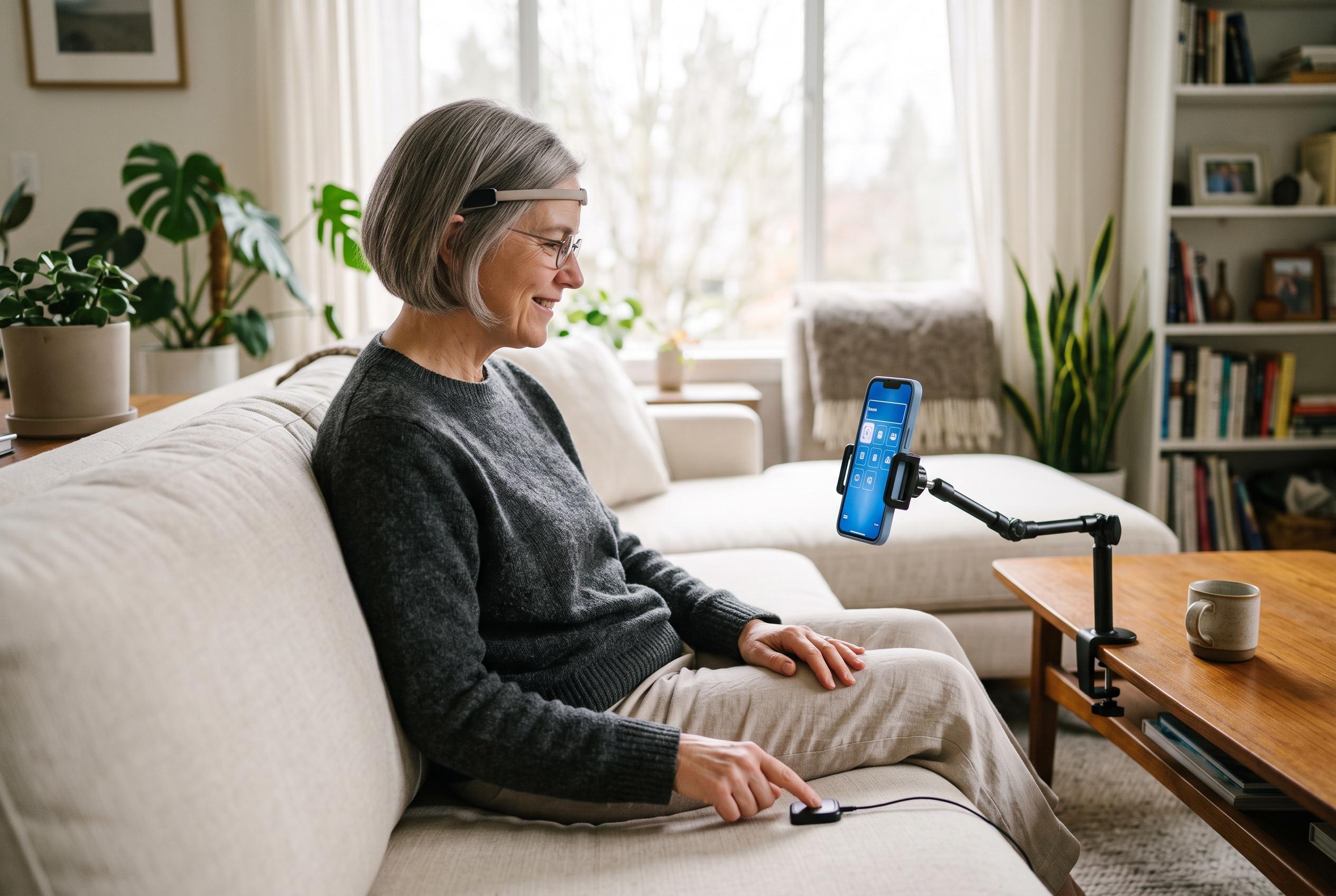

Apple’s Switch Control lets people operate an iPhone without standard touchscreen gestures, using switches, sounds, head movements, taps and other inputs.
Switch Control is one of the iPhone’s most important accessibility tools for people who cannot easily use standard touchscreen gestures. Apple describes it as a way to operate the device through one or more switches, which can include external adaptive buttons, Bluetooth accessories, head movements, sounds, screen taps, the camera and even Back Tap. In practice, it replaces direct touch with a scanning system that moves focus across items on the screen until the user selects the one they want. According to Apple Support, the feature can also be used to perform actions such as tap, zoom in and zoom out, depending on how it is configured.
Setting it up begins with connecting a compatible switch, if one is being used. Apple says that external devices such as joysticks, game controllers, adaptive accessories and MFi hardware can be paired with an iPhone, while non-external inputs, including sounds and AirPod gestures, can also be added. Once Bluetooth is enabled and the accessory is paired, users can move into Settings, then Accessibility, then Switch Control, where new switches can be added and assigned specific actions. Apple recommends selecting “Select Item” if the user is unsure which action to choose, because that works with the default auto-scanning mode.
The system becomes more flexible once multiple switches or recipes are added. A recipe is a set of temporary actions designed for repeated tasks, such as turning pages in Books, while a Switch Set lets users move between different configurations more easily. Apple also notes that one iPhone can be used to control other Apple devices with the same switch, provided the devices are signed in to the same Apple ID and are connected to the same Wi-Fi network.
Scanning style is another key part of the setup. Auto Scanning, the default, advances the cursor automatically after a set delay. Manual Scanning requires at least two switches, one for moving to the next item and one for selecting. Single Switch Step Scanning is designed for users with only one switch and moves to the next item before automatically selecting it if no action is taken. This makes the feature adaptable, but it also means the assigned actions must match the chosen scanning method.
Apple allows extensive fine-tuning after Switch Control is enabled. Users can adjust scanning speed, pause behaviour, loop count, repeat timing, long-press settings, tap behaviour, cursor colour and size, speech output, sound effects, keyboard handling and confirmation options for purchases or other system prompts. The company also warns that once Switch Control is active, normal touchscreen gestures cannot be used to exit it, which is why Apple suggests adding the feature to Accessibility Shortcut for quick access through the side button or Home button, depending on the model. If the setup becomes difficult, Apple says users can seek personalised help at an Apple Store.
Disclaimer: This content is intended for informational purposes only. Readers are advised to exercise their own judgement, conduct due diligence, or consult a qualified expert before acting on any information provided.