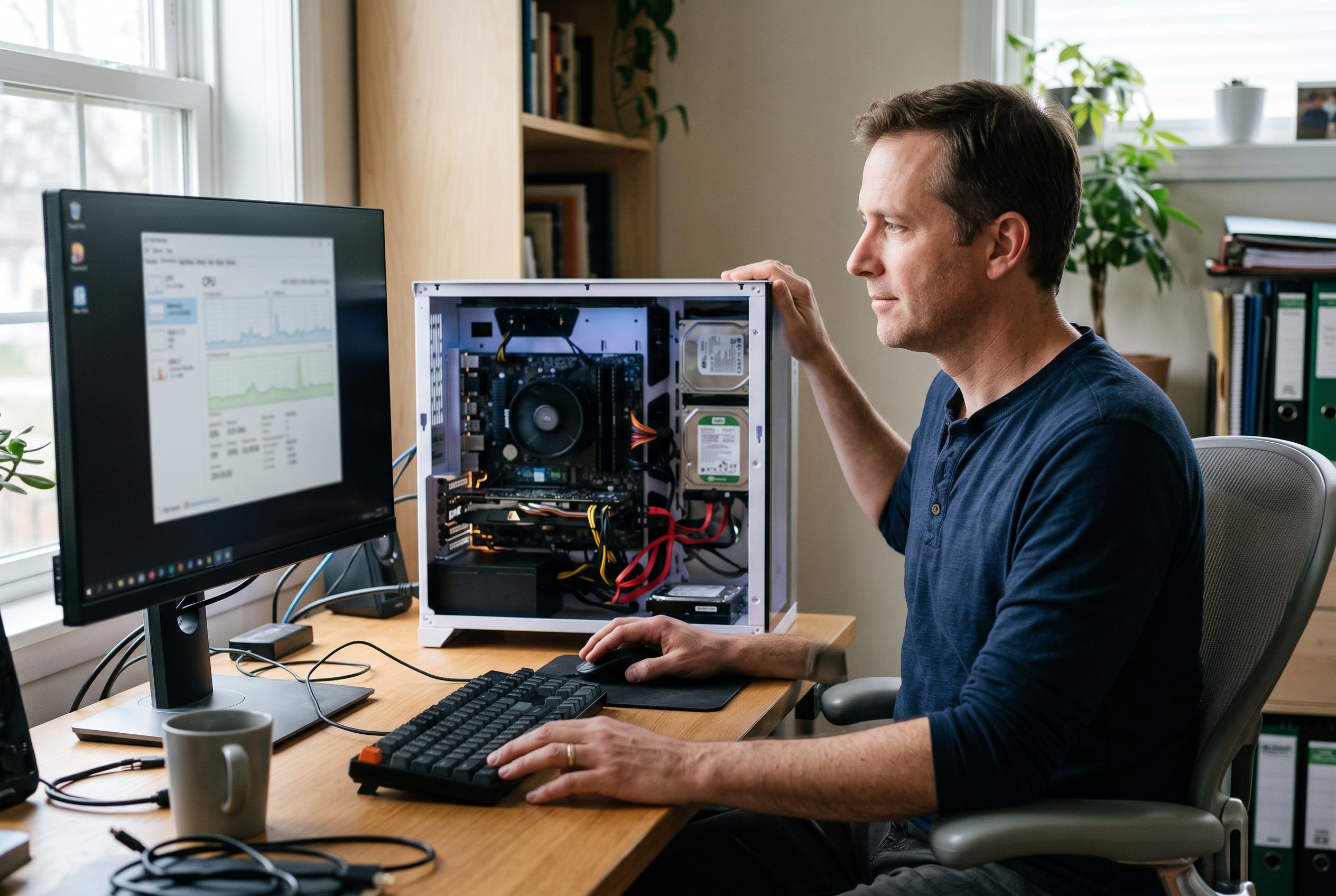

A full disk reading in Task Manager usually means storage activity is saturated, not that the drive is full. Identifying the process responsible can reveal anything from a routine update to failing hardware.
A Windows 11 PC that shows 100% disk usage in Task Manager is not necessarily full of data or even operating at maximum throughput. It usually means the drive’s active time is saturated: Windows is waiting on storage requests with little or no idle time. According to guides from DiskDetector and iTechGuides, the first step is to identify the exact process at the top of Task Manager’s Disk column before changing anything else, rather than disabling services at random.
Task Manager is the quickest starting point. If the process name is unclear, such as “Service Host” or “System”, Resource Monitor gives a more precise view by showing the files being read or written. That matters because the cause may be something temporary, such as Windows Update, Delivery Optimisation, Microsoft Defender, or the search indexer, all of which can legitimately drive the disk hard while they finish their work. Windowspost and several other troubleshooting guides also note that low memory can push Windows to use the page file, which shifts pressure from RAM to disk.
Some of the most common causes are simple to explain once the culprit is known. If Windows Update or Delivery Optimisation is active, the best option is often to let it complete, although users can turn off peer-to-peer delivery in Settings if they do not want their PC sharing update data with other devices. If Microsoft Defender appears near the top, that usually means a scan is in progress. Search indexing can also run the disk hard after a fresh install or a large file transfer, and the index can be rebuilt if it appears to be stuck.
SysMain remains one of the most frequently suggested switches, but it is not a universal fix. On an SSD, disabling it may reduce background activity with little downside. On a mechanical hard drive, however, it can make app launches slower because the service tries to preload frequently used data into memory. The same caution applies to Windows Search: guides from iTechGuides and DiskDetector recommend rebuilding the index rather than turning the service off completely, because disabling it can break or slow search in the Start menu and File Explorer.
If the system is busy only for the first few minutes after sign-in, startup load may be the real issue. Windowspost and AVG both point to too many programmes launching at boot as a frequent cause of short-term disk saturation. Task Manager’s Startup apps section can be used to disable anything that is not needed immediately, which reduces the pressure on storage without removing the software itself.
Malware and corrupted system files are also worth checking when the disk is busy with no obvious legitimate process. DiskDetector, AVG and other guides recommend a full Microsoft Defender scan if the activity looks suspicious. If Windows components appear to be looping or failing to complete their work, running DISM followed by SFC is a standard repair sequence. That approach is more reliable than running file repairs in the wrong order, because SFC depends on the underlying Windows image being healthy first.
Hardware checks matter if software fixes do not change the behaviour. A hard drive can sit at 100% active time simply because it cannot keep up with the small, constant requests that Windows 11 generates. In that case, the problem is not a setting but the storage technology itself. If Task Manager shows an HDD rather than an SSD, the long-term fix is often an upgrade to solid-state storage. If the drive reports anything other than healthy status in PowerShell’s Get-PhysicalDisk, or if response times remain very high even when the machine is idle, the drive may be failing and data should be backed up immediately.
Several guides, including those from DiskDetector and FixingHacks, converge on the same practical conclusion: the safest way to deal with 100% disk usage is to identify one cause, fix that specific cause, and avoid switching off multiple services at once. On many systems the answer is a background task that simply needs time to finish. On older machines with mechanical drives, though, persistent 100% disk usage is often a sign that the hardware has become the bottleneck and an SSD upgrade will deliver the largest improvement.
Disclaimer: This content is intended for informational purposes only. Readers are advised to exercise their own judgement, conduct due diligence, or consult a qualified expert before acting on any information provided.