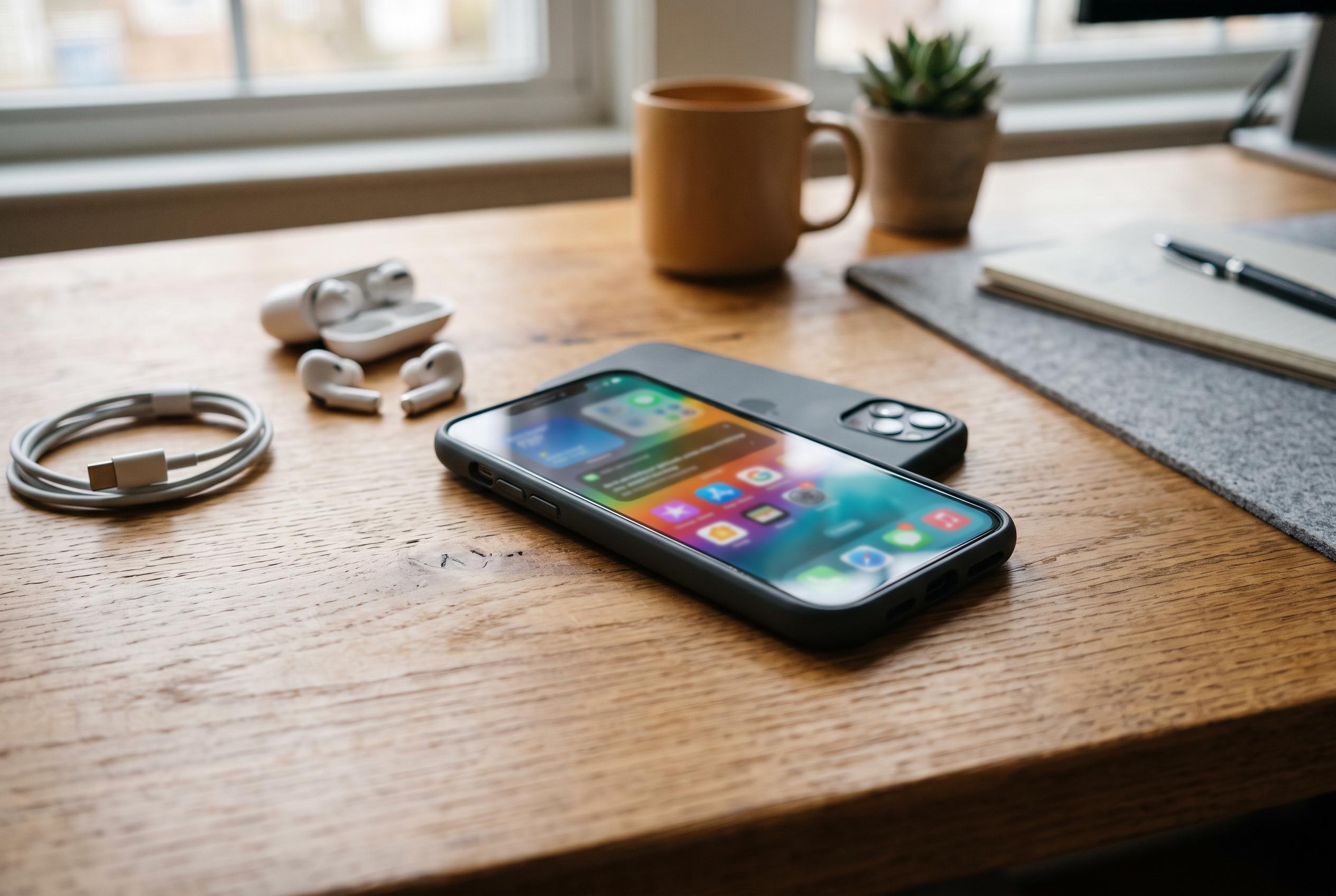

From Always On Display and camera optimisation to promotional alerts and cloud-based AI, these Samsung defaults can affect battery life, privacy and control of your phone.
On a new Samsung Galaxy, the first useful task is often not installing apps but stripping out the defaults that quietly shape battery life, privacy and the on-screen experience. Samsung’s One UI ships with several features enabled from the outset, and while some are convenient, they can also add background activity, alter photos automatically or flood the interface with alerts and promotions.
One of the first settings worth checking is camera scene optimisation. Samsung’s camera software analyses what you are pointing at and adjusts colour and contrast automatically, but the result can vary from shot to shot even in the same scene. That inconsistency can be frustrating for anyone who wants more predictable photographs, so turning it off gives you a more neutral baseline and more direct control over the final image.
The Always On Display is another common source of unnecessary battery use. It is useful for glancing at the time or notifications without waking the phone, yet it keeps part of the screen active at all times and is regularly cited in battery-saving guides as a setting worth disabling when endurance matters more than convenience. The same applies to Samsung’s Edge panels, which place shortcuts and app trays along the side of the display: handy for some users, but easy to trigger by accident and unnecessary if your preferred apps are already on the home screen.
Privacy is the other major reason to revisit Samsung’s default settings. The Samsung Personalisation Service, which can tailor content and advertising using data such as location and app activity, is one of the more intrusive options to switch off. Recent guides to Samsung’s Galaxy AI functions also recommend disabling features such as Call Assist, Note Assist and Personal Data Intelligence where they are not needed, and, where possible, choosing on-device processing rather than cloud-based handling for sensitive data.
Notifications deserve the same treatment. Samsung’s own stores and services can push promotions, offers and marketing messages, which quickly clutters the phone with non-essential alerts. The practical approach is to manage notifications app by app, then remove promotional categories from Galaxy Store and similar Samsung services. The result is a cleaner handset that feels less busy, uses less power in the background and leaves the owner with more control over what the phone is doing and when.
Disclaimer: This content is intended for informational purposes only. Readers are advised to exercise their own judgement, conduct due diligence, or consult a qualified expert before acting on any information provided.