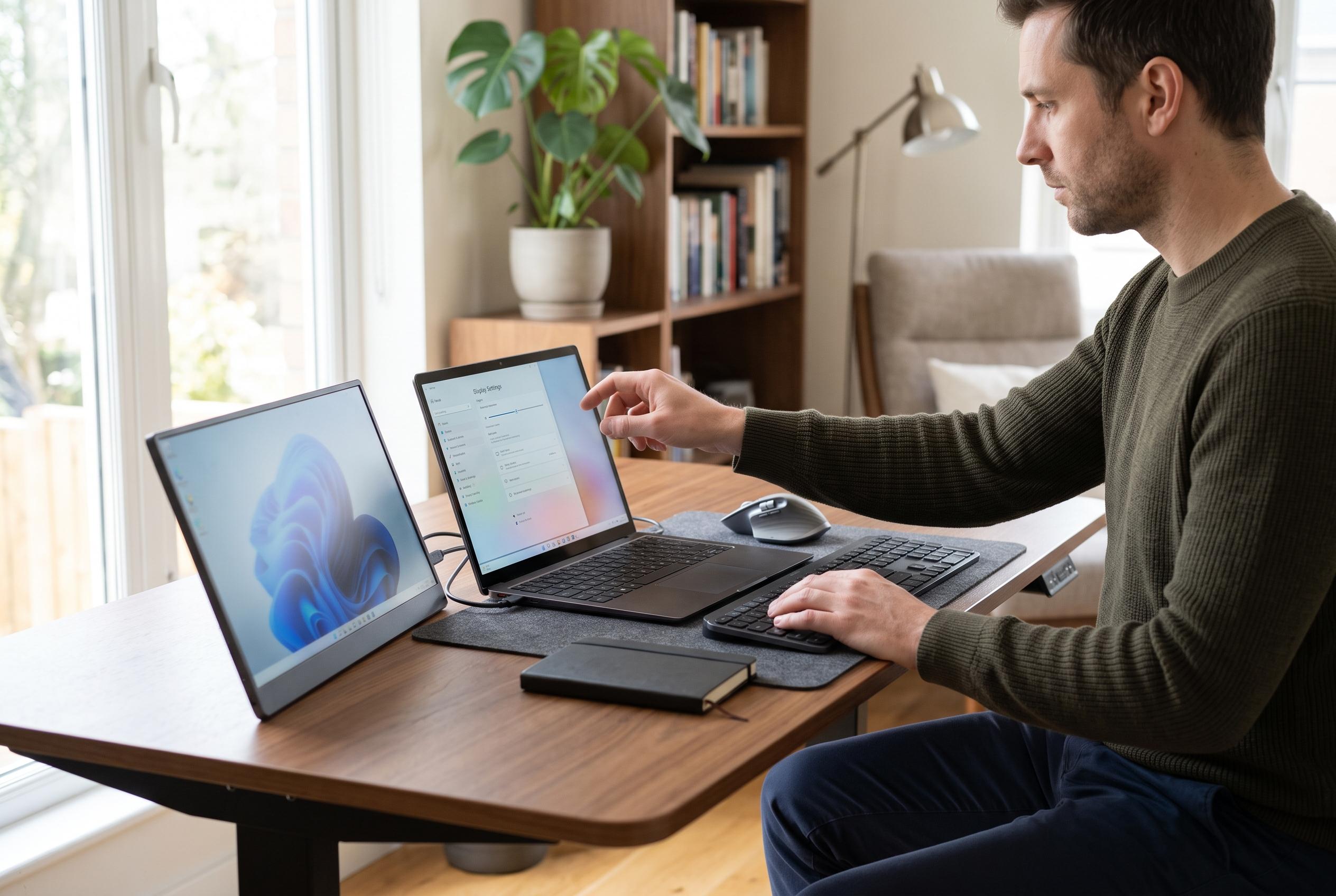

Set native resolution first, test refresh rate carefully and leave HDR off for everyday work to avoid blurry text, drop-outs and washed-out colours.
Portable monitors work best when their settings are chosen conservatively and in the right order. The safest starting point is the panel’s native resolution, the highest refresh rate the entire connection path can sustain reliably, and HDR left switched off for ordinary desktop work unless the display, cable and content clearly justify it. Microsoft says each external screen in Windows can be tuned separately, while Apple places the relevant controls in its Displays settings, where users can choose resolution, brightness and other options. In practice, the right configuration depends on the monitor, the graphics hardware, the port, the adapter and the task at hand, not on a universal preset.
Before changing anything, it is worth checking the monitor’s own specification. Manufacturer guidance should confirm the native resolution, supported refresh rates, HDR capability, colour modes and whether USB-C carries both video and power. That check matters because the port shape alone does not guarantee video output: some USB-C connections provide charging or data only. Apple also notes that adapters must support the required display protocol, otherwise the result may be a reduced resolution, a lower refresh rate or, in some cases, no picture at all. On portable panels that draw power over the same cable, an inadequate charger or hub can also trigger drop-outs that look like display faults but are actually power limits.
On Windows 11, the main path runs through Settings > System > Display. Select the portable monitor in the display diagram, confirm that the resolution is set to the recommended option, and then use Scale and layout if the interface looks too small. Microsoft’s approach is to keep the panel at its native mode and enlarge the user interface through scaling, rather than forcing a lower resolution that softens text. If the monitor supports multiple layouts, drag the display tiles until they match the physical arrangement of the screens. Lower resolution should be treated as a fallback, not the default choice, and is mainly useful when the native mode is unavailable or a compatibility issue leaves text unreadable.
macOS uses a similar approach, but the wording differs. Under Apple menu > System Settings > Displays, users can select Default or a scaled resolution, then open Show all resolutions if the needed setting is not visible. Apple describes this as a way to balance sharpness, workspace and readability. The same panel also allows users to set arrangement, mirroring and the main display. For people moving a portable monitor between home and office, those arrangement controls are important: the pointer should cross the correct edge, and the primary workspace should remain predictable from one session to the next. If a chosen mode causes a blank screen, macOS will usually revert after a short wait, but reconnecting through a known-good setting is often the quickest recovery.
Refresh rate deserves the same careful treatment. A higher figure can make scrolling and pointer movement feel smoother, but only when the complete signal path supports it. The monitor, GPU, cable, adapter and chosen resolution all have to agree. On Windows, the Advanced display panel shows the available rates for the selected screen; on macOS, the Refresh rate menu appears only when the Mac and display expose it. Apple warns that a setting that is too ambitious can produce a black screen, while Microsoft notes that colour and HDR problems over HDMI may improve when refresh rate or resolution is reduced. For most office work, 60 Hz remains the safe compatibility choice. Rates in the 90 Hz to 120 Hz range are worthwhile for smoother scrolling, video and gaming, but only if they remain stable during normal use.
HDR should be enabled selectively, not automatically. A portable monitor may accept an HDR signal while still delivering limited brightness or poor desktop balance, which can make standard SDR applications look washed out. For email, documents and general browsing, HDR is usually best left off. When the display, connection and content are all suitable, Windows offers HDR controls in Display settings, along with Windows HDR Calibration for eligible screens. Apple’s HDR options vary by model and monitor, but the same principle applies: turn it on only when the hardware path supports it and the content can take advantage of it. If colours look wrong after activation, the safer step is to return to the standard mode and verify the monitor’s intended colour profile before trying again.
Brightness and colour deserve separate attention from resolution and refresh. There is no single brightness level that suits every portable monitor, because room light and panel characteristics vary too much. The practical method is to set brightness high enough for clear text without glare, then recheck it when moving between a dim room and bright daylight. For colour-managed work, the best starting point is usually the monitor’s neutral or reference mode, or sRGB if the panel provides it. iTechGuides’ separate HDR and colour guide recommends using operating-system calibration tools, while more advanced users may benefit from a hardware colourimeter. That is useful for photography, design or video delivery, but it is not required for routine office work. On supported Macs, True Tone and Night Shift can be useful for comfort, but they should be disabled when a fixed colour reference is needed.
When a portable monitor misbehaves, the fault is often physical rather than software-based. A blurry image usually means the resolution is wrong, the connection is not carrying the full signal, or the panel is being asked to resample a mode it does not handle well. A blank screen often points to the wrong input, an unsuitable adapter, a charge-only USB-C cable, or a port that does not support DisplayPort Alt Mode or Thunderbolt. Low refresh rates usually indicate that bandwidth has been exhausted somewhere between the computer and the display, especially when HDR is also active. Microsoft’s guidance for HDMI colour faults is to reduce refresh rate or resolution first, then check the cable and adapter. If the monitor disconnects when brightness rises, insufficient power is a strong possibility, particularly on bus-powered models.
A useful rule is to treat the operating system menus as a record of what the hardware path can negotiate, not as proof that every listed option is ideal. Start with the monitor’s native or recommended resolution, adjust scaling for comfort, and then test the highest stable refresh rate. Leave HDR disabled unless the monitor and content clearly benefit from it. Choose the intended colour profile, keep brightness appropriate to the room, and use Extend, Duplicate or a single-screen mode according to the task. That sequence usually produces the sharpest, most reliable result on both Windows and macOS.
Disclaimer: This content is intended for informational purposes only. Readers are advised to exercise their own judgement, conduct due diligence, or consult a qualified expert before acting on any information provided.