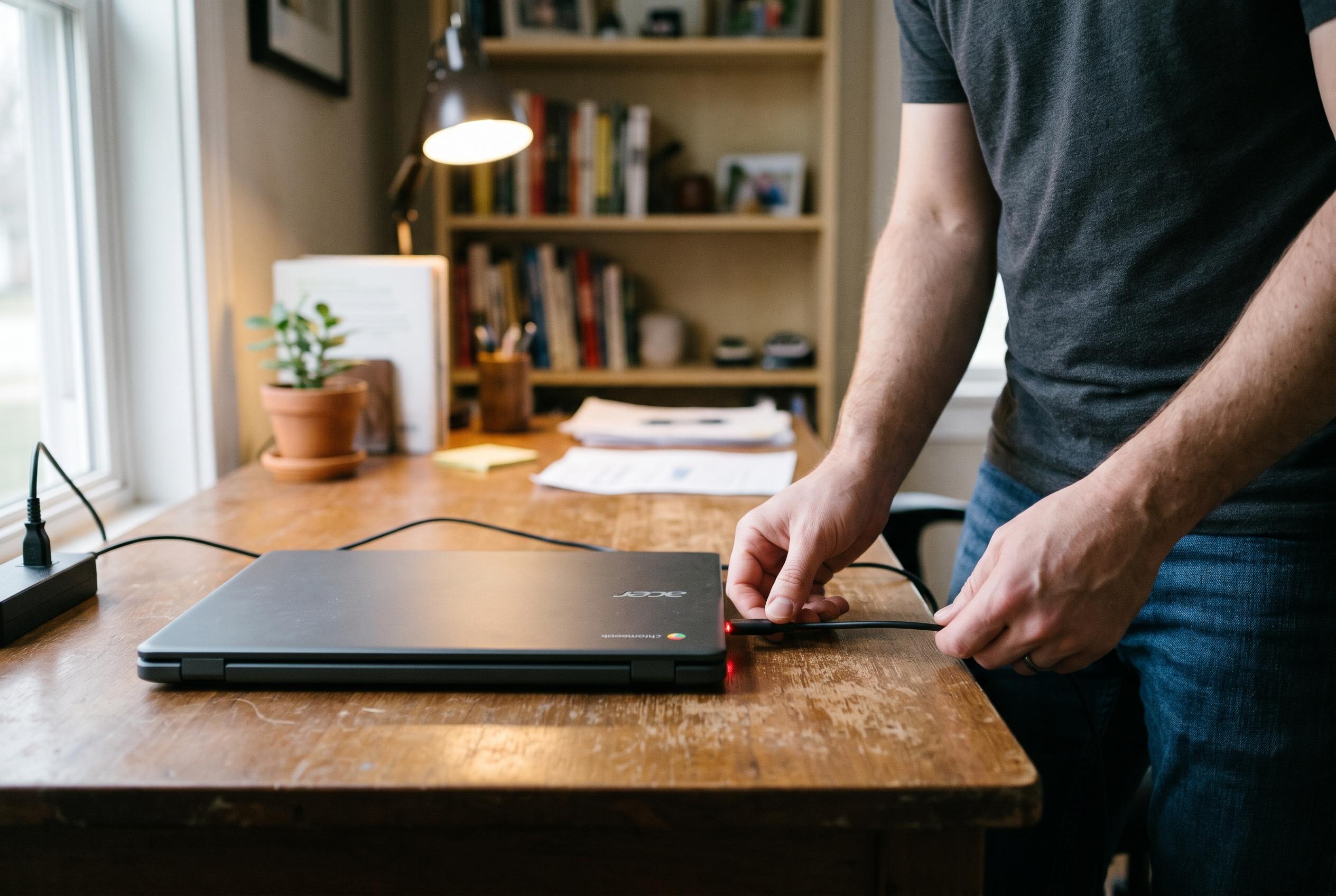

A failed charger, deeply drained battery or frozen power controller may be all that is stopping a Chromebook from starting. Here are the safe checks to try before seeking a repair.
When a Chromebook will not power up or charge, the fault is often far simpler than it first appears: a loose connection, a failed adapter, a fully depleted battery, or a hardware controller that has frozen. Google’s support guidance begins with the basics for good reason. A machine that appears dead may only need to be connected directly to a working wall socket and left to charge long enough for the battery to recover from deep discharge.
The first checks should focus on the charger, cable and outlet. Inspect the adapter for damage, make sure the plug is seated properly at both ends, and test the wall socket with another device. Google’s official Chromebook help page says connection checks, proper charging order and a period of at least 30 minutes on charge are all part of the standard recovery process. That advice is echoed in Google Help Community discussions, where users repeatedly report that a full reset of the power connection can revive systems that initially seemed unresponsive.
If the original charger does not work, it is worth testing a compatible replacement rather than assuming the Chromebook itself is dead. Google support warns that not every USB-C charger can deliver enough power for every model, and community reports show that insufficient wattage is a common cause of failed charging attempts. The same applies to accessories. External drives, docks, keyboards and other peripherals can interfere with startup, so they should all be removed before further testing.
A hardware reset is the next sensible step once the machine has had time to charge. Google’s troubleshooting instructions recommend the Refresh and Power combination on many laptops, while tablets and some model-specific devices use different sequences. Community threads on Google’s help forum describe the same approach as a practical fix for systems that charge but do not respond, particularly when the display remains blank despite apparent power activity. If the reset does not change anything, the problem is more likely to be physical than software-related.
That is why the charging port and battery area deserve close inspection. A port packed with debris, a connector that sits loosely, or a case that is warped or lifting away from the frame can all indicate internal damage. Google’s support material and forum replies both stress the importance of stopping immediately if the casing is swollen, hot, cracked or emitting an unusual smell. In those cases, continued charging is unsafe and the battery should not be handled by the user.
If the Chromebook does switch on but ChromeOS will not load, the issue moves from power supply to software recovery. Google’s recovery process reinstalls the operating system and can resolve corruption, but it also erases local data on the device. That makes it unsuitable for a machine that shows no sign of life at all, because a dead charger, battery or port cannot be repaired by software alone. Once the device is running, Google’s Diagnostics tool can help distinguish between a battery that is merely low and one that is failing to hold charge. If the Chromebook works only while plugged in, or if it still will not start after all basic checks, Google advises contacting the manufacturer for service. On school-issued devices, the safer route is to pass the problem straight to IT rather than attempting an unsupported repair.
Disclaimer: This content is intended for informational purposes only. Readers are advised to exercise their own judgement, conduct due diligence, or consult a qualified expert before acting on any information provided.