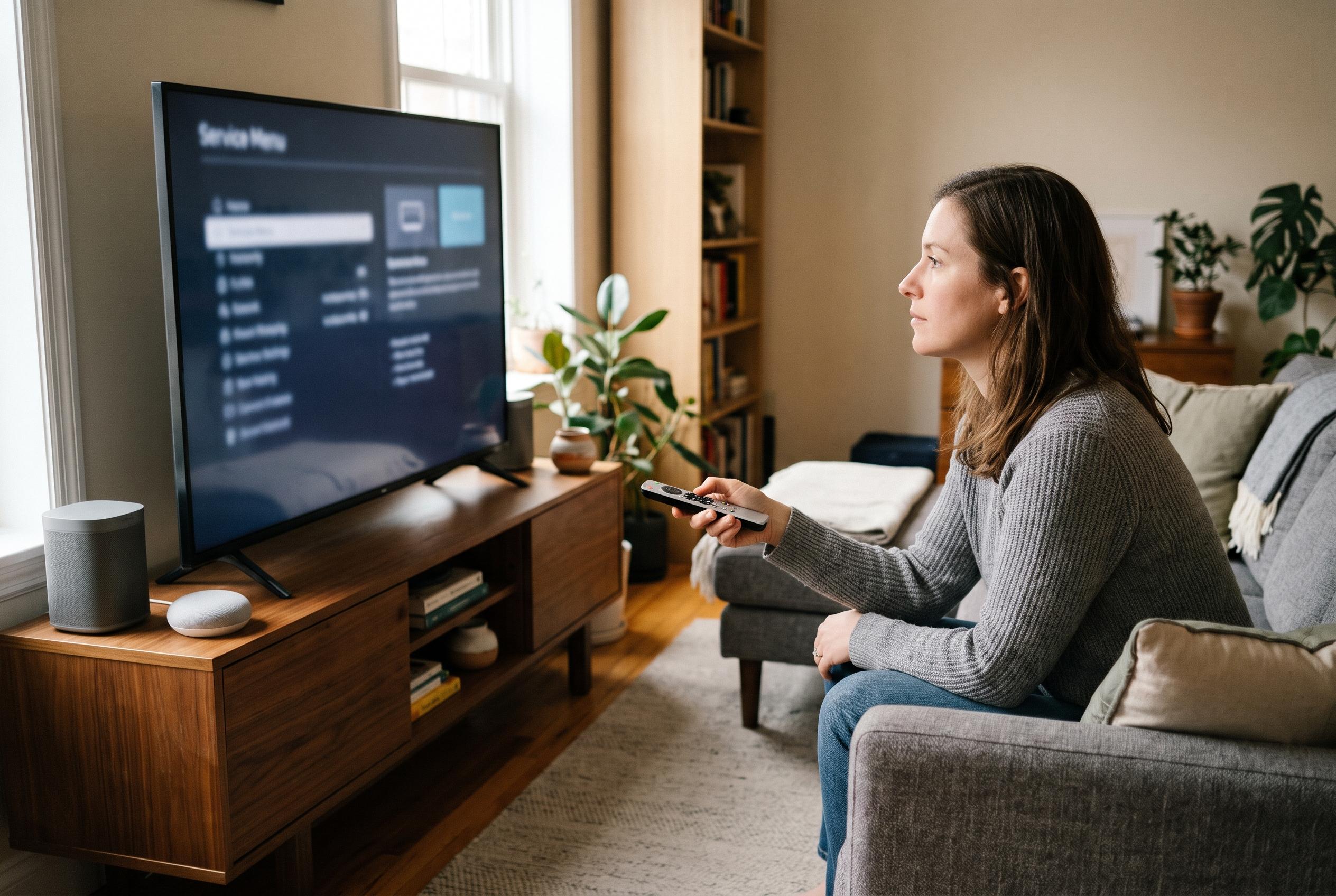

Service menus can reveal panel hours and advanced controls, but model-specific shortcuts mean one wrong change could disrupt calibration or leave a television unusable.
Hidden service menus on televisions are built for technicians, not ordinary users. They can expose panel-hour counters, launch diagnostic checks and change picture or sound parameters that are usually locked away in the main interface. But specialists interviewed in the guides quoted by TechYorker, TabTV and other how-to sites stress the same point: these menus are highly model-dependent, and a wrong adjustment can distort calibration, damage usability or even leave the set inoperable.
For LG and Samsung sets, there is no single universal code. TechYorker notes that the button sequence often changes with the exact model, chassis, region and remote type, which is why the same trick that works on one television may fail on another. The practical advice across the guides is to use the correct remote, try the model-specific sequence carefully and avoid experimenting if the user manual or service documentation is available.
On Sony televisions, the commonly reported route starts with the set switched off, then pressing a series such as Display or i+, 5, Volume Up and Power. If that does not work, other guides say some sets respond to an alternative sequence entered while the television is on, using directional buttons, mute and the menu key. Once inside, navigation is usually done with a small set of numbered keys, and changes should be saved only after checking what each parameter does.
Philips models are described as even more trial-and-error based. Several guides list combinations built around 0, 6, 2, 5, 9 and another number, followed by Menu, Info or Status, but they also warn that the exact sequence can vary by set. In practice, the procedure may require patience and repeated attempts before the hidden menu opens.
Xiaomi televisions are presented as the least obscure case because many run Android TV. The route described in the lead article follows the standard system menus: open device preferences, go to the information page, tap the build entry several times and then open developer options, where a factory menu appears. Even here, the same caution applies: these tools are meant for advanced configuration, not casual use, and any change should be made only with a clear understanding of what it controls.
Disclaimer: This content is intended for informational purposes only. Readers are advised to exercise their own judgement, conduct due diligence, or consult a qualified expert before acting on any information provided.