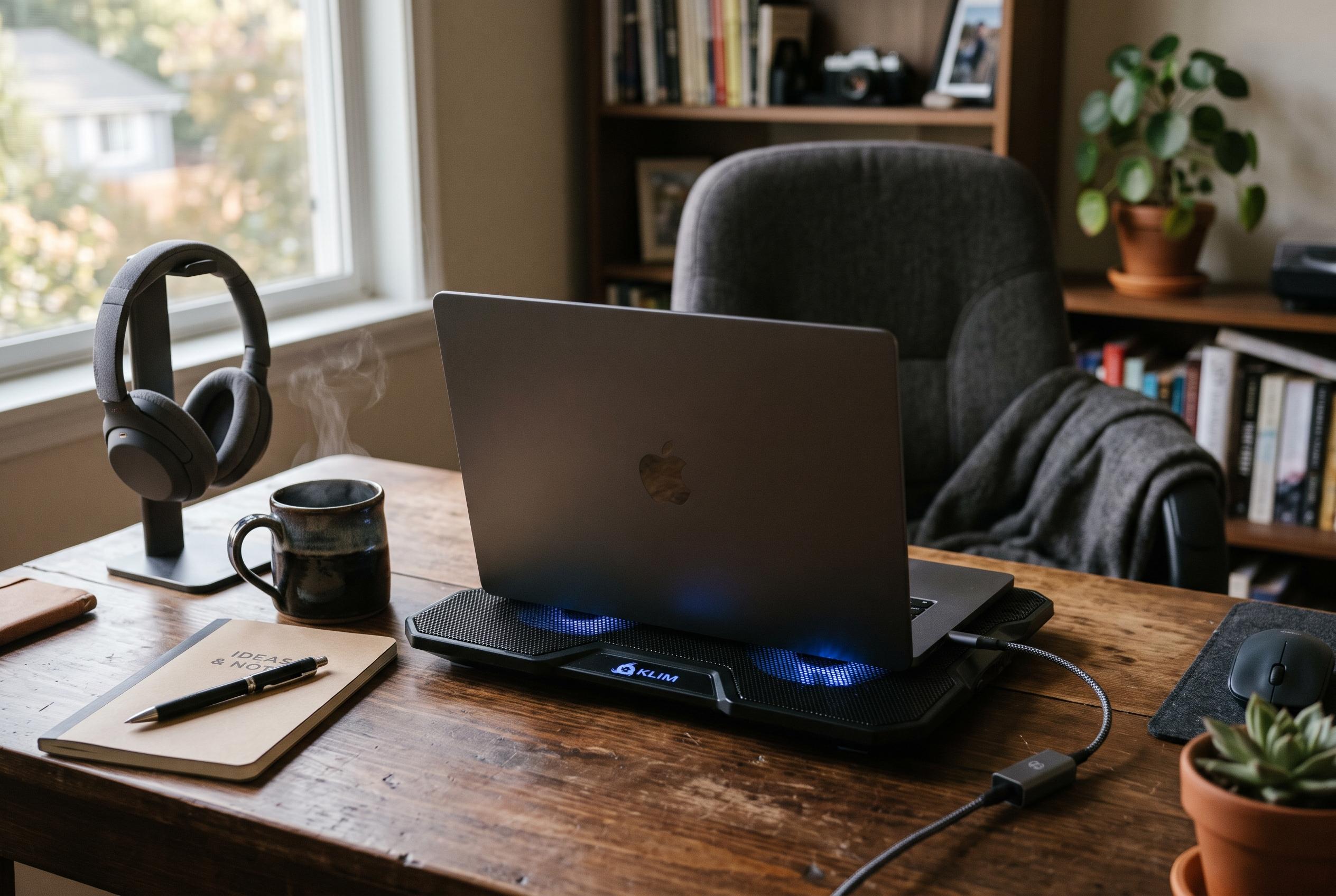

Modern Standby can leave some Windows 11 laptops quietly active, draining the battery and generating heat inside a bag. Here is how to check whether your machine is really asleep , and how to avoid the risk.
As the second wave of new laptops lands on desks and in school bags after the Singles’ Day sales period, a familiar problem has begun to surface again: users close the lid, put the machine away, and later discover that it has not truly gone to sleep. Reports have piled up across Chinese social platforms in recent weeks, echoing a longstanding complaint in the Windows laptop world: a device that looks idle may still be working hard enough to heat up inside a backpack and drain its battery at speed. According to coverage from Windows Latest and technical support discussions elsewhere, the issue is closely tied to Modern Standby, Microsoft’s low-power idle mode for Windows 11 devices.
The key distinction is simple but often misunderstood. Closing the lid does not necessarily mean the machine is off, or even fully suspended. In the traditional S3 sleep state, most components power down and the system draws only a tiny amount of electricity. Modern Standby, by contrast, keeps parts of the platform lightly active so that email, updates and network connections can continue in the background. Microsoft’s own support material and other technical explainers note that this can make a laptop feel more like a phone in standby, but it also means a device may remain warm and consume power if drivers or firmware do not manage the state cleanly.
That is why some users see wildly inconsistent results. A laptop may sleep harmlessly one night and wake up hot the next, depending on which driver, peripheral or background task has triggered activity. Support forums and vendor help pages describe exactly this pattern: unexpected wake-ups, battery loss and overheating that can be caused by incompatible drivers, power-management bugs or Windows updates interacting badly with the hardware stack. The problem is not always the brand itself. It is often the specific combination of motherboard firmware, wireless hardware and Windows power settings on that model.
A backpack makes the situation worse. Once the machine is sealed inside a confined, insulated space, heat has nowhere to go and vents may be partly blocked by fabric. Notebookcheck has reported that Modern Standby can leave laptops warm enough to become uncomfortable in enclosed spaces, while other technical articles on Dell and other machines describe the same pattern: the CPU, network adapter and related components may remain partially active, so the device keeps generating heat long after the screen has turned off. In that environment, battery drain and temperature rise reinforce each other.
There is, however, a practical way to check what your machine is actually doing. Microsoft and other technical sources recommend running powercfg /a in Command Prompt to see which sleep states the computer supports. If S0 low-power idle appears and S3 is absent, the machine is using Modern Standby rather than the older, deeper sleep state. A second command, powercfg /sleepstudy, can generate a report showing what woke the system and when, which is useful for identifying whether the network card, Bluetooth module or another component is keeping the laptop active when it should be resting.
For most people who regularly carry a laptop in a bag, the safest approach is still to use hibernation rather than sleep when closing the lid. Hibernation writes memory contents to storage and powers the machine down completely, which makes it far less likely to run hot in transit. Vendor support pages and Microsoft documentation also suggest that keeping firmware and drivers current can reduce wake-ups and heat problems, although results vary by model. The broader lesson is straightforward: before relying on lid closure as a travel mode, it is worth checking whether the machine is genuinely asleep, merely waiting, or quietly staying online.
Disclaimer: This content is intended for informational purposes only. Readers are advised to exercise their own judgement, conduct due diligence, or consult a qualified expert before acting on any information provided.